
TL;DR:
- Use SRT for editing, social uploads, and maximum platform compatibility, while VTT is essential for browser-native captions, styling, and streaming delivery. Converting between formats involves updating headers, timestamp punctuation, and cue numbering, but renaming files alone can cause playback issues. The choice depends on the delivery platform, with SRT suitable for editing and offline use, and VTT necessary for web-based and streaming environments.
Use SRT for editing, social uploads, and maximum platform compatibility. Use VTT when you need browser-native captions via the HTML5 <track> element, CSS styling, or HLS/DASH streaming delivery. That single rule covers the majority of real-world workflows.
- SRT (SubRip): plain-text, no required header, comma millisecond separator (
00:00:01,000), universally accepted by NLEs, social platforms, and most video players. - VTT (WebVTT): W3C-standardized format with a mandatory
WEBVTTheader, dot millisecond separator (00:00:01.000), CSS styling blocks, and native support in every modern browser’s HTML5<track>element. - YouTube accepts both formats for caption uploads, but browsers require WebVTT for native
<track>playback per the WHATWG web standards. - Converting between formats is straightforward but requires three specific changes: the file header, the timestamp punctuation, and (optionally) cue identifiers. Simply renaming a
.srtfile to.vttwill break playback.
Table of Contents
- What is an SRT file and why do editors love it?
- SRT vs VTT: how do they compare side by side?
- Where do SRT and VTT actually work?
- How to convert between SRT and VTT (and create files from scratch)
- When should you choose SRT or VTT for your project?
- How to export SRT or VTT from YouTube using Youtubetotranscript
- Key Takeaways
- The format debate misses the real workflow question
- Get SRT and VTT exports from any YouTube video in seconds
- Useful sources
- FAQ
What is an SRT file and why do editors love it?
SRT stands for SubRip Text, named after the SubRip software that originated the format. It is a plain-text file where each caption cue follows a strict four-part structure: a sequential cue number, a timestamp line, the caption text, and a blank line separator. That simplicity is exactly why it has remained the dominant interchange format for over two decades.
A minimal, valid SRT file looks like this:
1
00:00:01,000 --> 00:00:04,500
Welcome to the tutorial.

2
00:00:05,000 --> 00:00:08,000
Let's get started with the basics.
The timestamp format is HH:MM:SS,mmm, with a comma separating seconds from milliseconds. That comma is the single most common source of confusion when moving between SRT and VTT. Cue numbers are required and must be sequential. Save the file as UTF-8 (without a BOM) to avoid garbled characters in non-ASCII languages.
SRT’s greatest strength is its near-universal acceptance. Every major NLE (Premiere Pro, DaVinci Resolve, Final Cut Pro), most social platforms, VLC, and virtually every subtitle editor reads and writes SRT without issue. Its weakness is equally clear: no file header, no CSS styling, and no metadata support.
| Feature | SRT support |
|---|---|
| File header required | No |
| Timestamp separator | Comma (,) |
| CSS/inline styling | No (basic <b>, <i>, <u> tags only) |
| Metadata / NOTE blocks | No |
| Cue numbering | Required |
| Encoding recommendation | UTF-8 without BOM |
Pro Tip: If you receive an SRT file with garbled characters, open it in a text editor like Notepad++ or VS Code, check the encoding, and re-save as UTF-8 without BOM before uploading.
SRT vs VTT: how do they compare side by side?
The core difference comes down to purpose. SRT was designed for offline interchange and editing. VTT was designed for the web. Every technical difference flows from that distinction.
| Dimension | SRT | VTT |
|---|---|---|
| Styling and metadata | None (basic HTML tags only) | Full CSS, NOTE, REGION blocks |
| Timestamp separator | Comma (,) | Dot (.) |
| File header required | No | Yes (WEBVTT) |
| HTML5 native support | No | Yes (<track> element) |
| Editor/tool compatibility | Very broad | Good, improving |
| Best for | Editing, social uploads, archival | Browser players, HLS/DASH, iOS, styled captions |
The single most important choice driver: where will the captions be delivered? If the answer is a browser or an HLS/DASH stream, use VTT. If the answer is a social platform upload, an NLE timeline, or a simple file handoff, SRT is the safer pick.
When you convert between formats, three things must change: add or remove the WEBVTT header, swap the timestamp punctuation (comma ↔ dot), and optionally renumber or remove cue IDs. Renaming the file extension alone is never sufficient and will cause playback failures.
Where do SRT and VTT actually work?
Browser support is the clearest dividing line. Per the W3C WebVTT spec, the HTML5 <track> element only parses WebVTT. Chrome, Firefox, Safari, and Edge all enforce this. If you embed captions on a website using <track>, the file must be VTT.
Platform-by-platform breakdown:
- YouTube: accepts both SRT and VTT for manual caption uploads; auto-generated captions are stored internally and can be exported in either format.
- Vimeo: accepts SRT and VTT; VTT is preferred for its web player.
- HTML5 browsers (
<track>): VTT only, per spec. - HLS/DASH streaming (iOS, tvOS, web): VTT required for in-stream caption segments.
- Adobe Premiere Pro / DaVinci Resolve: SRT preferred for import/export; VTT support varies by version.
- VLC: reads SRT natively; VTT support is present but less consistent.
- TikTok / Instagram: SRT for manual caption uploads; neither platform supports VTT styling.
- LMS platforms (Canvas, Moodle, Coursera): typically accept both, but check your specific platform’s documentation.
Common pitfalls to avoid:
- Renaming
.srtto.vttwithout editing the file content. - Using a comma timestamp in a VTT file (browsers will reject the cue).
- Saving with a UTF-8 BOM, which breaks the
WEBVTTheader check in some parsers. - Assuming STYLE blocks survive platform upload (YouTube strips them).
Pro Tip: Before publishing captions to any new platform, download a test file, upload it, and play back the video to confirm captions render correctly. Platform documentation often lags behind actual behavior.
How to convert between SRT and VTT (and create files from scratch)
Converting SRT to VTT requires exactly three changes. Converting VTT to SRT requires the reverse, with one important caveat: any STYLE, NOTE, or REGION blocks in the VTT file are lost permanently in SRT, since the format has no equivalent.
SRT → VTT conversion steps:
- Open the
.srtfile in a plain-text editor (VS Code, Notepad++, Sublime Text). - Add
WEBVTTas the very first line, followed by a blank line. - Replace every comma millisecond separator with a dot:
00:00:01,000becomes00:00:01.000. - Optionally remove sequential cue numbers (they are optional in VTT).
- Save as UTF-8 without BOM and change the file extension to
.vtt. - Test in your target browser or player before publishing.
VTT → SRT conversion steps:
- Open the
.vttfile in a plain-text editor. - Delete the
WEBVTTheader line and the blank line below it. - Replace every dot millisecond separator with a comma:
00:00:01.000becomes00:00:01,000. - Add sequential cue numbers if they are missing (SRT requires them).
- Remove any STYLE, NOTE, or REGION blocks entirely.
- Save as UTF-8 without BOM and change the extension to
.srt.
A quick before/after showing the timestamp change:
# SRT (before)
1
00:00:01,000 --> 00:00:04,500
Welcome to the tutorial.

# VTT (after)
WEBVTT

1
00:00:01.000 --> 00:00:04.500
Welcome to the tutorial.
To embed a VTT file in an HTML5 page, use the <track> element:
<video controls>
  <source src="video.mp4" type="video/mp4">
  <track kind="captions" src="captions.vtt" srclang="en" label="English">
</video>
Automate conversions in your publishing pipeline whenever possible. Manual find-and-replace on large caption files introduces errors. Tools like ZeroSignTools’ SRT↔VTT converter handle header insertion, timestamp punctuation, and cue renumbering in one step.
For tooling, you have several reliable options: browser-based converters (ZeroSignTools, CaptionPass), NLE export menus (Premiere Pro and DaVinci Resolve both offer format selection on export), and command-line tools for batch workflows.
When should you choose SRT or VTT for your project?
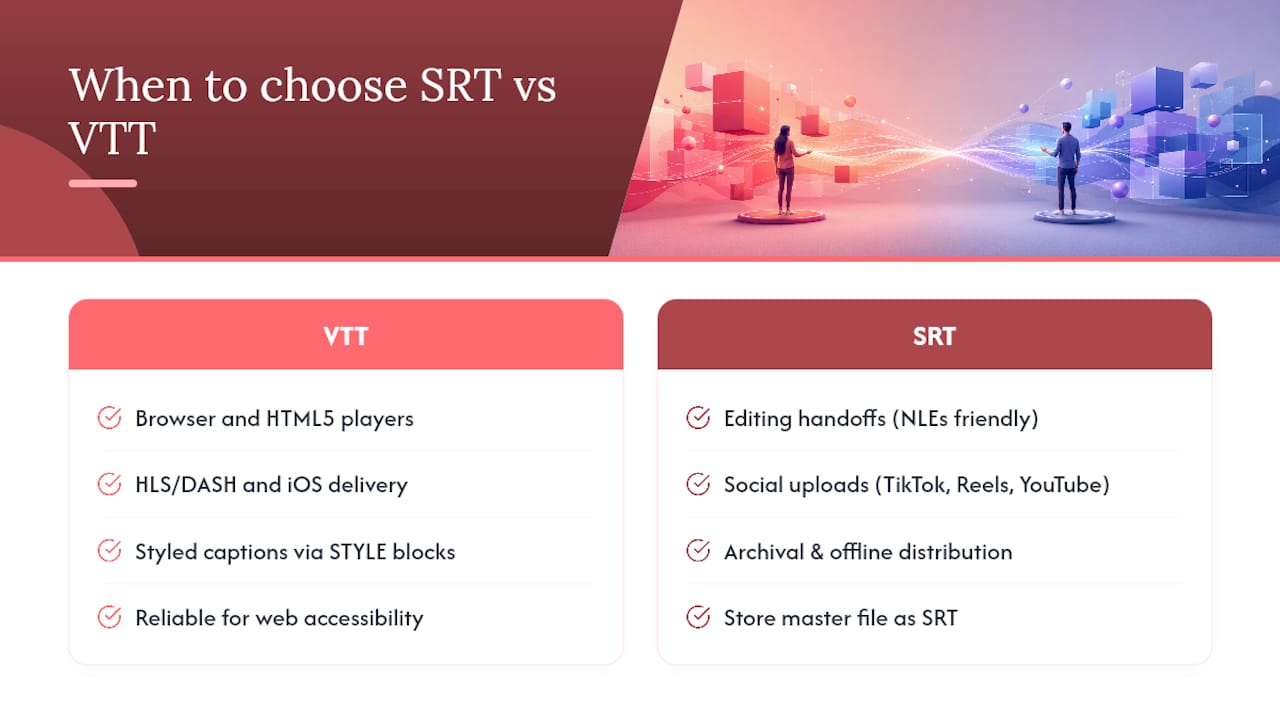
The rule of thumb: pick VTT for browser, HLS/DASH, and iOS delivery or when you need styled captions; pick SRT for editing, social uploads, and maximum compatibility.
Social video clips: Upload SRT. TikTok, Instagram Reels, and YouTube all accept SRT for manual caption tracks, and the format survives platform processing without surprises.
Corporate training on an LMS: Check your platform first. Canvas and Moodle accept both formats, but if the video is embedded in an HTML5 player, VTT is the safer choice for native caption rendering.
Online course or marketing site with a custom web player: Use VTT. If your player uses the HTML5 <track> element (most modern players do), VTT is required. You can also use STYLE blocks to match caption appearance to your brand.
Editing handoff between team members: SRT. Every editor and NLE handles it without configuration. Convert to VTT at the delivery step.
Archival or offline distribution: SRT. Its plain-text simplicity means it will be readable by any text editor decades from now, with no dependency on a specific parser.
Accessibility compliance: Format choice directly affects whether captions reach viewers who are deaf or hard of hearing. WCAG 2.2 guidance on prerecorded captions requires that captions be accurate and synchronized, but the format must also work in the delivery player. For web delivery, VTT in an HTML5 <track> element is the most reliable path to accessible and inclusive video experiences. For educators applying Universal Design for Learning principles, delivering captions in a format the player actually supports is the first requirement.
Pro Tip: Store your master caption file in whichever format your team edits most comfortably (usually SRT), then convert to VTT automatically during the build or upload step for web delivery.
How to export SRT or VTT from YouTube using Youtubetotranscript
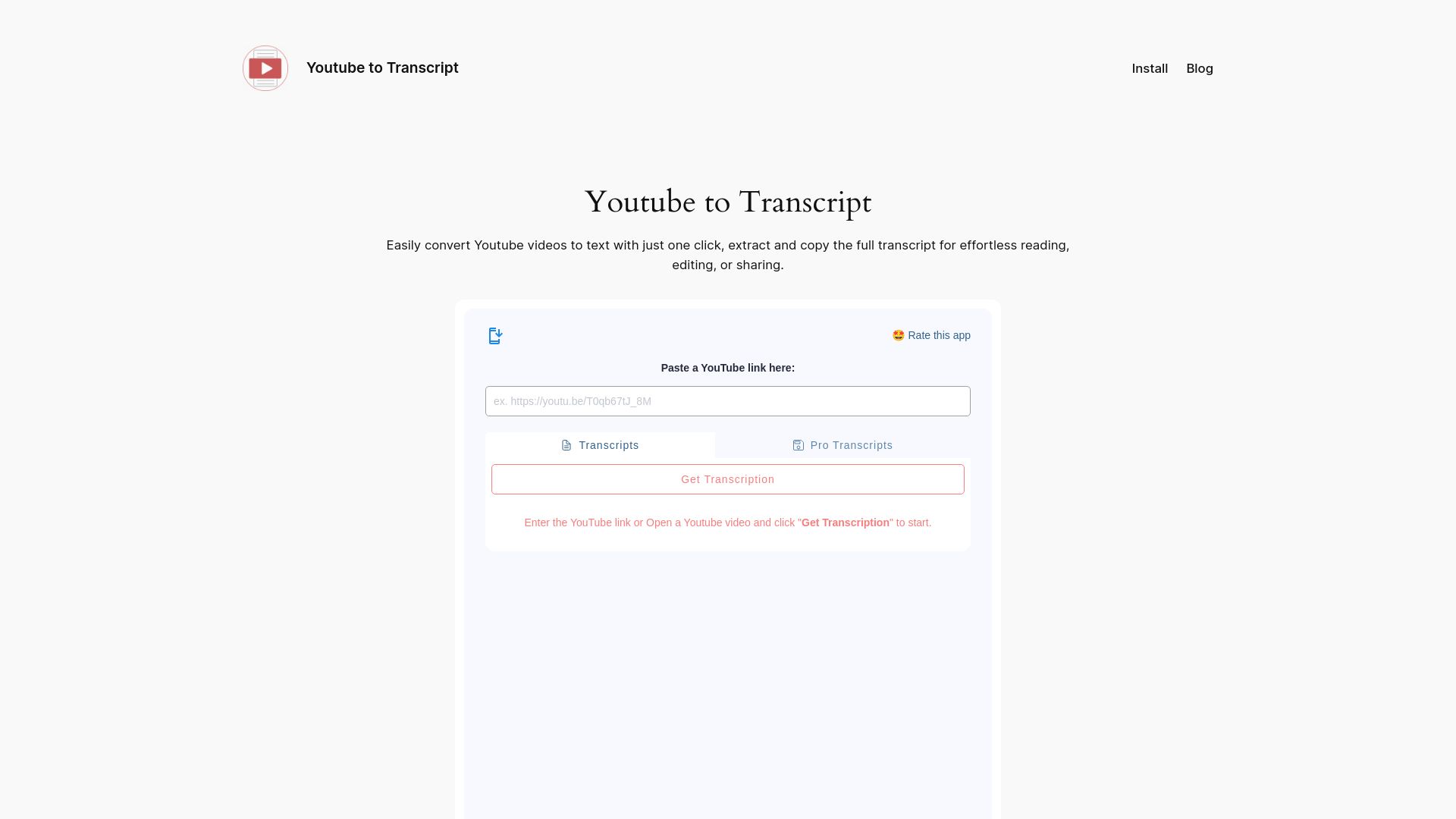
You can export both SRT and VTT directly from any YouTube video using Youtubetotranscript in three steps, without manually editing timestamps or headers.
- Paste the YouTube video URL into the Youtubetotranscript input field.
- Select your preferred export format: SRT, VTT, or TXT.
- Click export. The tool generates a properly formatted file with correct headers and timestamp punctuation for the chosen format.
Youtubetotranscript uses AI transcription, so it works even on videos without existing subtitles. It also supports translation into 89+ languages before export, which means you can pull a transcript, translate it, and download a ready-to-upload SRT or VTT file in one workflow.
Pro Tip: Before exporting, check the language detection setting in the preview pane. For multilingual videos, selecting the correct source language improves timestamp accuracy. Also confirm the output is UTF-8 without BOM, especially if you plan to use the file in a browser-based player.
The tool stores transcripts in the cloud, so you can return to edit or re-export in a different format without re-processing the video.
Key Takeaways
SRT is the right default for editing and social uploads; VTT is required for browser-native HTML5 captions, HLS/DASH streaming, and any workflow that needs CSS styling.
| Point | Details |
|---|---|
| Format choice by delivery | Use VTT for browsers and HLS/DASH; use SRT for editing, social, and archival. |
| Three conversion changes | Swap header, change comma to dot (or reverse), and add/remove cue numbers. |
| Renaming is not converting | Changing the file extension without editing content breaks playback in every browser. |
| VTT→SRT is lossy | STYLE, NOTE, and REGION blocks are permanently lost when converting to SRT. |
| Youtubetotranscript export | Exports correctly formatted SRT or VTT from any YouTube URL, including AI transcription for videos without subtitles. |
The format debate misses the real workflow question
Most articles on SRT vs VTT spend their energy on feature lists. The more useful question is: where does your caption file end up, and who touches it between creation and delivery?
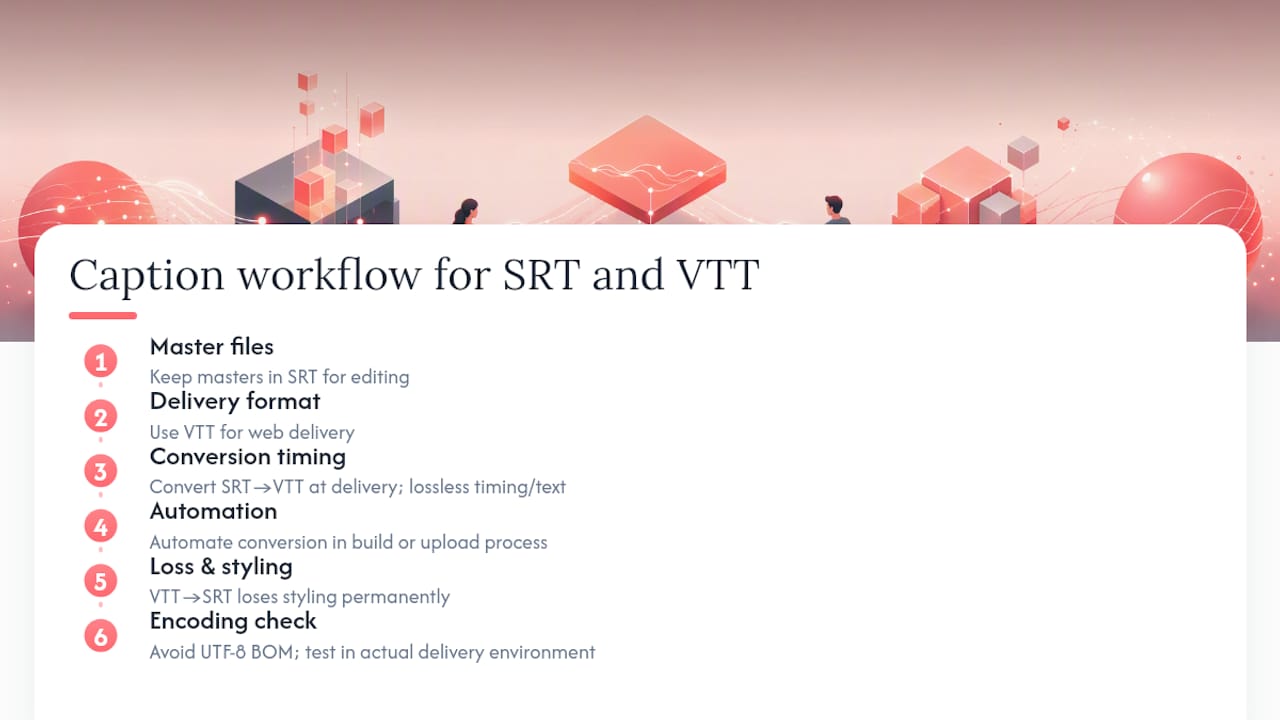
The SRT vs VTT comparison is often framed as a competition, but in practice they serve different stages of the same pipeline. SRT is the editing format. VTT is the delivery format for the web. Treating them as rivals leads teams to pick one and then fight the platform when it rejects the wrong choice.
The pattern that actually works: keep masters in SRT for easy editing across tools and team members, then convert to VTT at the point of web delivery. Automate that conversion in your build or upload process so no one is manually swapping commas for dots at 11 PM before a launch. The conversion is lossless for timing and text in the SRT→VTT direction. Going the other way, VTT→SRT, you lose styling permanently, so if styled captions matter, keep the VTT as your master for web-facing content.
One thing that genuinely gets overlooked: encoding. A UTF-8 BOM at the start of a VTT file silently breaks the WEBVTT header check in many browsers. The file looks fine in a text editor. It fails in the player. Test in the actual delivery environment, not just in VLC.
Get SRT and VTT exports from any YouTube video in seconds
Manually transcribing a YouTube video and formatting it as a valid SRT or VTT file takes time most creators do not have. Youtubetotranscript cuts that to a single step: paste a URL, choose your format, and download a properly structured file.
The tool exports both SRT and VTT with correct headers and timestamp punctuation, supports AI transcription for videos without subtitles, and stores your transcripts in the cloud for later re-export or translation into 89+ languages. There is a free tier for basic use, with Pro plans available for higher volume, batch processing, and priority transcription.
Start exporting transcripts in SRT or VTT from any YouTube video now, no manual formatting required.
Useful sources
- W3C WebVTT specification (webvtt1)
- WCAG 2.2 understanding: captions (prerecorded)
- SRT vs VTT — Which Subtitle Format Should You Use? | SubtitleOps
- SRT to VTT Converter & SRT vs VTT — Free Online Tool · CaptionPass
- SRT to VTT Converter | Convert Subtitles Online (.srt and .vtt)
- VTT vs SRT: Subtitle Format Differences for Developers – LiveAPI Blog
- SRT vs VTT Compared | File Formats
- WHATWG (web standards)
FAQ
Is VTT better than SRT?
VTT is better for browser-native and streaming delivery; SRT is better for editing and social uploads. Neither format is universally superior — the right choice depends on where the captions will be played.
Are SubRip and SRT the same thing?
Yes. SRT stands for SubRip Text, named after the SubRip application that created the format. The terms are interchangeable.
Does YouTube use SRT or VTT?
YouTube accepts both SRT and VTT for manual caption uploads. Youtubetotranscript can export either format directly from a YouTube URL, including AI-generated transcripts for videos without existing subtitles.
Is VTT the same as SRT?
No. VTT (WebVTT) and SRT (SubRip) share a similar cue structure, but VTT requires a WEBVTT header, uses a dot millisecond separator instead of a comma, and supports CSS styling and metadata blocks that SRT cannot represent.
Can I just rename an SRT file to VTT?
No. Renaming the file extension without editing the content will break playback in any browser or player that enforces the WebVTT spec. You must add the WEBVTT header and replace comma separators with dots.
Leave a Reply