
If your transcript has a handful of wrong words, edit them directly in YouTube Studio or fix them with search-and-replace. If errors repeat throughout the video (wrong names, missing lines, garbled jargon), clean up the audio and re-run the transcription, or replace the auto-track with a corrected SRT/VTT file. If the audio is a mess or the transcript needs to be exact, skip the patching, and bring in a human proofreader or re-record.
TL;DR:
- Background noise, accents, jargon, overlapping speakers, and low-quality audio are the main factors causing YouTube transcript errors, often requiring audio cleaning and manual correction.
- Fix names and technical terms first to address errors that viewers notice most, then focus on numbers and speaker attribution before editing punctuation and formatting.
- Improving room acoustics, microphone placement, and recording in uncompressed formats before filming significantly reduces the need for post-upload corrections.
- Re-running transcription after audio cleanup yields better results, especially when working from original uncompressed files, but complex audio issues may still require human proofreading.
- YouTube’s transcription accuracy can vary over time due to model updates, so re-testing previously problematic videos may improve captions without additional editing efforts.
Table of Contents
- Why Your YouTube Transcript Has Errors
- The 3-Minute Triage: What to Fix Right Now
- The Editing Order That Saves You the Most Time
- Preventing Errors Before You Even Hit Record
- When to Stop Patching and Bring in a Human
- How Youtube to Transcript Handles These Error Modes
- Transcript Errors Look Different Depending on the Language
- Tools Worth Using to Catch and Fix Errors
- Why Your Transcripts Change Over Time (and What That Means for You)
- What I’ve Learned Cleaning Up Transcripts
- Get Cleaner Transcripts Without the Editing Marathon
- Sources
- FAQ
Why Your YouTube Transcript Has Errors
Most YouTube transcript errors trace back to one of six predictable problems. Automatic speech recognition doesn’t fail randomly. It fails when the audio gives it too little to work with, forcing the model to guess at sounds it can’t confidently match to words.
Here’s what typically breaks a transcript:
- Background noise or echo: fans, traffic, room reverb, or a hollow-sounding space add competing audio the model has to filter out, and it often filters wrong.
- Accents and fast speech: automatic speech recognition is trained on broad speech patterns, so heavy accents or rapid delivery increase the odds of misheard words.
- Jargon and proper nouns: technical terms, brand names, and unusual names have no common pattern to match against, so the model substitutes the closest-sounding real word.
- Overlapping speakers: when two people talk at once, the transcript often merges both voices into a garbled line or drops one speaker entirely.
- Music or sound effects under dialogue: background audio competes with speech and can get transcribed as nonsense text or swallow words completely.
- Low-quality or compressed audio: heavily compressed files strip out the subtle acoustic detail speech recognition relies on, which is why background noise, accents, and low-quality audio top the list of caption complaints.
You can usually spot the cause by pattern. Random single-word mistakes scattered across an otherwise clean transcript point to accent or speed issues. Whole phrases missing or garbled in the same stretch usually mean overlapping speakers or a noise spike at that timestamp.
The 3-Minute Triage: What to Fix Right Now
Before you touch a single word, spend three minutes diagnosing the problem. Guessing at a fix wastes more time than the triage itself.
- Listen to 30 seconds of the original audio. Is it clean, or is there hiss, echo, or overlapping voices?
- Scan the transcript for a pattern. Are errors scattered and occasional, or clustered and constant?
- Count the speakers. One voice is easiest to fix; three overlapping voices usually means a deeper audio problem.
Once you know the pattern, match it to a fix:
- Few, scattered errors: edit directly in YouTube Studio’s caption editor, or paste the transcript into a text editor and run find-and-replace for repeated mistakes.
- Systematic errors throughout: extract the audio as a WAV file, run a denoise and normalize pass in free software like Audacity, then re-run the transcription with the correct language setting selected and a custom vocabulary list if your tool supports one.
- Missing transcript or unavailable panel: some videos never generate a caption track, or the panel disappears entirely. In that case, use a dedicated extraction workflow rather than waiting for YouTube to catch up. Tools that handle this gap are covered in guides on what to do when the transcript panel is unavailable.
Re-running transcription after cleaning the audio genuinely works. Even modest improvements, like moving the mic six inches closer or muting a fan, tend to show up as fewer errors on the next upload, though names and jargon still usually need a manual pass no matter how clean the audio gets.
Pro Tip: Keep the original raw audio file, not just the exported video. If you need to re-run transcription later, working from the uncompressed source gives the model far more to work with than pulling audio back out of a compressed MP4.
The Editing Order That Saves You the Most Time
Editing a transcript top to bottom, line by line, is the slowest way to do it. A prioritized order fixes the errors that matter most first and prevents you from re-checking the same line twice.
Work in this sequence:
- Names and jargon first. These are the errors a machine will never guess correctly on its own, and they’re the ones readers notice fastest.
- Numbers, dates, and units next. A misheard “50” for “15” or “meters” for “minutes” changes the meaning of a sentence, so catch these before formatting.
- Speaker attribution third. Once names are correct, go back and confirm the right words are assigned to the right speaker.
- Punctuation and formatting last. Commas, paragraph breaks, and line length are the least consequential errors and the fastest to clean up once the content itself is right.
This order isn’t arbitrary. A prioritized editing sequence that tackles names and numbers before punctuation cuts total cleanup time compared with reading straight through and fixing whatever you spot first.
Build a short glossary as you go. If a video mentions “Kubernetes” five times and the transcript keeps writing “cooper netties,” add the correct spelling to a running list, then use find-and-replace with whole-word matching and case sensitivity turned on. Fix these in small batches rather than replacing every instance across the whole file at once. That prevents a bad match from silently corrupting a word you didn’t mean to touch.

If you’re exporting captions for upload, keep lines short (under 40 characters works well for readability) and set timestamp breaks at natural pauses. When more than a third of a transcript needs correction, regenerating captions from a cleaned audio file is usually faster than editing line by line.
For quality checks, don’t read every line at normal speed. Play the video back at 1.25x or 1.5x speed while skimming the transcript. You’ll catch mismatches just as reliably in half the time.
Preventing Errors Before You Even Hit Record
The cheapest fix for youtube transcript errors is never needing one. A few habits before and during recording eliminate most of the problems covered above.
- Position your microphone correctly. Six to twelve inches from your mouth, off-axis to avoid popping consonants, in a room with soft furnishings to absorb echo.
- Watch your input levels. Aim for a peak around -12 to -6 dB. Audio that clips distorts the waveform in ways speech recognition can’t recover from.
- Handle overlap deliberately. If you’re recording with a guest, ask each person to speak one at a time, especially when saying names, numbers, or technical terms.
- Confirm spellings before you record. Get correct spellings for names and jargon in advance, and consider stating them clearly on camera once for the record.
- Record in an uncompressed or lightly compressed format. WAV or FLAC at 44.1 or 48 kHz gives transcription models the most detail to work with; if you must use MP3, keep the bitrate high.
None of this guarantees a flawless transcript. But audio quality remains the single biggest variable in transcription accuracy, and fixing it before recording is far less work than fixing it after.
When to Stop Patching and Bring in a Human
Not every transcript is worth fixing with another AI pass. Some situations call for a person, not another algorithm.
- The content is high-stakes. Legal proceedings, medical instructions, or direct quotes you plan to publish need verified accuracy, not a best guess.
- Numbers and figures are load-bearing. If a mistranscribed number changes the meaning (a dosage, a price, a statistic), don’t risk it on automation alone.
- The audio has multiple failure modes at once. Heavy overlap, poor mic quality, and thick accents together usually push error rates past what a quick edit can fix.
- You’ve already run two cleanup passes with no improvement. At that point, the audio itself is likely the ceiling, not the software.
If you hand a transcript to a human proofreader, give them a short brief: your glossary of names and terms, and the specific timestamps you already flagged as risky. That context alone saves them from re-diagnosing problems you’ve already solved.
How Youtube to Transcript Handles These Error Modes
Youtubetotranscript builds directly around the fixes above. One-click transcription works even on videos without existing subtitles, so a missing caption panel stops being a dead end. Multi-language translation across 89+ languages helps multilingual learners and creators working across audiences, and cloud storage means your corrected transcript and glossary terms don’t disappear between sessions.
Export to TXT, SRT, or VTT gets you caption-ready files without reformatting by hand, and batch processing lets you re-run multiple videos at once after cleaning up audio, instead of repeating the process one file at a time. Timestamp controls make sampling QA at flagged points faster, which shortens the review loop that usually eats the most time.
Transcript Errors Look Different Depending on the Language
A transcript’s error pattern shifts depending on the language and dialect being transcribed, which is worth knowing before you assume your tool is broken. English automatic speech recognition tends to perform best overall, simply because it has the largest volume of training data behind it. Regional dialects and heavy accents within English, though, still produce more substitution errors than a neutral broadcast accent.
Languages with tonal distinctions, like Mandarin or Vietnamese, are more sensitive to background noise because pitch carries meaning. A noisy room doesn’t just obscure words in these languages; it can flip the meaning of a syllable entirely. Languages with fewer digitized training resources generally show higher error rates across the board, regardless of how clean the audio is.
Code-switching, where a speaker moves between two languages mid-sentence, is one of the toughest patterns for any automatic transcription system. The model has to decide which language it’s hearing in real time, and it frequently guesses wrong at the switch point, producing a garbled word or two right at the transition.
If you’re transcribing multilingual content, set the correct language manually rather than relying on auto-detection, and expect to spend more editing time on the transition points between languages than on the rest of the transcript combined.
Tools Worth Using to Catch and Fix Errors

You don’t need a complicated toolkit to clean up a transcript, but a few categories of software make the process faster.
For audio cleanup before re-running transcription, free tools like Audacity handle denoising and normalization well enough for most creators. Paid options add automated presets, but the core process (isolate noise, reduce it, normalize levels) is the same either way.
For catching errors after transcription, a plain text editor with find-and-replace covers most of the work. What matters more than the tool is the workflow: build your glossary first, then search and replace in small, whole-word, case-sensitive batches so you don’t introduce new mistakes while fixing old ones.
For caption formatting and export, you want something that outputs directly to SRT or VTT rather than plain text you have to reformat by hand. This is where a dedicated transcription tool earns its keep over a general text editor, especially when you’re managing timestamp accuracy across a long video.
If your source recording captured speakers on separate channels, splitting those channels before transcription can noticeably improve accuracy on diarization. Feeding the model a single voice per channel gives it a much cleaner signal to separate speakers than trying to untangle overlapping voices from one merged track.
Why Your Transcripts Change Over Time (and What That Means for You)
If a video you uploaded a year ago suddenly has a noticeably better or worse transcript than one you upload today, that’s not a fluke. YouTube periodically updates the automatic speech recognition models running behind its captions, and those updates change accuracy in ways that aren’t always announced.
An update that improves accent handling for one language can, in some cases, slightly worsen performance on a different accent or dialect the model wasn’t specifically retrained on. This is why two creators uploading similar content in the same month can report very different caption quality. They’re not necessarily doing anything differently. They may simply be hitting a model version that handles their particular voice, accent, or audio setup better or worse.
The practical takeaway is that a transcript problem today isn’t necessarily permanent. If you had a bad experience with automatic captions six months ago, it’s worth testing again rather than assuming the tool hasn’t improved. On the flip side, don’t assume today’s accuracy is the ceiling either. Clean audio and correct language settings still matter more than whatever model version happens to be running.
This is also why re-running a transcription weeks after the first attempt sometimes produces different results even with identical audio. The underlying model has shifted slightly, and that shift can work in your favor or against it.
What I’ve Learned Cleaning Up Transcripts
The biggest mistake I see is treating every transcript error the same way, reading top to bottom and fixing whatever’s wrong in the order it appears. That’s backwards. Fix names first, always. A wrong name undermines a viewer’s trust in the whole transcript faster than a missing comma ever will.
Keep a rolling glossary across every project, not just one video. The same technical terms, brand names, and guest names tend to show up again, and a saved glossary turns a ten-minute fix into a thirty-second one. Cleaned audio beats a second AI pass on the original file almost every time. If you’re going to re-run transcription, fix the source first.
— Vitaly Prius
Get Cleaner Transcripts Without the Editing Marathon
Cleaning up a bad transcript by hand works, but it costs you time you could spend making content instead of fixing captions. Youtubetotranscript cuts that editing loop down by handling the parts that usually cause the most rework: transcription that works even without existing subtitles, translation across 89+ languages, and exports that land directly in SRT or VTT format ready for upload.
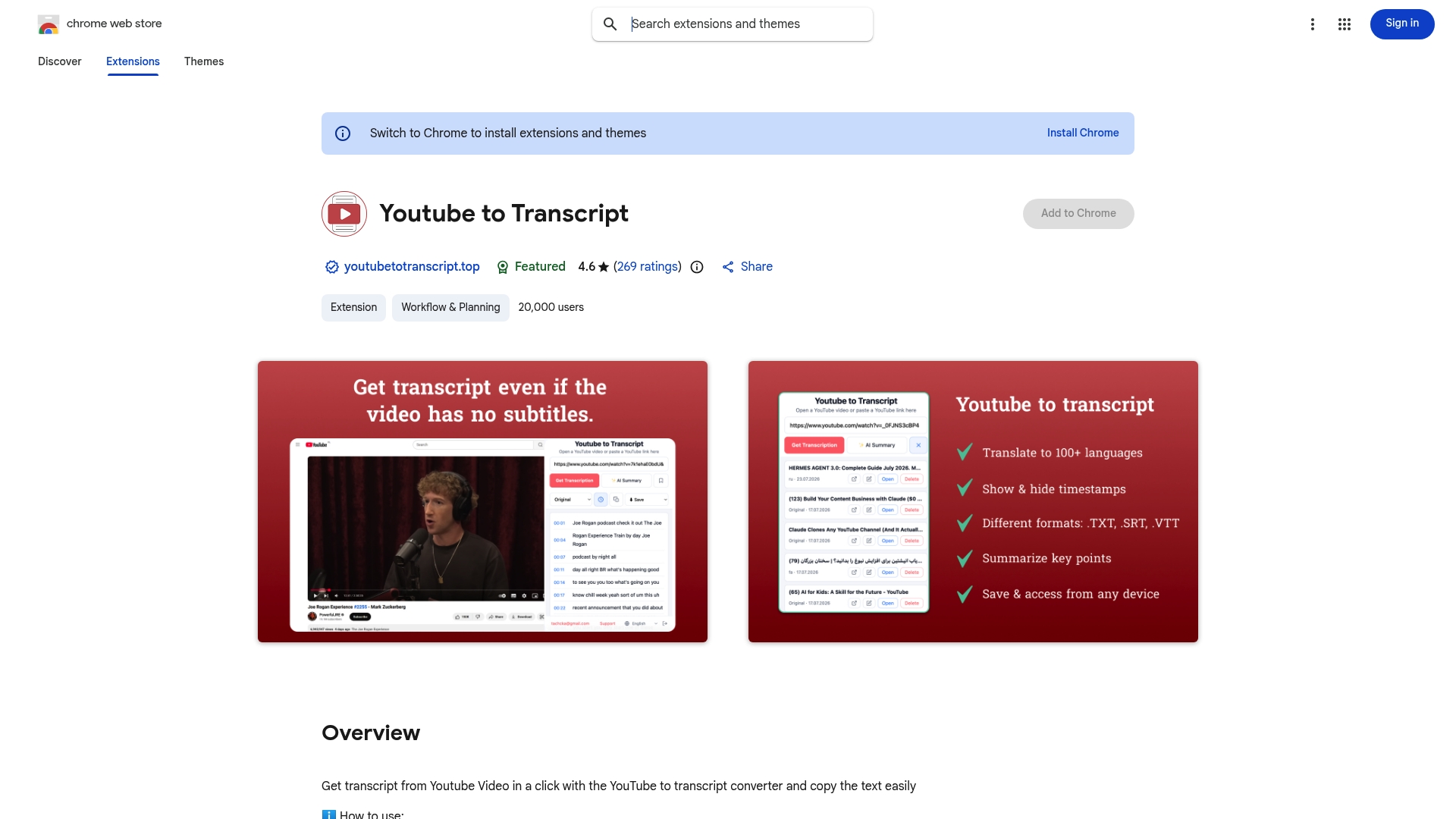
The free tier covers basic one-click transcription so you can test the accuracy on your own content before committing to anything. The Pro plan adds cloud storage for your transcripts and glossary work, plus batch processing so you can re-run several videos at once after cleaning up audio, rather than repeating the process file by file.
Getting started takes three steps: install the Youtube to Transcript extension, paste in a video link, and export your transcript in the format you need. From there, apply the editing workflow above, names and numbers first, and you’ll have a clean, caption-ready file in a fraction of the time a manual read-through takes.
Sources
- Why Are My YouTube Auto Captions Wrong? (2026) | File Transcribe
- How to Fix an Inaccurate AI Transcript (Fast Checklist) | GoTranscript
- How to Improve Video Transcription Accuracy (2026 Guide) – VidNotes Blog
FAQ
Why is my YouTube transcript full of errors?
Automatic captions typically fail due to background noise, accents, jargon, overlapping speakers, or low-quality audio, all of which force the speech recognition model to guess at unclear sounds.
How do I fix YouTube transcript errors quickly?
For a few scattered errors, edit directly in YouTube Studio or use find-and-replace; for widespread errors, clean the audio and re-run the transcription or replace the auto-track with a corrected SRT/VTT file.
What should I fix first when correcting a transcript?
Fix names and jargon first, then numbers and dates, then speaker attribution, and finish with punctuation and formatting, since this order prevents the most rework.
Can improving my recording setup really reduce transcript errors?
Yes. Audio quality is the single biggest variable in transcription accuracy, and modern systems can reach very high accuracy on clean, single-speaker audio, though real-world recordings usually perform lower.
When should I use a human instead of AI for transcription?
Use human proofreading or re-recording for high-stakes content like legal, medical, or quoted material, or when audio has multiple failure modes (heavy overlap, poor mic quality, thick accents) that repeated AI passes haven’t resolved.
Does Youtubetotranscript work on videos without existing captions?
Yes, Youtubetotranscript generates transcripts even from videos that have no subtitle track, and supports exporting the result to TXT, SRT, or VTT for editing or upload.