

The fastest reliable way to clean up a transcript is to run it through a browser-based cleaner first, then do a single AI prompt pass for grammar and paragraphing. For YouTube-sourced content, Youtubetotranscript handles the import and initial formatting in one step, so you skip the copy-paste stage entirely.
Here is what “cleaning a transcript” actually covers:
- Remove filler words: Strip “um,” “uh,” “like,” “you know,” and “I mean” from the raw text.
- Fix punctuation and capitalization: Restore sentence-ending periods, commas, and capitalize transcript text correctly.
- Collapse repeated lines: Raw live captions often duplicate prior phrases (“rollup” artifacts) that need deduplication.
- Tag speakers: Replace generic “Speaker A/B” labels with real names.
- Fix or strip timestamps: Keep them for SRT exports, remove them for prose or blog drafts.
- Structure the content: Add headers, summaries, and section breaks for readability.
Key Takeaways
Cleaning a transcript reliably comes down to a consistent sequence: browser clean first, AI prompt second, human skim last.
| Point | Details |
|---|---|
| Browser clean first | Run a free browser cleaner to strip fillers, rollup artifacts, and broken lines before any AI pass. |
| Use copy-paste AI prompts | A single prompt for filler word removal plus punctuation handles most grammar fixes in 2–3 minutes. |
| Protect technical terms | Paste a project glossary into your AI prompt to prevent rewrites of product names and acronyms. |
| Match the tool to the job | Human editors are worth the cost for heavy accents or dense crosstalk. |
| YouTube-first shortcut | Youtubetotranscript imports any YouTube URL and exports TXT, SRT, or VTT, skipping the manual copy-paste stage. |
Table of Contents
- What does cleaning a transcript mean, step by step?
- How to clean the transcript text: filler words, grammar, and fragments
- How to add or fix speaker labels and diarization
- How to format timestamps and captions for SRT exports
- How to turn a cleaned transcript into sections and repurposed content
- Which tool or method should you use to clean a transcript?
- Ready-to-use AI prompts for cleaning, labeling, and summarizing
- How long does cleaning take, and what does it cost?
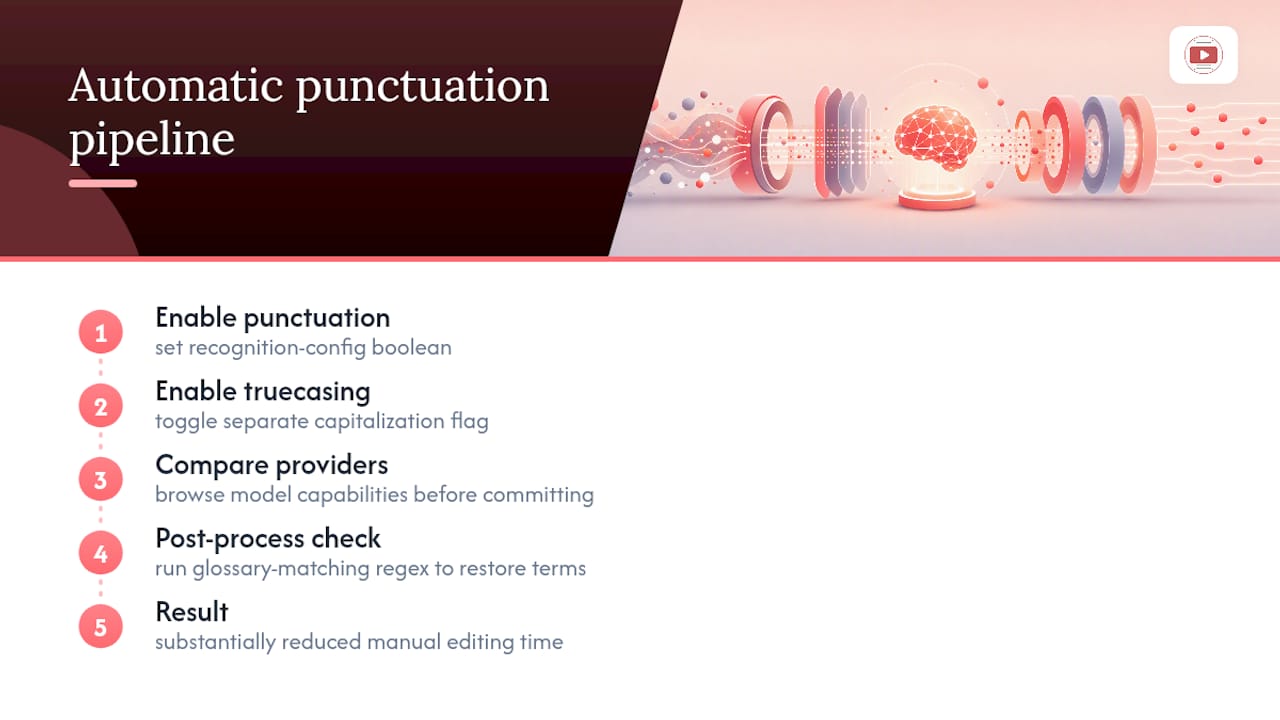
- How to enable automatic punctuation in your STT pipeline
- An editorial perspective on the default workflow
- Youtubetotranscript cuts the import step out of your workflow
- Sources
- FAQ
What does cleaning a transcript mean, step by step?
A clean transcript is readable, accurate, and structured for its intended use. The five-step workflow below covers every transcript type, from a raw YouTube auto-caption to a recorded meeting.
- Clean the text (mandatory): Remove filler words, fix stutters, collapse rollup duplicates, and restore punctuation. This is the highest-impact step.
- Label speakers (optional, ~5–10 min): Replace generic tags with real names if the transcript will be published or shared.
- Fix or format timestamps (optional, ~5 min): Keep timestamps for SRT/VTT caption exports; strip them for blog posts or meeting notes.
- Structure into sections (optional, ~10 min): Add H2/H3 headers, a summary paragraph, and pull quotes.
- Repurpose the content (optional, ~10–20 min): Turn the cleaned text into show notes, a blog draft, or social clips.
You can stop after step one for internal notes. For published content, steps one through four are worth the time.
How to clean the transcript text: filler words, grammar, and fragments
Raw transcripts are messy in predictable ways. Knowing exactly what to fix makes the process fast.
What to remove: Filler words (“um,” “uh,” “like,” “you know,” “I mean”), false starts (“I — I think — what I mean is”), and stuttered repetitions (“the the the”). Free tools like Transcript Cleaner handle these automatically in the browser, with no file upload required.
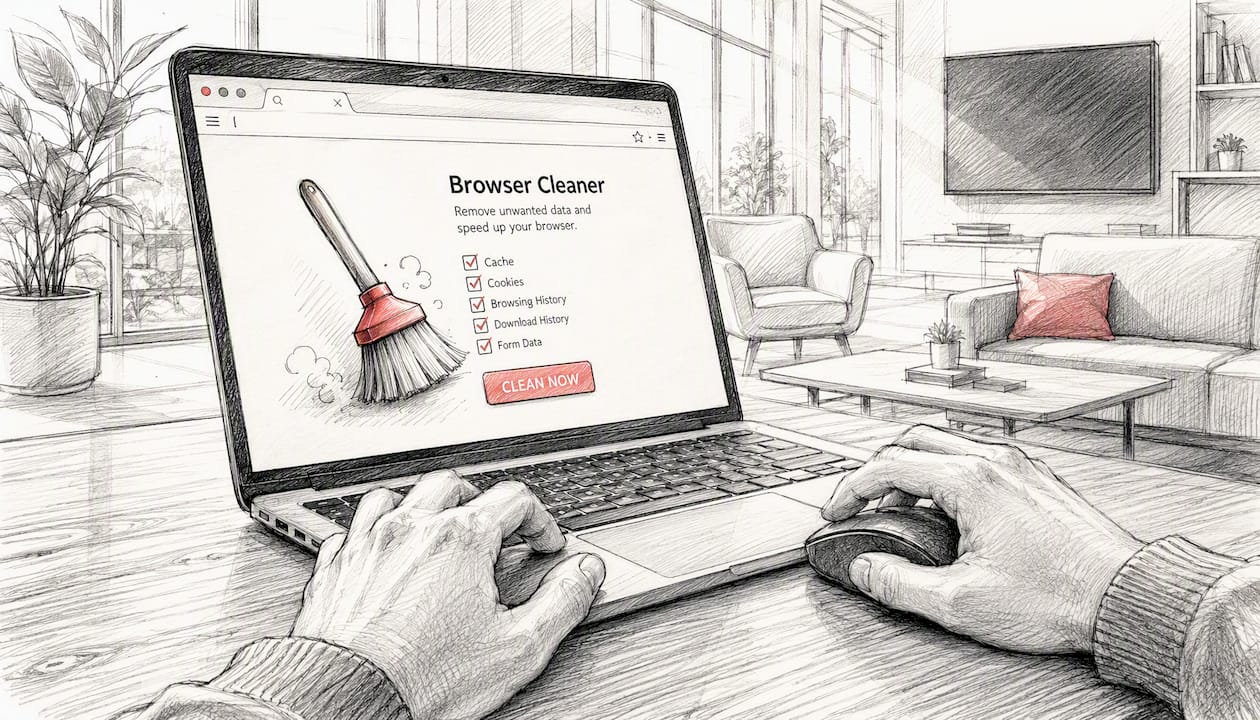
What to fix: Missing punctuation, incorrect capitalization, and broken sentence fragments. A sentence like “so we launched in march and uh the numbers were good you know” becomes “We launched in March, and the numbers were good.”
Rollup artifacts deserve special attention. Live captions often repeat prior words on each new line, producing output like:
This requires deduplication logic that checks overlap between adjacent lines, not just a filler-word filter.
Before:
After:
Pro Tip: Build a project glossary before you run any AI cleanup. List every technical term, product name, and acronym the speaker uses. A project-specific glossary is the most reliable way to prevent AI models from rewriting or hallucinating specialized terms.
How to add or fix speaker labels and diarization
Automatic diarization assigns generic tags like “Speaker 1” and “Speaker 2.” That is fine for a quick personal reference, but published transcripts need real names.
When automatic labels are good enough:
- Internal notes or first-draft reviews where you know who spoke
- Single-speaker recordings (podcasts, lectures, solo videos)
- Transcripts you will repurpose into prose where speaker attribution disappears
When to label manually:
- Published interviews, panel discussions, or meeting minutes
- Any transcript where the speaker count exceeds two (diarization accuracy drops noticeably above three speakers)
- Legal or compliance records
Manual labeling checklist:
- Listen to the first 60 seconds and note each speaker’s voice characteristics.
- Search the transcript for name cues (“Thanks, Sarah,” “As John mentioned”) and confirm them against timestamps.
- Replace every instance of “Speaker 1” with the confirmed name using a global find-and-replace.
- Standardize the format throughout: use “SARAH:” or “Sarah:” consistently, never both.
- Do a final skim to catch any missed tags near crosstalk or interruptions.
How to format timestamps and captions for SRT exports
Timestamps serve two different purposes depending on your output. For SRT or VTT caption files, they are mandatory and must follow strict formatting rules. For blog posts or meeting notes, strip them entirely so the prose reads cleanly.
Caption formatting rules:
- Keep each caption line to 42 characters or fewer.
- Aim for a reading speed of 17 words per minute for general audiences, slightly faster for tech content.
- Each cue should last 1–7 seconds; avoid cues shorter than one second.
- Never break a line mid-clause (“We launched the product / in March” is fine; “We launched / the product in March” is not).
- Merge broken caption lines into complete sentences before exporting. Free online tools support .srt and .vtt cleaning, merging broken lines into paragraphs, and removing SRT sequence numbers.
Example of a properly formatted SRT cue:
1
00:00:04,200 --> 00:00:07,800
We launched the product in March,
and the numbers were strong.
The sequence number, timecode, and two-line caption block are all required. Missing any one of them breaks most subtitle players.
How to turn a cleaned transcript into sections and repurposed content
A cleaned transcript is raw material. Structuring it takes another 10–20 minutes and multiplies its usefulness.
Suggested header structure for a 30-minute interview:
- Introduction (00:00–02:30): Guest background and episode framing
- Main topic (02:30–18:00): Core discussion, key claims, and examples
- Practical takeaways (18:00–26:00): Actionable advice the guest shared
- Closing (26:00–30:00): Resources, links, and sign-off
Repurpose checklist:
- Show notes: Pull the three strongest quotes and list any tools or resources mentioned.
- Blog draft: Use the header structure as your H2 outline; expand each section with the speaker’s exact phrasing, then edit for prose flow.
- Social clips: Mark timestamps where the speaker delivers a punchy one-liner or a surprising stat.
- Meeting minutes: List decisions made, action items, and owners; strip everything else.
The header structure above works for podcasts, YouTube interviews, and recorded webinars. For meeting transcripts, replace the time-based headers with agenda items.
Which tool or method should you use to clean a transcript?
The right approach depends on your priorities: speed, cost, accuracy, or privacy. Here is a practical breakdown.
Free browser cleaners
- Pros: Instant, no account needed, privacy-safe (many process entirely in the browser without storing data on a server), handle filler words and SRT artifacts well.
- Cons: Heuristic-based, so complex sentences may not segment perfectly; a short human skim after automated cleanup is best practice.
Local Whisper workflows
- Pros: High accuracy, runs offline, no data leaves your machine, supports 90+ languages.
- Cons: Requires Python setup, GPU helps for speed, no built-in punctuation by default.
Cloud STT with automatic punctuation
- Pros: Fast, scalable, punctuation and truecasing often built in; you can compare transcription models across providers to find the best fit.
- Cons: Data leaves your machine; costs scale with volume.
Human editing services
- Pros: Highest accuracy, handles accents and crosstalk, produces publication-ready output.
- Cons: Slowest and most expensive option; turnaround is typically 24–48 hours.
For YouTube-first workflows, Youtubetotranscript is the most direct path. It imports any YouTube URL, applies timestamp controls, and exports in TXT, SRT, or VTT without requiring you to download the video or run a local script. A scripted pipeline using yt-dlp and a caption-cleaning step can automate the same process for bulk jobs, but it requires command-line comfort.
Pro Tip: *Browser cleaners plus a single LLM pass form an effective hybrid: the browser tool handles timestamps and fillers instantly, then a short AI prompt fixes grammar and paragraphing.
Ready-to-use AI prompts for cleaning, labeling, and summarizing
These prompts work in ChatGPT (GPT-4o), Claude 3.5 Sonnet, or any capable LLM. Paste your transcript after the prompt text.
- Filler-word cleaner + punctuation fix
- Speaker labeling
- Timestamp normalization
- Concise summary
Before/after example for Prompt 1:
Before: "so um we we launched the the product in march and uh the numbers were you know pretty good i think"
After: "We launched the product in March, and the numbers were strong."
For technical content, paste your glossary at the top of the prompt: “Do not change these terms: [list].” GPT-4o and Claude 3.5 Sonnet both respect glossary constraints reliably when the list is short (under 30 terms).
How long does cleaning take, and what does it cost?
Time estimates by step:
- Filler-word removal (browser tool): a few minutes per recording
- AI grammar pass: a short time including prompt setup
- Speaker labeling (manual): a moderate amount of time
- Timestamp formatting: a brief period
- Structuring and headers: some additional effort
Cost ranges:
- DIY with free browser tools: no cost
- Automated SaaS (cloud STT with punctuation): low per-minute cost depending on provider
- Human editing services: higher per-minute cost, with turnaround time typically one to two days
When to pay for human editors: If the recording has heavy accents, significant crosstalk, or technical jargon that AI models consistently misread, human editing saves more time than it costs. For clean, single-speaker audio, the DIY + AI prompt workflow above produces near-publication-quality output.
How to enable automatic punctuation in your STT pipeline
Enabling automatic punctuation is usually a single configuration flag. Here is the minimal setup for a Python-based speech-to-text pipeline.
Automatic punctuation and truecasing convert raw speech-to-text output into readable sentences and noticeably reduce manual cleanup when enabled in the pipeline.
A minimal Python example using a modern STT API:
config = {
    "enable_automatic_punctuation": True,
    "enable_word_time_offsets": True,
    "model": "latest_long"
}
Most cloud STT providers expose enable_automatic_punctuation as a boolean in their recognition config. Truecasing (restoring proper capitalization) is often a separate flag; check your provider’s docs. You can browse and compare model capabilities across providers before committing to one.
Pro Tip: After enabling punctuation, run a post-processing check against your project glossary. Automatic punctuation models occasionally insert commas inside product names or split acronyms. A regex pass that matches your glossary terms and restores their exact form takes under 10 lines of Python and prevents downstream errors.
The combination of automatic punctuation and a glossary-guarded post-processing step cuts manual editing time substantially for high-volume workflows.
An editorial perspective on the default workflow
Most guides on transcript cleanup treat the AI prompt pass as the primary step and the browser cleaner as optional. That framing is backwards. The browser cleaner is fast, free, and privacy-safe, and it removes the mechanical noise (fillers, rollup artifacts, broken lines) that makes AI prompts less accurate. Running the AI pass on already-clean text produces better output with fewer tokens.
The recommended default: browser clean first, then one AI prompt for grammar and paragraphing, then a 60-second human skim. The technical options (local Whisper, automatic punctuation APIs) are worth adding only when volume justifies the setup cost.
Youtubetotranscript cuts the import step out of your workflow
If your source is a YouTube video, the most time-consuming part of transcript cleanup is usually getting the raw text in the first place. Youtubetotranscript removes that friction entirely. Paste a YouTube URL, and the tool returns a formatted transcript with timestamp controls, ready to copy or export.
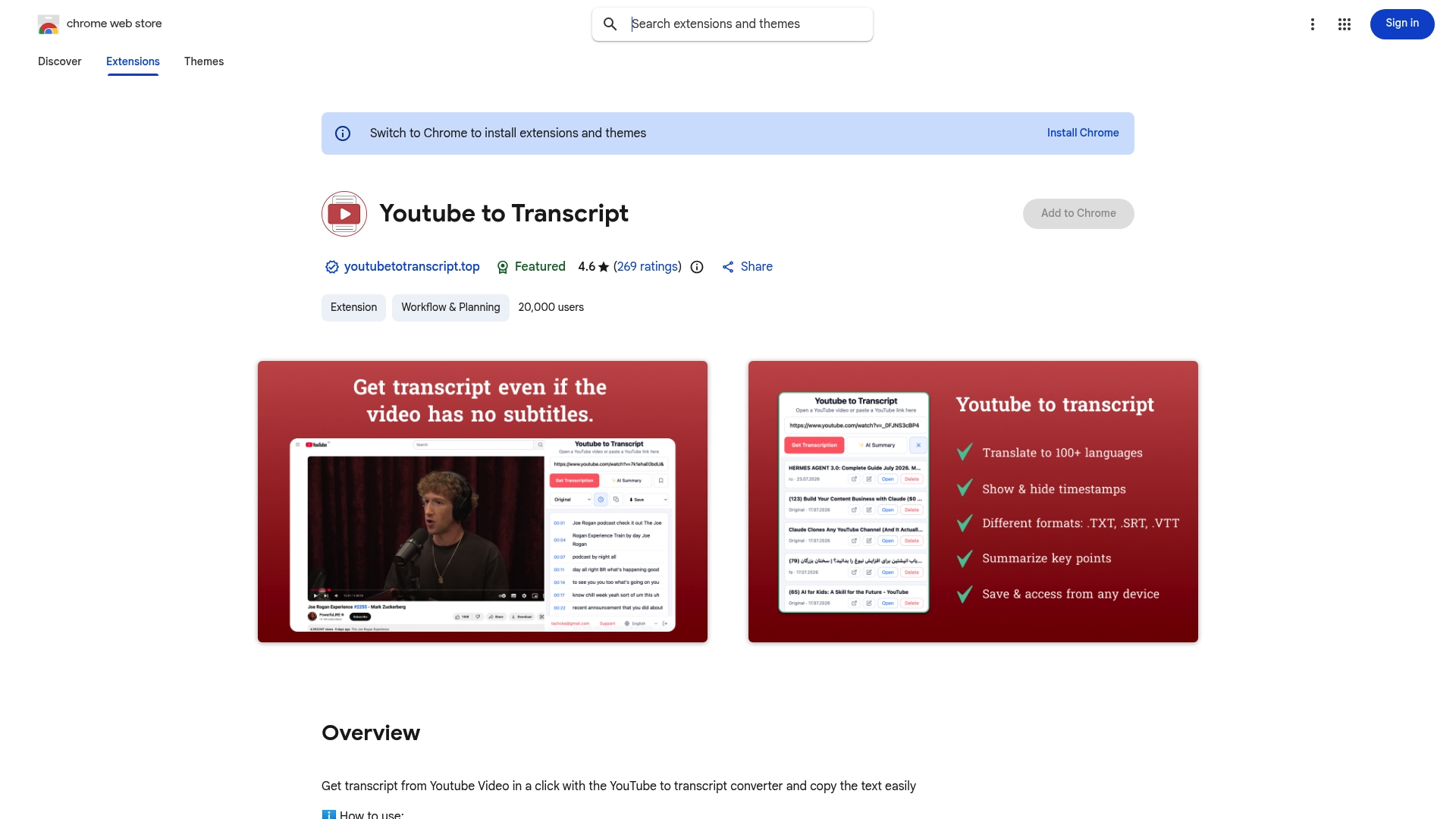
Key features that speed up the cleanup process:
- Fast YouTube import: Works on videos with or without existing subtitles, using AI transcription for the latter.
- Timestamp controls: Keep or strip timestamps before export, so you skip that formatting step entirely.
- Multiple export formats: Download as TXT, SRT, or VTT depending on your use case.
- Cloud storage: Transcripts save to your account, so you can return to edit or re-export without re-importing.
- Translation into 89+ languages: Useful for multilingual content workflows.
Processing happens via Youtubetotranscript’s pipeline, and the export formats are standard, so you can move the output directly into any downstream editor or AI prompt. Try the free tier or install the browser extension to import your first YouTube URL and see the cleaned output in under a minute.
Sources
- Transcript Cleaner – Remove Timestamps, Filler Words & Speaker Labels (Free Online)
- Automatic Punctuation and Truecasing with Python Speech-to-Text
- PolicyEngine/transcript-tools
- Voice-Note Transcript Cleaner – Add Punctuation & Capitalise (Transcript Cleaner)
FAQ
What does cleaning a transcript mean?
Cleaning a transcript means removing filler words, fixing punctuation and capitalization, collapsing repeated caption lines, and structuring the text so it reads clearly without the verbal noise of raw speech.
Can ChatGPT clean up a transcript?
Yes. Paste your transcript after a prompt that instructs it to remove fillers, fix punctuation, and preserve proper nouns. GPT-4o and Claude 3.5 Sonnet both handle this reliably when you include a short glossary of terms to protect.
Is there a free tool for cleaning transcripts?
Several free browser-based tools handle filler-word removal, timestamp stripping, and line merging with no account required. Youtubetotranscript also offers a free tier for importing and exporting YouTube transcripts directly.
How do I strip filler words from a transcript automatically?
Run the raw text through a browser cleaner like Transcript Cleaner, which removes “um,” “uh,” “like,” “you know,” and similar fillers automatically, then follow with an AI prompt pass for any remaining grammar issues.
When should I pay for human transcript editing?
Pay for human editing when the audio has heavy accents, significant crosstalk, or dense technical jargon that automated tools consistently misread. For clean, single-speaker recordings, the DIY browser-plus-AI workflow produces near-publication-quality results at no cost.
Leave a Reply