
TL;DR:
- YouTube offers a built-in transcript feature for videos with captions, which can be accessed easily on desktop. When captions are unavailable, third-party tools like Youtubetotranscript use AI to generate transcripts directly from the audio. Export formats include TXT, SRT, VTT, and JSON, supporting various workflow needs and translations.
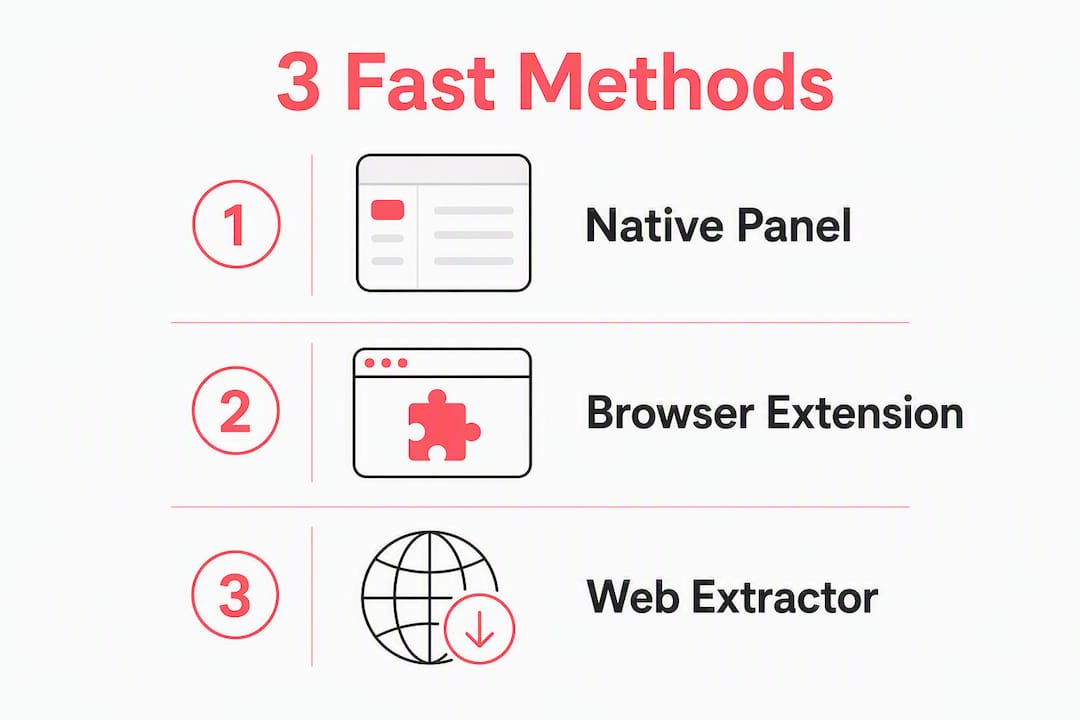
The three quickest ways to get a YouTube transcript are YouTube’s built-in “Show transcript” panel, a browser extension, and a web extractor like Youtubetotranscript. Start with the native option if captions exist; if they don’t, paste the URL into a web extractor or use the extension.
Fastest path for each method:
- YouTube built-in: Open the video → click the three-dot menu below the player → select “Show transcript.”
- Browser extension: Install the extension → open any YouTube video → click the extension icon → copy or export the transcript in one click.
- Web extractor: Go to Youtubetotranscript → paste the video URL → get your transcript in seconds, no account needed.
YouTube Help confirms the native transcript panel appears to the right of the video on desktop, with each line clickable to jump to that moment.
Table of Contents
- How do you get a YouTube transcript step by step?
- What export formats are available for YouTube transcripts?
- How do you translate or summarize a YouTube transcript?
- When transcripts aren’t available or are inaccurate
- Privacy, copyright, and reuse — what to check first
- Key Takeaways
- The productivity case for using transcripts more often
- Youtubetotranscript gives you transcripts even when YouTube doesn’t
- Useful sources and references
- FAQ
How do you get a YouTube transcript step by step?
Desktop (YouTube built-in)
- Open the video in a browser.
- Click the three-dot menu (⋯) directly below the video player.
- Select “Show transcript.”
- The transcript panel opens to the right. Click any line to jump to that timestamp.
- To copy the full text, toggle timestamps off (click “Toggle timestamps” at the top of the panel), then select all and copy.
Mobile (YouTube app)
- Open the video and tap the title to expand the description.
- Scroll down and tap “Show transcript.”
- Tap any line to jump to that point in the video.
Mobile copy is limited: you can tap lines individually but cannot select the full transcript text in one action. For a clean copy on mobile, a web extractor is faster.
Browser extension
Install a transcript extension from the Chrome Web Store. Extensions in this category typically offer one-click extraction, copy/download buttons, and optional AI summary features. Once installed, open any YouTube video, click the extension icon, and export.

Web extractor
Paste the video URL into Youtubetotranscript. The tool processes the audio directly using AI, so it works even when a creator has not uploaded captions. No signup is required for basic use, and the transcript appears within seconds.

Pro Tip: If the native transcript looks messy, toggle timestamps off before copying. That removes the time codes and gives you a clean block of text you can paste directly into a doc or note.
What export formats are available for YouTube transcripts?
Different workflows need different file types. Here is a quick reference:
| Format | Includes timestamps? | Best use | File extension |
|---|---|---|---|
| TXT | No (or stripped) | Notes, blog drafts, quick reference | .txt |
| SRT | Yes (start + end) | Video captions, subtitle editors | .srt |
| VTT | Yes (start + end) | Web video players, HTML5 captions | .vtt |
| JSON | Yes (start + duration) | Research pipelines, developer tools | .json |
The youtube-transcript-api returns structured objects with text, start, and duration fields, making it straightforward to convert transcripts into SRT or VTT caption files programmatically.
Auto-generated captions often run words together with no punctuation. A quick post-export cleanup: open the file in any text editor, run a find/replace to add periods at obvious sentence breaks, and delete duplicate line breaks. For SRT files, keep the timestamp blocks intact and edit only the text lines.
How do you translate or summarize a YouTube transcript?
Translation options:
- YouTube’s built-in auto-translate is available in some regions but limited in language coverage and accuracy.
- Extension tools often include one-click translation alongside extraction.
- Export then translate: Download the transcript as TXT, then paste it into a machine-translation tool or a chat model for a quick draft.
- Programmatically: The youtube-transcript-api supports a
translate()method on transcript objects, letting developers fetch and translate transcripts in a single script.
Summarization options:
- Some extensions integrate directly with AI models to generate concise notes from the transcript text.
- Paste a full transcript into a chat model and ask for a summary, bullet-point outline, or key quotes.
- Youtubetotranscript includes built-in AI summaries as part of its feature set.
Accuracy note: Machine translation and auto-generated captions both struggle with proper names, technical terms, and numbers. Always verify those manually before publishing or sharing.
Use cases where translation and summarization pay off:
- Creating study notes from lecture videos in a second language
- Writing show notes or blog posts from podcast-style content
- Pulling SEO-friendly snippets from long-form video content
- Repurposing a video script into a social media thread
When transcripts aren’t available or are inaccurate
Not every video has a transcript ready to pull. Common reasons:
- Unsupported languages — YouTube’s auto-caption system covers many languages but not all.
If the native transcript is missing, a web extractor that processes audio directly is your best fallback. Tools like Youtubetotranscript generate transcripts from the audio track itself, independent of whether the creator uploaded captions. For developers, the youtube-transcript-api on PyPI supports CLI usage with multiple video IDs and JSON output, though it still depends on captions existing on YouTube’s side.
Multiple speakers and overlapping dialogue reduce auto-caption accuracy noticeably. For cleaner results, manually add speaker labels (e.g., “[Speaker A]:”) after export, or use a dedicated speaker-diarization tool if precision matters.
Privacy, copyright, and reuse — what to check first
Public vs. private vs. unlisted:
- Public and unlisted videos can be transcribed by third-party tools if you have the link.
- Private videos require direct channel access; no public tool can retrieve them.
Copyright considerations: A transcript reproduces the video’s spoken content. Treat it like any other copyrighted text before republishing. Fair use in the U.S. permits limited quotation for commentary, criticism, or education, but republishing a full transcript commercially without permission is risky.
Best practices for reuse:
- Credit the original creator and link to the source video.
- Avoid republishing verbatim transcripts for commercial purposes without permission.
- Use short quoted excerpts with attribution rather than full reposts when the purpose is commentary or reference.
- Store transcripts securely if the video contains sensitive or proprietary information.
Pro Tip: When in doubt, quote a short passage with a timestamp link back to the original video. That satisfies attribution, keeps you within fair use for most educational and journalistic purposes, and gives your readers a direct path to the source.
Key Takeaways
The fastest, most reliable way to get a YouTube transcript is to try the native built-in panel first, then fall back to a web extractor or extension when captions are missing or exports are needed.
| Point | Details |
|---|---|
| Try native first | Open the video, click the three-dot menu, and select “Show transcript” — no tools needed. |
| Use a web extractor as fallback | When captions are missing, paste the URL into Youtubetotranscript for AI-generated text in seconds. |
| Match format to workflow | Use TXT for notes, SRT/VTT for captions, and JSON for developer pipelines. |
| Check copyright before reusing | Transcripts reproduce copyrighted content — credit the creator and limit verbatim republishing. |
| Youtubetotranscript for exports | Youtubetotranscript handles AI transcription, TXT/SRT/VTT export, translation into 89+ languages, and batch processing. |
The productivity case for using transcripts more often
Most people treat transcripts as a last resort — something you reach for when you cannot watch a video. That framing undersells them. A transcript turns a 45-minute lecture into a searchable, quotable document you can skim in five minutes. For content creators, it cuts the time to repurpose a video into a blog post or newsletter from hours to minutes. The native YouTube panel is good enough for quick navigation. For anything beyond that — clean exports, translation, batch processing — a dedicated tool removes the friction that makes people skip the step entirely. Try the native method first, then move to an extension or web extractor when you need more.
Youtubetotranscript gives you transcripts even when YouTube doesn’t
YouTube’s built-in transcript works well for videos that already have captions. The gap shows up fast: no captions, no export button, no translation. Youtubetotranscript fills that gap directly.
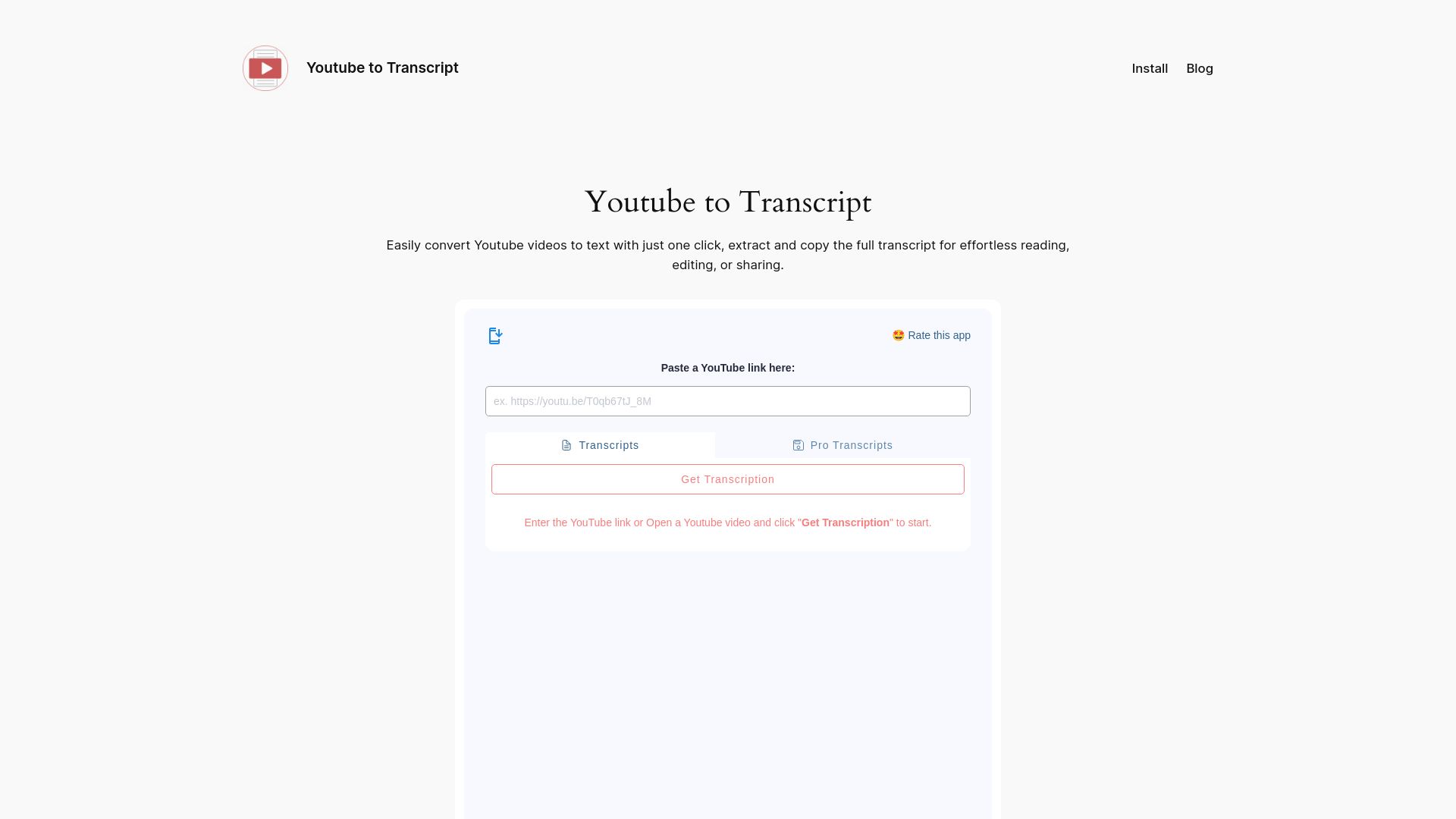
The tool uses AI to transcribe directly from the audio track, so it works on videos where captions were never uploaded. From there, you can export to TXT, SRT, or VTT, translate into any of 89+ languages, run batch processing across multiple videos, and store transcripts in the cloud for later access. AI summaries are included, so you can go from raw video to a concise outline without a separate step.
There is a free tier for basic use. Pro plans are available monthly, yearly, or as a lifetime license for users who need higher volume or full export access.
Try one-click transcription at Youtubetotranscript and get your first transcript in under a minute.
Useful sources and references
- View video transcripts — YouTube Help: Official documentation on how the native “Show transcript” panel works, which videos support it, and how timestamps function.
- jdepoix/youtube-transcript-api — GitHub: Python library for fetching and translating transcripts programmatically; covers available transcript listing, language selection, and the
translate()method. - youtube-transcript-api — PyPI: Package documentation including CLI usage, multiple video ID support, JSON output, and options for filtering auto-generated vs. manually created captions.
- Youtubetotranscript — Chrome Extension and Web Tool: Product page covering AI transcription from audio, export formats (TXT, SRT, VTT), translation into 89+ languages, batch processing, cloud storage, and pricing tiers.
FAQ
Does YouTube have a built-in transcript feature?
Yes. On desktop, click the three-dot menu below any video and select “Show transcript.” The option only appears for videos that have captions, either uploaded or auto-generated.
How do you get a transcript from a video with no captions?
Use a web extractor like Youtubetotranscript, which generates a transcript from the audio track directly using AI, independent of whether the creator uploaded captions.
Can you download a YouTube transcript as a file?
YouTube’s native panel does not offer a download button. A browser extension or web tool like Youtubetotranscript lets you export transcripts as TXT, SRT, or VTT files.
Are YouTube transcripts accurate?
Auto-generated captions are generally reliable for clear speech but often miss punctuation, mishandle proper names, and struggle with overlapping dialogue. Manually uploaded captions are more accurate. Always verify names, numbers, and technical terms before publishing.
Is it legal to download and reuse a YouTube transcript?
Transcripts reproduce copyrighted content, so reuse is subject to U.S. copyright law. Fair use permits limited quotation for commentary, education, or criticism. Republishing a full transcript commercially without permission carries legal risk — credit the creator and link to the original video when sharing excerpts.
Leave a Reply
You must be logged in to post a comment.