
The fastest way to copy a YouTube transcript is a one-click browser extension that adds a copy or download button directly to the YouTube player. If you don’t want to install anything, YouTube’s built-in “Show transcript” panel works on desktop in about 30 seconds, and paste-URL converters cover you on mobile or when captions don’t exist.
Pro Tip: Toggle timestamps off before you copy if you plan to paste the text into notes or an AI prompt. Keep them on if you need to jump back to a specific moment in the video later.
Key Takeaways
A one-click browser extension is the fastest way to copy a YouTube transcript, with YouTube’s native panel and paste-URL converters as reliable fallbacks.
| Point | Details |
|---|---|
| Fastest method | A browser extension adds a one-click copy/download button directly to the YouTube page. |
| Best desktop fallback | YouTube’s native “Show transcript” panel works in about 30 seconds but needs manual cleanup. |
| Mobile workaround | Request the desktop site in your phone’s browser instead of fighting with app text selection. |
| Cleanup step | Strip timestamps with find-and-replace, then run an AI pass for punctuation before exporting. |
| Recommended tool | Youtubetotranscript offers one-click copy, TXT/SRT/VTT export, and cloud storage for repeat use. |
Table of Contents
- What’s the Quickest Way to Get a YouTube Transcript?
- How Do You Use YouTube’s Built-In Transcript on Desktop?
- Why Use a Browser Extension to Copy YouTube Transcripts?
- How Do Online Transcript Converters Work?
- Can You Copy a YouTube Transcript on Your Phone?
- What If No Transcript Exists for the Video?
- How Do You Clean Up and Export a Transcript?
- How Accurate Are Auto-Generated Transcripts?
- The One-Click Tool Built for Repeat Transcript Work
- Sources
- FAQ
What’s the Quickest Way to Get a YouTube Transcript?
Your choice depends on how often you do this and what device you’re using.
- Browser extension — best for frequent users; adds a copy/download button right on the video page.
- YouTube’s native transcript — best for one-off desktop lookups when you just need the text fast.
- Online paste-URL converters — best on mobile or when a video has no captions at all.
- Manual or paid transcription — your last resort when accuracy matters more than speed.
If you extract transcripts a few times a month, install an extension. If it’s a one-time job, use YouTube’s native panel. If you’re on your phone or the video has no captions, use a converter.
| Method | Speed | Setup Cost |
|---|---|---|
| Browser extension | Fastest (one click) | Low (one-time install) |
| YouTube native transcript | Fast (~30 seconds) | None |
| Online paste-URL converter | Fast, no install | None |
| Manual/paid transcription | Slow to moderate | None to significant |
How Do You Use YouTube’s Built-In Transcript on Desktop?
YouTube’s native transcript panel works on any public video that has captions, and it’s the quickest no-install option available. Here’s the process:
- Open the video on YouTube’s desktop site.
- Click the three-dot menu below the video title.
- Select Show transcript.
- Click the three-dot menu inside the transcript panel and toggle timestamps on or off.
- Click anywhere in the transcript text, then press Ctrl+A (or Cmd+A on Mac) to select it all.
- Copy and paste it wherever you need it.
Pro Tip: Turn off timestamps before you hit select-all. It saves you a cleanup step later, since you won’t have to strip out a string of numbers from every line.
Two things trip people up here:
- Unlisted or private videos won’t show the option at all unless you have direct access.
- Videos without captions, whether auto-generated or uploaded, simply won’t have a transcript to show, and the native output arrives unformatted regardless.
Why Use a Browser Extension to Copy YouTube Transcripts?
Extensions add a one-click copy or download button directly into the YouTube interface, which cuts out the multi-click process of opening menus and manually selecting text, as explained by Baitless. Instead of three or four steps, you get one.
- Install the extension from the Chrome Web Store or the extension’s official page.
- Enable it in your browser’s extension settings.
- Refresh YouTube so the new button loads.
- Look for the copy/download icon near the Share/Save buttons or just below the video description.
Extensions in this category typically add customizable formatting, including a timestamp toggle and export options, which is a step up from copying raw text and cleaning it yourself. Some also bundle AI punctuation fixes or summaries, a trend showing up across browser add-on marketplaces as more tools add post-processing on top of basic extraction.
Before installing anything, check what permissions it requests. A well-built extension should process the transcript locally or state clearly if it sends data to a cloud service, and it should not need permissions unrelated to reading page content. Most transcript extensions offer a free tier for basic copy/download, with paid tiers unlocking exports, translation, or storage.

Pro Tip: If an extension asks for permission to “read and change all your data on all websites,” that’s broader access than a transcript tool needs. Look for one scoped specifically to YouTube.
For a screenshot reference: the copy/download button on most transcript extensions sits directly beneath the video title, in the same row as the Like, Share, and Save buttons, or appears as a small icon inside the transcript panel itself once it opens.
How Do Online Transcript Converters Work?
Paste the YouTube video’s URL into an online converter to get a formatted transcript with export options like TXT, SRT, or VTT, no installation required. This is the move when you’re using a shared computer or just don’t want another browser add-on.
- Copy the video’s URL from the address bar or the Share button.
- Paste it into the converter’s input field.
- Choose your language and export format.
- Download the file or copy the text directly from the page.
Some converters go a step further and transcribe the audio track directly, which matters for videos with no captions at all. Be cautious with sensitive or copyrighted material. Uploading a private client call or an unlisted internal video to a third-party site means that content now sits on someone else’s server.
Pro Tip: If your video has no captions, confirm the converter actually transcribes audio rather than just pulling existing subtitle data. Not all of them do.
Can You Copy a YouTube Transcript on Your Phone?
The YouTube mobile app does have a “Show transcript” option, but selecting and copying long blocks of text on a touchscreen is clumsy at best. Mobile text selection is genuinely fragile once a transcript runs more than a few lines.
- Expand the video description, tap Show transcript, and try long-pressing to select text.
- If that fails, open YouTube in your mobile browser, request the desktop site, and follow the desktop steps above.
- For a fully clean copy, use a paste-URL converter or wait until you’re at a computer.
Pro Tip: Requesting desktop mode in your phone’s browser is usually faster than fighting with the app’s text selection.
What If No Transcript Exists for the Video?
Use an AI-powered transcription tool or a paid human transcription service when a video has no captions or the audio is too rough for auto-generation to work.
- Manual transcription — free, but expect roughly an hour or more of work per hour of audio.
- AI-powered tools — paid, usually a few minutes per video, with accuracy that depends on audio quality.
- Professional human transcription — the most accurate option, but also the most expensive, and typically takes a day or more for a full turnaround.
How Do You Clean Up and Export a Transcript?
Paste the raw transcript into a text editor, or use a tool’s built-in export option, to get a clean TXT, SRT, or VTT file, or copy it into Google Docs for a PDF.
- Toggle off timestamps in the source panel if you haven’t already.
- If timestamps snuck through, use find-and-replace with a pattern like
d{1,2}:d{2}to strip them out in bulk. - Run the text through an AI tool to add punctuation and paragraph breaks, since raw transcripts arrive as short, disconnected fragments.
- Export: File > Download > Plain Text (.txt) in Google Docs, or File > Download > PDF for a shareable document.
YouTube’s transcript panel functions as a viewer, not an export tool. It chops text into short fragments and leaves timestamp clutter behind, so real cleanup means rebuilding paragraphs, adding punctuation, and cutting filler words before the text is actually usable.
Pro Tip: Run cleanup once and save the result. Re-cleaning the same raw transcript every time you reuse it wastes more time than the original copy step.
How Accurate Are Auto-Generated Transcripts?
Auto-captions get the words mostly right but miss punctuation, capitalization, and speaker changes, so budget a few minutes for editing before you treat the text as final.
- Feed the audio to a higher-quality AI transcription model if accuracy matters.
- Re-run the transcription on cleaner audio when the original has background noise or overlapping speakers.
- Add speaker labels manually if the conversation involves more than one person.
- Use a single AI prompt to strip filler words like “um” and “you know” in one pass.
Always verify direct quotes against the original video before publishing or attributing them to a speaker. Auto-captions occasionally swap similar-sounding words, and that’s the kind of error that turns into a real problem in published content.
The Real Time Savings of a One-Click Copy Button
Manually opening the transcript panel, selecting text, and copying it takes real time when you do it dozens of times a week. A Chrome extension that adds a one-click copy button removes the menu-clicking and manual selection entirely, turning a multi-step task into a single click.
Pro Tip: Favor extensions that document whether they process transcripts locally in your browser or send them to a server. That distinction affects both speed and privacy.
A Note on Workflow and Attribution
This guide reflects a workflow built for people who pull transcripts often, whether for notes, research, or content repurposing. When a video informs anything published or cited publicly, verify names, numbers, and quotes against the source, and use paid human transcription for legal depositions or other high-stakes work.
The One-Click Tool Built for Repeat Transcript Work
If you’re copying transcripts more than once or twice a month, Youtubetotranscript replaces the whole manual routine with a single click and gives you export formats the native YouTube panel never offers. Instead of opening a menu, selecting text, and pasting it into a document every time, you get one button that hands you clean, ready-to-use text.
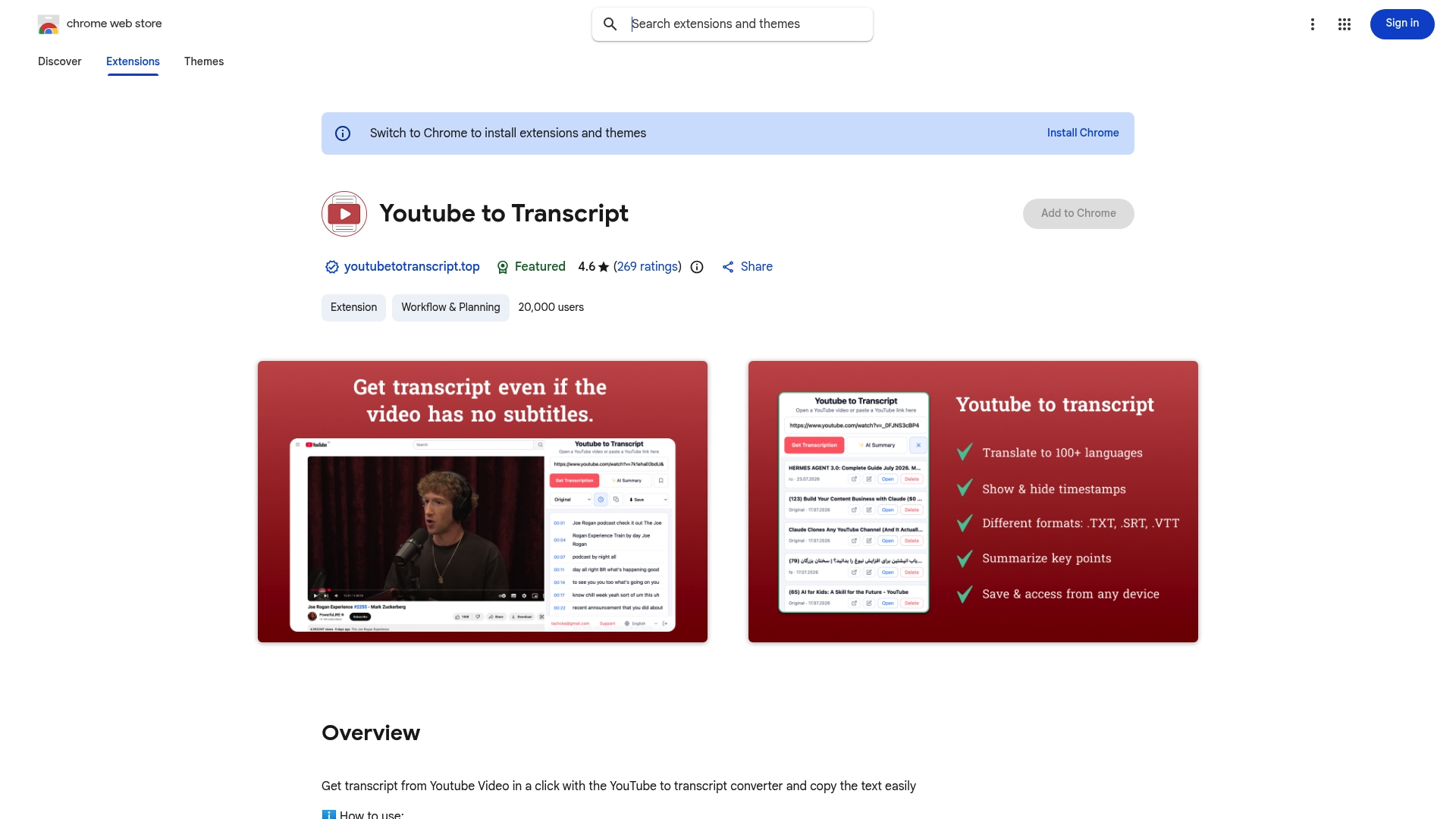
The Chrome extension adds a copy and download button directly to the YouTube page, with a timestamp toggle so you control whether the exported file keeps time codes or not. Exports come in TXT, SRT, or VTT, AI cleanup handles punctuation automatically, and translation covers 89+ languages if you work with international content. Cloud storage means a transcript you pulled last week is still there when you need it again, without re-extracting it.
There’s a free tier for occasional use and Pro plans for anyone extracting transcripts regularly. Install the extension and try it on the next video you need notes from.
Sources
FAQ
How Do I Copy an Entire YouTube Transcript?
Open the video, click the three-dot menu, select “Show transcript,” then click inside the panel and press Ctrl+A (Cmd+A on Mac) to select all the text before copying. A browser extension does this in a single click instead.
How Can I Extract a Transcript From a YouTube Video?
Use YouTube’s built-in transcript panel for public videos with captions, or paste the video’s URL into an online converter if you need export formats like SRT or VTT. Extensions like Youtubetotranscript combine both steps into one click.
How Do I Get a Transcript of My Own YouTube Video?
Your own uploaded videos work the same way as any public video: open the three-dot menu below the player and select “Show transcript,” provided captions exist or YouTube has auto-generated them.
How Can I Save a YouTube Transcript as a PDF?
Copy the transcript text, paste it into Google Docs, then use File > Download > PDF Document to save it. Cleaning up timestamps and punctuation first makes the resulting PDF far easier to read.