
Paste a YouTube URL into an AI note taker and you get timestamped, editable notes plus exportable files in minutes, not hours. That single step replaces pausing, rewinding, and manually typing what someone said forty seconds ago. Paste a link or install a browser extension, and the transcript and notes generate automatically.
Pro Tip: Transcription accuracy depends heavily on audio quality. Choose videos with clear speech, use headphones while reviewing, and upload a separate audio track when the original has background music or crosstalk.
Key Takeaways
Turning a YouTube video into usable notes requires accurate transcription, automatic timestamping, and flexible export formats working together in one workflow.
| Point | Details |
|---|---|
| Start with the URL | Paste a YouTube link or upload a file to trigger automatic transcription in under a minute. |
| Prioritize timestamps | Notes that link back to exact video seconds are far easier to navigate and cite later. |
| Match the input to the situation | Use URL paste for speed, upload for private or technical content, and extensions for repeated use. |
| Check privacy before committing | Confirm how long transcripts are stored and whether processing happens locally. |
| Youtubetotranscript covers captionless videos | It transcribes automatically even without subtitles and exports to TXT, SRT, or VTT with translation support. |
Table of Contents
- How Do You Make Notes From YouTube Videos Step by Step?
- Which Features Actually Matter in an AI Note-Taking Tool?
- How Do Students, Educators, Creators, and Professionals Use This?
- Should You Paste a Link, Upload a File, or Use an Extension?
- Why Youtubetotranscript Is the Recommended Way to Convert Videos
- Build the Habit, Not Just the Workflow
- Try Youtubetotranscript for Your Next Video
- Sources
- FAQ
How Do You Make Notes From YouTube Videos Step by Step?
The workflow is the same whether you’re studying for an exam, prepping a podcast recap, or pulling action items from a webinar. Only the input method changes.
- Paste the URL or upload the file. Dropping a YouTube link takes seconds and works for any public video. Uploading a file makes sense for private recordings or when you want higher-quality audio than YouTube’s compressed stream.
- Let the tool fetch and transcribe. The system pulls existing captions when available or transcribes the audio directly with AI, typically finishing in under a minute for a standard lecture-length video.
- Review the AI-generated structure. Good tools extract timestamps, chapter breaks, and key takeaways automatically, so you’re not scrolling through a wall of unbroken text.
- Edit and add your own highlights. Insert comments, flag sections you’ll quote later, or delete filler the AI kept in.
- Export or copy your notes. Send the finished product wherever you actually work.
Export formats matter more than most people expect:
- TXT for quick pasting into any document or email
- SRT or VTT when you need subtitle-formatted timing for video editing
- Markdown for tools like Obsidian or Notion that render headers and links cleanly
- Copy-to-clipboard for a fast drop into a chat app or shared doc
Pro Tip: Learn the keyboard shortcut for “jump to timestamp” in whichever tool you use. Clicking through a transcript one line at a time is slower than typing a time code directly.
Which Features Actually Matter in an AI Note-Taking Tool?
Not every feature carries equal weight, and the ones that matter shift depending on who’s using the tool.
- Transcription reliability across accents, background noise, and fast speech
- Timestamped output that links each note back to the exact video second
- Multiple export formats (TXT, SRT, VTT, Markdown) rather than a single locked-in format
- Editable notes you can annotate without leaving the platform
- Automatic chaptering that breaks long videos into logical sections
- A searchable archive if you’re accumulating notes across dozens of videos over a semester or a content calendar
Students juggling multiple courses tend to prioritize search and export to their existing note app. Educators care more about chapter accuracy for building quizzes. Creators want clean timestamps for pulling clips and quotes fast. Professionals usually just need action items extracted from a meeting recording without touching a transcript at all.
Before you commit to a paid plan, run through a short privacy checklist: does the tool store your audio after processing, how long are transcripts retained, and is any part of the pipeline processed locally versus sent to a third-party server? Browser extension listings disclose permissions before install, and it’s worth reading them rather than clicking through.
Users consistently value timestamped highlights that link back to exact video seconds, because that turns a passive transcript into a clickable index you can navigate instead of scroll through.
Free tiers usually cap video length or monthly volume. Paid plans unlock batch processing, longer videos, and cloud storage for notes you’ll want to revisit next semester or next campaign.
How Do Students, Educators, Creators, and Professionals Use This?
The same workflow serves four very different jobs.
- Students convert a recorded lecture into timestamped notes, then turn key sections into flashcards or paste them straight into a study doc before an exam.
- Educators capture lecture highlights, share chaptered notes with a class, and pull quiz questions directly from the extracted takeaways.
- Creators grab exact quotes, timestamps, and moments worth screenshotting to build show notes or cut short-form clips without rewatching the full video.
- Professionals extract action items from a recorded meeting or webinar and drop them into a project tool the same day.
Should You Paste a Link, Upload a File, or Use an Extension?
Each input method fits a different situation, and picking the wrong one just costs you time.
- URL paste is the fastest option and needs no install. Use it for any public video when you’re in a hurry.
- File upload works best for private recordings or when you want better audio quality than YouTube’s stream provides.
- Browser extension keeps the whole workflow in-tab, which is convenient if you’re taking notes on YouTube videos regularly rather than one-off.
- API access matters only if you’re processing videos in bulk, like transcribing an entire course catalog overnight.
Videos without captions need a different approach. Upload the file directly so the tool transcribes the audio track itself, or use a frame-aware tool that also reads on-screen text, useful for technical tutorials where slides or code snippets carry information the narration doesn’t cover. If you just want to skim for the main point before committing to a full watch, browser-based preview tools like Baitless can surface key moments first.
Why Youtubetotranscript Is the Recommended Way to Convert Videos
Youtubetotranscript converts YouTube videos into text transcripts, generates timestamps and summaries, and exports the result as TXT, SRT, or VTT with a single click. It transcribes automatically even when a video has no subtitles at all, which is important because many niche tutorials, older uploads, and non-English content do not get captioned.

The workflow runs in three stages: fetch existing captions when they exist, transcribe the audio with AI when they don’t, then structure the output into timestamps and summary points you can edit before exporting.
A few details make it a solid default:
- A free tier lets you test the workflow before committing to a paid plan.
- Translation support covers 89+ languages, useful for language learning transcripts or reviewing foreign-language lectures.
- Cloud storage keeps transcripts accessible across devices instead of trapped in a single download folder.
- Export options (TXT, SRT, VTT) cover subtitle editing, plain-text study docs, and everything in between.
You can also install the extension directly from the Chrome Web Store for a workflow that never leaves the browser tab.
Build the Habit, Not Just the Workflow
Convert the video into notes right after watching, while the content is still fresh. Pick one export destination, whether that’s Notion, Obsidian, or OneNote, and tag notes the same way every time so you can actually find them later. When accuracy matters, always check an AI-generated quote against the timestamped clip before you cite it publicly.

Try Youtubetotranscript for Your Next Video
Youtubetotranscript turns a YouTube link into timestamped, exportable notes faster than typing them by hand ever could, and it does it even on videos that never had subtitles to begin with.
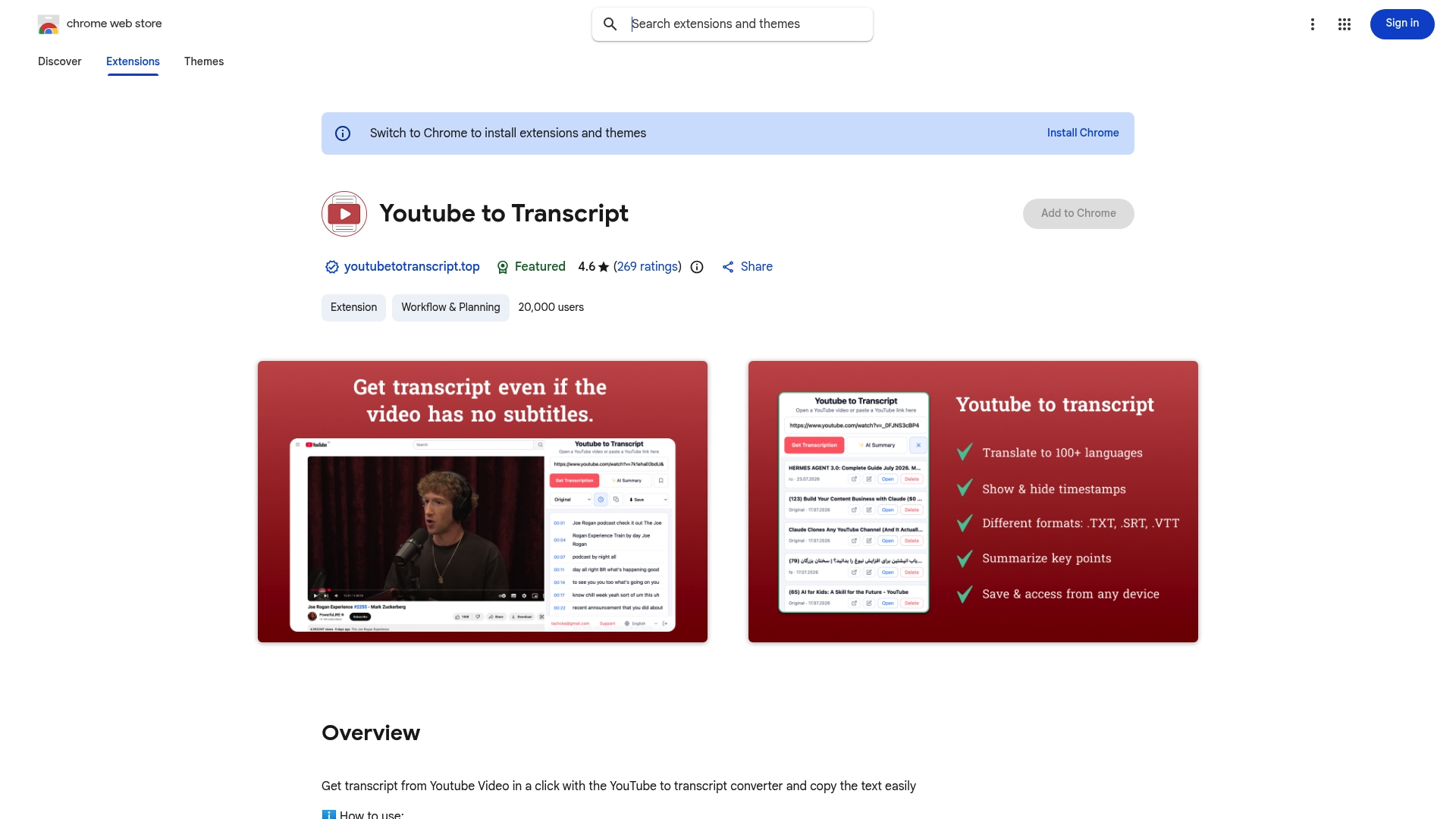
Paste a video link or install the browser extension and you’ll have a structured transcript with timestamps and a summary in minutes. The free tier covers casual use, and upgrading unlocks batch processing, longer videos, and cloud storage for notes you want to keep across a semester or a full content calendar. Transcripts are processed to generate your output and stored in your account for later access, not sold or shared. Export to TXT, SRT, or VTT, translate into any of 89+ supported languages, and start with the Youtubetotranscript extension on your next video.
Sources
- Baitless — Get the point before YouTube gets your attention
FAQ
How can I extract notes from a YouTube video?
Paste the video’s URL into an AI transcription tool, let it transcribe the audio, and export the AI-generated timestamped summary as text, SRT, or VTT.
How can I create notes from a YouTube video without captions?
Upload the video file directly so the tool transcribes the audio track itself. Youtubetotranscript handles this automatically even when no subtitles exist.
How do I turn a YouTube video into written notes?
Run the video through a transcription tool to get the full text, then use the AI summary feature to condense it into timestamped, chaptered notes you can edit and export.
Can ChatGPT transcribe a YouTube video?
ChatGPT can’t directly access or transcribe YouTube audio on its own; you need a dedicated transcription tool to convert the video first, then you can paste that text into ChatGPT for further summarizing.
What export formats should I use for study notes?
TXT works for plain study documents, Markdown fits apps like Notion or Obsidian, and SRT or VTT are best when you need subtitle-style timing for video editing.