
The fastest way to get a YouTube transcript without subtitles is to paste the video’s URL into an AI-powered transcript generator that transcribes audio directly, no captions required. If the video happens to have YouTube’s own auto-captions turned on, you can pull that text manually in seconds. For anyone building a workflow at scale, the YouTubeTranscriptApi library gives developers programmatic access.
Here are your three fastest routes:
- AI transcript generator — works even when there’s no caption track at all, since it transcribes the actual audio.
- YouTube’s built-in transcript panel — instant, but only works if the creator enabled captions.
- Developer API or library — best for batch jobs or app integrations.
Pro Tip: If the audio is noisy or full of technical jargon, upload the file as audio-only to a tool with speaker recognition. Clean audio input almost always beats a louder, cleaner-looking video file.
Key Takeaways
Getting a usable transcript from a YouTube video without subtitles comes down to choosing ASR-based transcription over manual methods for speed and completeness.
| Point | Details |
|---|---|
| Skip manual transcription | Paste the video URL into an AI transcript generator instead of typing it out by hand. |
| Match format to purpose | Use TXT for notes, SRT/VTT for captions and video editors, and DOC for editable write-ups. |
| Expect some editing | Auto-generated transcripts need light proofreading, especially for jargon and overlapping speech. |
| Check retention policies | Confirm how long a tool stores your audio and transcript before uploading sensitive material. |
| Use Youtube to Transcript for convenience | The extension and online tool handle videos with no subtitles, export to TXT/SRT/VTT, and support 89+ languages with cloud storage. |
Table of Contents
- Why AI Transcript Generators Work Even Without Subtitles
- Three Quick Ways to Extract a YouTube Transcript Right Now
- How to Extract a Transcript With Youtube to Transcript
- Which Export Format Should You Choose: TXT, SRT, VTT, or DOC?
- How Accurate Is an Auto-Generated YouTube Transcript?
- Is It Safe to Upload YouTube Videos to a Transcript Tool?
- Can Developers Fetch YouTube Transcripts Programmatically?
- Get a Transcript in Seconds With Youtube to Transcript
- Why a Tool-First Approach Beats Manual Transcription
- Sources
- FAQ
Why AI Transcript Generators Work Even Without Subtitles
Transcript tools rely on one of two methods. The first is fetching an existing caption track directly from YouTube’s servers, which is fast because the text already exists. The second is automatic speech recognition (ASR), where the tool listens to the audio and generates text from scratch. That’s the method that matters when you need a youtube video transcript and no captions were ever uploaded.
- Caption fetch: near-instant, matches YouTube’s own subtitle file (if manually created, usually very accurate).
- ASR transcription: slightly slower, sometimes asynchronous, but works on any video regardless of caption status.
Accuracy generally ranks manual captions above auto-generated captions, with ASR quality depending heavily on the model behind it. Better tools add speaker labels, timestamps, and on-demand translation, which is what makes an ASR-based hosted API genuinely usable instead of just a wall of text.
Three Quick Ways to Extract a YouTube Transcript Right Now
Option 1: One-click AI generator
- Copy the YouTube video URL.
- Paste it into an online transcript tool.
- Let the tool generate the text (instant for cached captions, a short wait for ASR).
- Review the output and download it.
Option 2: YouTube’s built-in transcript
- Open the video and click the three-dot menu below the player.
- Select “Show transcript.”
- Copy the text directly from the panel.
This only works if the creator left captions on. Many videos, especially smaller channels and older uploads, have them disabled or never generated.
Option 3: Manual fallback
- Play the video and dictate into a speech-to-text app.
- Works for short clips but eats time on anything over a few minutes.
Pro Tip: Always try Option 1 first. It handles both scenarios (captions present or absent) without you needing to check first.
How to Extract a Transcript With Youtube to Transcript
Youtube to Transcript is built specifically for the moment when a video has no subtitles and you still need clean, readable text. Whether you use the Chrome extension or the online tool, the workflow stays the same:
- Paste the YouTube URL into the tool, or click the extension icon while watching the video.
- Let the AI transcribe the audio, which works whether or not captions exist.
- Choose your export format: TXT, SRT, or VTT.
- Download the file or save it directly to cloud storage for later.
A few things worth knowing before you start:
- Timestamps are preserved automatically, so you can jump back to the exact moment a quote or data point was said.
- Translation covers many languages, useful if you’re repurposing content for an international audience.
- Batch processing lets you queue multiple videos at once, which matters if you’re transcribing an entire playlist or course.
For students and creators handling one video at a time, or professionals running through a backlog, the one-click flow removes the manual copy-paste grind entirely.
Which Export Format Should You Choose: TXT, SRT, VTT, or DOC?
The right format depends on what you’re doing with the youtube transcript text afterward.
- TXT: plain, unformatted text. Best for quick notes, research summaries, or pasting into a document.
- SRT/VTT: timestamped caption files. These are what you need if you’re re-uploading captions to a video editor or CMS.
- DOC/RTF: editable, paragraph-style formatting. Good for polished write-ups, blog repurposing, or sharing with a team that needs to edit collaboratively.
If you’re taking quick notes, TXT is the simplest option. If you’re publishing captions back onto a video or importing into editing software, stick with SRT or VTT so the timing data survives the transfer.
Pro Tip: Keep a timestamped version even if you only need plain text right now. Stripping timestamps later takes seconds; adding them back after the fact does not.
How Accurate Is an Auto-Generated YouTube Transcript?
Auto-generated transcripts are good, not flawless. Background noise, overlapping speakers, and niche vocabulary (medical terms, brand names, technical jargon) are where most ASR tools stumble. A single speaker in a quiet room with clear diction will produce a transcript that needs almost no cleanup. A panel discussion with crosstalk will need real editing.
A few fixes handle most of the common issues:
- Add speaker labels manually where the tool merges two voices into one block.
- Use search-and-replace to fix a term the tool consistently mis-transcribes (a brand name, a person’s name, an acronym).
- Clean up punctuation and paragraph breaks, since ASR output often runs sentences together.
If accuracy still feels off, try re-running the transcription with a higher-quality audio source, switching the detected language, or uploading a local audio file instead of relying on the video’s compressed audio track. Comparing model performance across tools, like the benchmarks at OpenTranscription, can help you understand what accuracy trade-offs to expect before you commit to one service.
Pro Tip: Proofread the first and last thirty seconds first. That’s where intros and outros tend to have the most rushed speech and the highest error rate.
Is It Safe to Upload YouTube Videos to a Transcript Tool?
Most transcript tools work by temporarily processing the video’s audio, then storing the resulting text, not the video itself. What to check before you commit to a tool:
- Whether the audio is cached temporarily or discarded immediately after transcription.
- Whether transcripts are stored in the cloud and, if so, how long they’re retained.
- Whether the tool has a clear, published retention or deletion policy.
On the legal side, transcribing a video for personal use, note-taking, or research is generally low-risk and falls under common fair-use practices. Republishing someone else’s transcript publicly, especially verbatim and at length, is a different matter and may require the creator’s permission. Before publishing anything you transcribe, strip out personal information and confirm you’re not distributing a private or unlisted recording without consent.
Can Developers Fetch YouTube Transcripts Programmatically?
For developers building an app or automating transcription at scale, the youtube-transcript-api library is the standard starting point. It’s a Python library and CLI that fetches existing caption tracks, including auto-generated ones, without needing a headless browser or API key.
- Install it via pip.
- Call
YouTubeTranscriptApi().fetch(video_id)to pull the transcript. - Use built-in methods to list available transcripts or translate them on the fly.
The critical distinction to design around: fetching an existing caption track is nearly instant, but transcribing audio for a video with no captions at all requires ASR, which is typically asynchronous and can take anywhere from a couple of minutes to half an hour depending on video length and server load. If you’re building this into a product, plan for webhook delivery or a polling endpoint rather than expecting an instant response, and choose a hosted API over a client-side library when you need ASR at scale.
Get a Transcript in Seconds With Youtube to Transcript
If you’ve been copying YouTube’s transcript panel by hand or waiting on a manual transcription service, Youtube to Transcript cuts that down to one paste and one click, and it works even when a video has zero captions to begin with.
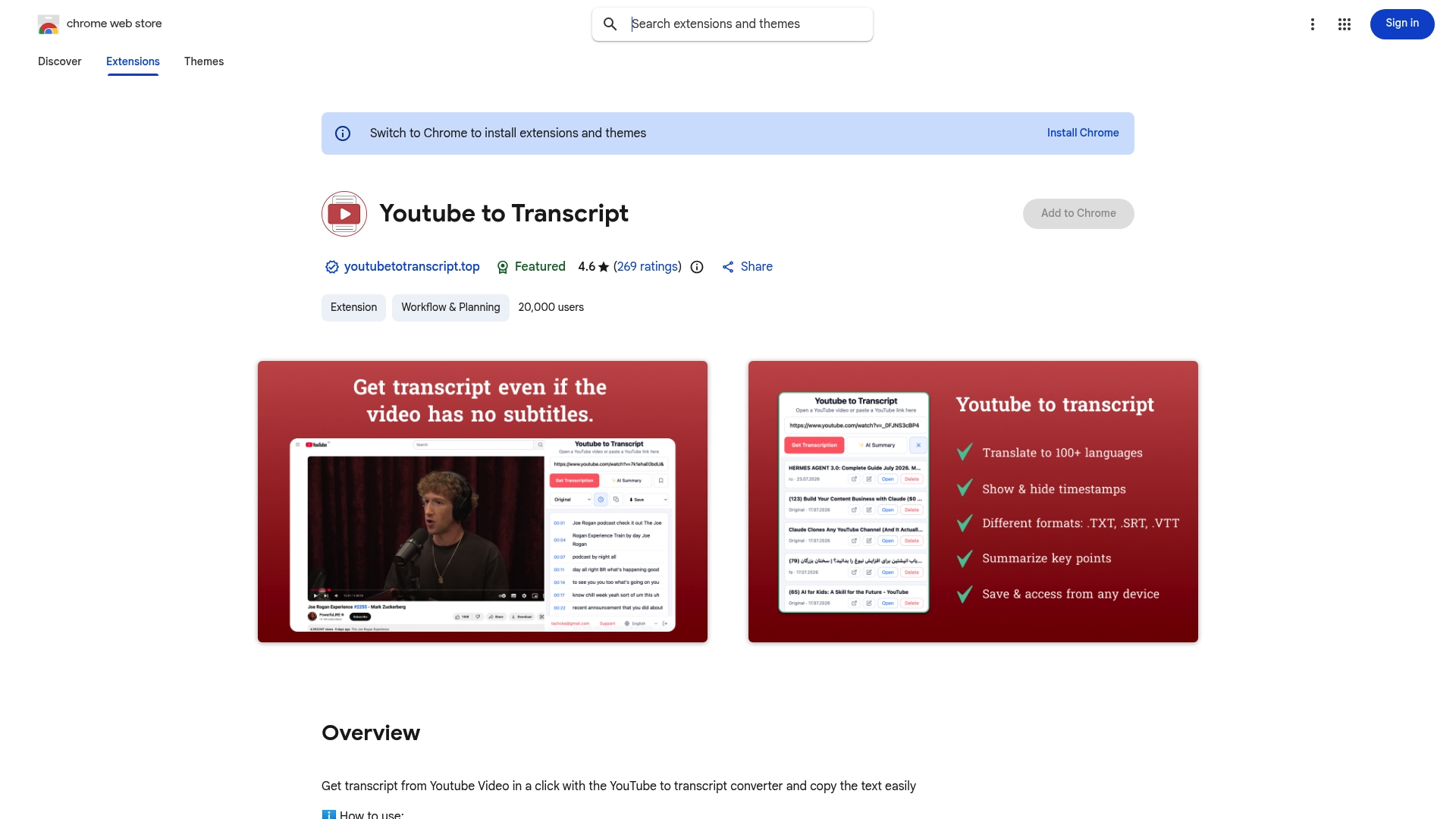
The browser extension and online tool handle the entire flow: paste the URL or click the extension while watching, let the AI transcribe the audio, then export to TXT, SRT, or VTT. Transcripts save to cloud storage automatically, so you’re not stuck re-downloading files across devices. Translation covers 89+ languages, and batch processing means you can queue an entire backlog of videos instead of running them one at a time. If you’re a student pulling lecture notes, a creator repurposing a podcast into a blog post, or a professional referencing hours of recorded meetings, install the extension or head to the Youtube to Transcript site and convert your first video now.
Why a Tool-First Approach Beats Manual Transcription
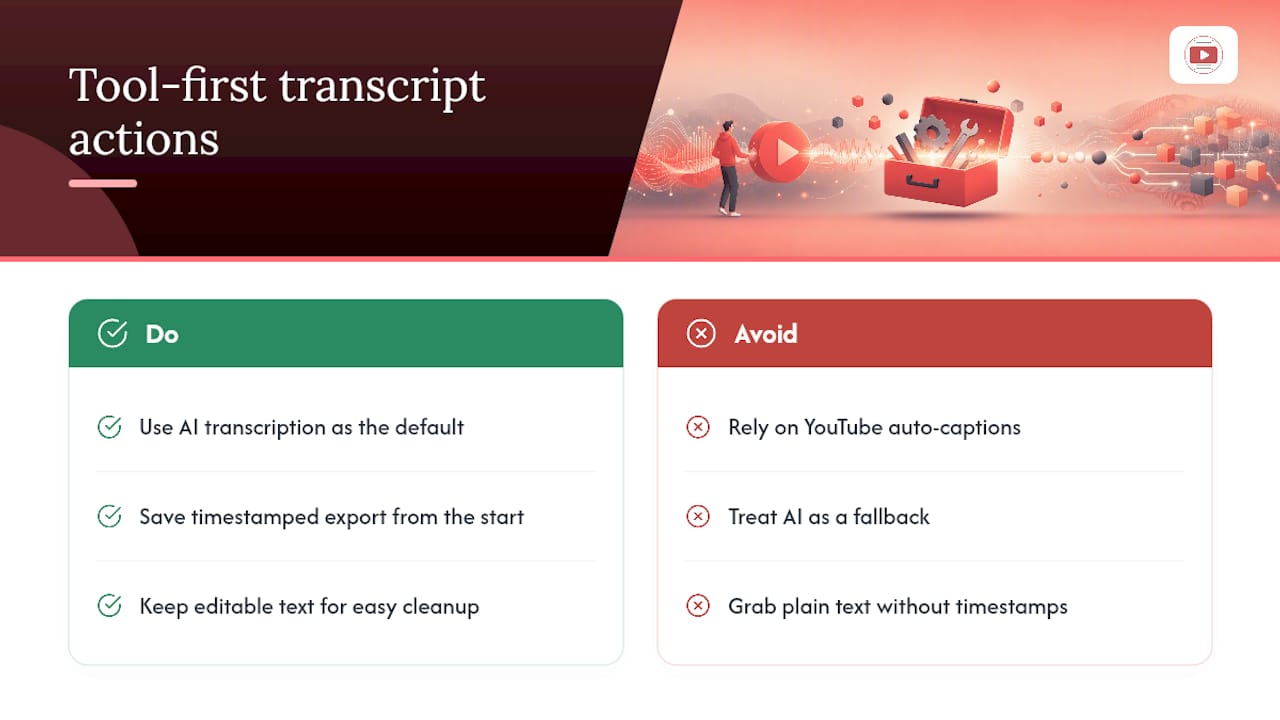
Most guides on this topic still treat YouTube’s built-in captions as the primary path and AI transcription as a backup. That framing is backward. Auto-captions are unreliable across the platform: plenty of creators disable them, older videos frequently lack them entirely, and even when they exist, YouTube’s own auto-caption quality varies wildly by audio clarity and accent. Treating an AI-powered generator as the fallback option, rather than the default, wastes time for anyone who needs a youtube transcript text file reliably and quickly.

The bigger blind spot is format choice. People grab whatever plain text a tool spits out and move on, then realize later they need timestamps to re-sync captions or credit a quote accurately. Save the timestamped version from the start, even when you think you only need a quick read. Cleanup is easy. Reconstruction after the fact is not.
Sources
For deeper technical detail, the youtube-transcript-api repo documents the Python library, while youtube-transcript-dev covers async ASR patterns for larger projects. Always check a tool’s privacy and retention policy before uploading anything sensitive.
- jdepoix/youtube-transcript-api
- YouTube Transcript API — Extract, transcribe, and translate YouTube videos at scale
FAQ
How do I get a transcript of a YouTube video with no subtitles?
Use an AI-powered transcript generator that transcribes the video’s audio directly, since it doesn’t depend on a caption track existing at all.
Is there a way to get a full transcript from any YouTube video?
Yes. Tools that combine caption fetching with ASR audio transcription, like Youtube to Transcript, can produce a full transcript whether or not the creator uploaded captions.
Is transcribing YouTube videos legal?
Transcribing for personal use, note-taking, or research is generally low-risk under common fair-use practices, but republishing someone else’s content verbatim may require the creator’s permission.
How do I view YouTube’s own closed caption transcript?
Open the video, click the three-dot menu below the player, select “Show transcript,” and copy the text, though this only works if the creator enabled captions.
What format should I download my transcript in?
Choose TXT for quick notes, SRT or VTT if you need timestamps for captions or video editing, and DOC if you plan to edit the text into an article or report.