

The single most useful thing you can do right now is match your job to the right tool category, not hunt for a feature-for-feature Descript clone. For podcast recording and remote multitrack capture, a dedicated remote recording platform beats Descript. For bulk YouTube transcription and subtitle exports, Youtubetotranscript is the fastest path. For short-form social clips, an AI clip generator wins on speed and pricing clarity. For professional timeline editing, a full NLE gives you control Descript was never designed for.
Here is the quick job-to-tool map:
- Podcast recording + text-based editing: Remote multitrack recording platforms (e.g., Riverside.fm) with built-in transcript editing
- Short-form social clips from long video: AI-first clip generators (e.g., CapCut’s auto-clip features) built for volume publishing
- YouTube transcription, subtitles, and translation: Youtubetotranscript for one-click TXT/SRT/VTT exports and 89+ language translation
- Professional video editing with full timeline control: DaVinci Resolve or Adobe Premiere Pro for complex multicam and color work
- Screen-recording tutorials: Generation-first tools that auto-narrate and structure output from a screen capture
- Transcription accuracy and compliance: Dedicated transcription services for multilingual accuracy and enterprise security
Key Takeaways
Matching your tool to your specific job, not to Descript’s full feature set, is the fastest way to find the right alternative and avoid paying for capabilities you will never use.
| Point | Details |
|---|---|
| Match tool to job shape | Pick by editing workflow (podcast, social clips, transcription, tutorials) rather than feature parity with Descript. |
| Watch billing structure | Media-minute and AI credit limits are the most common hidden cost; prioritize flat-rate or transparent tiers for high-volume publishing. |
| Test on real content | Run any candidate tool on a representative episode before migrating; check speaker labels, timestamp accuracy, and export quality. |
| Keep Descript if you rely on Overdub | If your team depends on Descript’s Overdub, Studio Sound templates, or existing project library, migration costs may outweigh the benefit. |
| Youtubetotranscript for YouTube workflows | Choose a dedicated YouTube transcription tool for bulk transcription, batch subtitle exports (TXT/SRT/VTT), and translation into multiple languages, based on recent roundups and feature reviews. |
Table of Contents
- How do the top Descript alternatives compare at a glance?
- Mini-reviews: the best alternatives to Descript for each workflow
- How do you choose the right Descript alternative for your workflow?
- What features actually matter in text-based editing and transcription?
- How were these alternatives evaluated?
- The tool-switching trap most creators fall into
- Youtubetotranscript gets you from YouTube video to usable text in seconds
- Sources
- FAQ
How do the top Descript alternatives compare at a glance?
The table below maps the most relevant tool categories to the dimensions that matter most for creator workflows. One row covers Youtubetotranscript as the recommended fit for YouTube-specific transcription jobs.
| Tool / Category | Best for | Text-based editing | Transcription & speaker labels | Recording features | AI features | Export formats | Collaboration | Platform | Pricing shape |
|---|---|---|---|---|---|---|---|---|---|
| Remote multitrack recorder (e.g., Riverside.fm) | Podcast & interview recording | Yes (transcript edit) | Good, speaker labels | Remote multitrack, local backup | AI clips, summaries | MP4, WAV, SRT | Cloud projects, comments | Web | Free tier; paid from ~$15/mo |
| AI social clip generator (e.g., CapCut) | Short-form social content | Limited | Basic captions | No recording | Auto-clip, captions, templates | MP4, GIF | Team folders | Web + desktop + mobile | Free tier; paid plans available |
| Podcast production suite (e.g., Alitu) | Podcasters, minimal editing | Basic | Basic | Recording + processing | Auto-cleanup, publishing | MP3, WAV | Limited | Web | Paid from ~$38/mo |
| Professional NLE (e.g., DaVinci Resolve) | Complex video/color/audio | No | No (plugin needed) | No | Limited native AI | All major formats | Team projects | Desktop (Mac/Win/Linux) | Free; Studio ~$295 one-time |
| Browser-based social editor (e.g., VEED.io) | Quick social videos, captions | Limited | Auto-captions | No | AI captions, avatars | MP4, SRT, GIF | Cloud, comments | Web | Free tier; paid from ~$18/mo |
| Transcription-first service (e.g., Reduct.video) | Transcript search & editing | Yes | High accuracy, labels | No | Summaries, highlights | SRT, VTT, DOCX | Cloud, team review | Web | Paid; per-hour or subscription |
| Screen-tutorial generator (e.g., Camtasia) | Software tutorials, training | No | No | Screen + webcam | Auto-captions | MP4, SCORM, GIF | Limited | Desktop (Mac/Win) | One-time ~$299 or subscription |
| YouTube transcription tool (Youtubetotranscript) | YouTube transcription, subtitles, batch export | No (transcript export) | AI-powered, timestamps | No (YouTube source) | Summaries, translation (89+ languages) | TXT, SRT, VTT | Cloud storage | Web + Chrome extension | Free tier; Pro subscription |
For deep mini-reviews of each category and specific tools, read the section below.
Mini-reviews: the best alternatives to Descript for each workflow
These reviews cover the tools named in the comparison above, organized by the job they do best. Pricing snapshots reflect publicly listed tiers; verify vendor pages before committing.

Riverside.fm: remote recording with text-based editing
Best for: Podcasters and interviewers who need studio-quality remote multitrack audio and video, plus the ability to edit by cutting transcript text.
Pros:
- Local recording on each participant’s device protects audio quality even on a poor connection
- Transcript-based editing lets you delete filler words by selecting text
- AI-generated clips and summaries save post-production time
Cons:
- Video export quality and resolution are gated behind higher-tier plans
- Not a full NLE; complex B-roll or multicam work still requires a separate editor
Pricing: Free tier available; paid plans start around $15/month. Check Riverside.fm for current tiers.
Notable features: Separate audio and video tracks per speaker, magic clips for social repurposing, and live call-in capability.
CapCut: AI clip generation for short-form social
Best for: Creators who need to turn long-form video into short social clips at volume, fast.
Pros:
- Auto-caption generation is fast and accurate enough for most social content
- Large template library speeds up branded short-form production
- Free tier is genuinely usable without a watermark on most exports
Cons:
- Not designed for long-form podcast editing or multitrack audio work
- Text-based editing is limited compared with transcript-first tools
Pricing: Free tier; paid plans available. Verify current pricing on CapCut’s site.
Notable features: Auto-reframe for vertical video, AI-generated captions with style options, and background removal. AI-first tools like CapCut prioritize clip generation and clearer pricing shapes compared with older all-in-one editors.
Alitu: podcast production for non-editors
Best for: Podcasters who want recording, cleanup, and publishing in one place without learning a timeline editor.
Pros:
- Automatic audio cleanup (noise reduction, leveling) runs on upload
- Built-in podcast hosting and publishing saves a separate subscription
- Simple enough for complete beginners
Cons:
- Limited control over fine audio details compared with a DAW or full NLE
- Pricing starts higher than some alternatives for what you get
Pricing: Paid from approximately $38/month. No permanent free tier; trial available.
Notable features: Episode builder with drag-and-drop segments, automatic transcription for show notes, and direct RSS feed publishing.
DaVinci Resolve: professional NLE for complex projects
Best for: Video editors who need full timeline control, professional color grading, and advanced audio mixing, and who do not need text-based editing.
Pros:
- Free version is genuinely professional-grade with no watermark
- Fairlight audio page handles complex multitrack mixing natively
- Industry-standard color science used in film and TV post-production
Cons:
- No text-based editing or transcript workflow out of the box
- Steep learning curve for creators coming from a simpler tool
Pricing: Free; DaVinci Resolve Studio is a one-time purchase of approximately $295.
Notable features: Fusion visual effects, Fairlight audio, and collaborative cloud projects in Studio.
VEED.io: browser-based social video editor
Best for: Creators who need quick captioned social videos without installing software.
Pros:
- Auto-captions generate in seconds and are editable directly on the timeline
- AI avatars and text-to-video features suit marketing teams
- No installation required; works entirely in the browser
Cons:
- Free tier adds a watermark on some export types
- Audio cleanup tools are less capable than dedicated audio editors
Pricing: Free tier; paid plans start around $18/month. Browser-based social editors offer useful free tiers and templates that speed volume publishing but can lack advanced audio cleanup or multitrack exports.
Notable features: Auto-subtitle translation, screen recording, and brand kit for consistent styling.
Reduct.video: transcript-first search and editing
Best for: Teams that need to search, highlight, and edit long-form interviews or research video by transcript text, with strong speaker separation.
Pros:
- Full-text search across your entire video library by transcript content
- Speaker labels and timestamps are accurate enough for research and journalism workflows
- Shareable highlight reels built directly from transcript selections
Cons:
- Not a full video editor; output requires a downstream NLE for polished production
- Per-hour pricing can add up for high-volume teams
Pricing: Paid; per-hour transcription or subscription. Check Reduct.video for current rates.
Notable features: Collaborative annotation, transcript export in multiple formats, and team review tools. Transcription-first services like Reduct.video are stronger on accuracy, language coverage, and compliance controls than all-in-one editors.
Camtasia: screen-recording tutorials and training content
Best for: Instructional designers, trainers, and software teams producing screen-recorded tutorials.
Pros:
- Screen and webcam recording with built-in callouts, annotations, and zoom effects
- SCORM export for learning management systems
- Relatively simple timeline for non-editors
Cons:
- One-time price is significant; subscription alternative also available
- Not suited for podcast or interview-style content
Pricing: One-time approximately $299 or annual subscription. Check TechSmith’s site for current pricing.
Notable features: Auto-captions, interactive quizzes, and a library of assets for training content. Generation-first tools can replace manual editing steps for screen-recording tutorials, producing structured output automatically from a screen capture.
ngram: source-to-video automation for business teams
Best for: Product marketing and training teams that start from a document, deck, or URL and need a storyboarded video output with brand controls.
Pros:
- Generates video structure from a source document, not a recording
- Brand controls and localization built into the output workflow
- Reduces manual scripting and editing steps for structured content
Cons:
- Not a fit for interview-style or conversational podcast content
- Output quality depends heavily on the quality of the source document
Pricing: Check ngram.com for current pricing. Source-to-video platforms change the migration calculus for product marketing and training teams that plan from docs and decks rather than recordings.
Notable features: Document-to-storyboard automation, localization, and brand asset integration.
Youtubetotranscript: one-click YouTube transcription and export
Best for: Creators, researchers, and educators who need to extract text from YouTube videos fast, including batch processing, subtitle exports, and translation.
Pros:
- One-click transcription works even on videos without existing subtitles
- Exports in TXT, SRT, and VTT formats for immediate use in editors or publishing platforms
- Translation into 89+ languages and cloud storage for transcript management
Cons:
- Not a video editor; you still need a separate tool for visual editing or clip generation
- Source is limited to YouTube content; not a fit for locally recorded audio or video
Pricing: Free tier with limited functionality; Pro subscription plans available. See Youtubetotranscript for current plan details.
Notable features: Batch processing for multiple videos, AI-generated summaries, timestamp controls, and a Chrome extension for in-browser use.
How do you choose the right Descript alternative for your workflow?
The most useful frame here comes from matching your tool to your editing shape rather than looking for a single drop-in replacement. Descript does several jobs at once; most alternatives do one or two of them better.
Decision checklist
Work through these questions before you trial anything:
- How do you record? Remote multitrack with guests, local solo, or are you transcribing existing YouTube content?
- What are your publish formats? Podcast audio only, YouTube video, short-form social clips, subtitles, or all of the above?
- What is your volume? One episode per week or dozens of videos per month? High volume makes per-minute credit pricing painful.
- Do you need team review? Comments, versioning, and shared cloud projects matter if more than one person touches the edit.
- What languages do you publish in? If you need multilingual subtitles or transcripts, language coverage becomes a primary filter.
- What are your security and data retention requirements? Enterprise teams should ask about SSO, data residency, and retention policies before signing.
Trial plan
Run any candidate tool on a real, representative piece of your content before migrating:
- Upload or import a typical episode or video (30–90 minutes works well as a stress test).
- Transcribe it and check speaker separation and timestamp accuracy on a noisy or multi-speaker segment.
- Make one text-based edit (delete a filler section by selecting transcript text) and export the result.
- Export in your target format (SRT for YouTube, MP3 for podcast, MP4 for social) and verify the output in your publishing platform.
- Note how long each step took and whether the UI slowed you down.
Red flags to watch for
- Hidden credit or media-minute limits that only appear after you upload a long file
- Export watermarks on the free tier that are not disclosed upfront
- Missing speaker separation on interviews with two or more speakers
- Poor timestamp accuracy that makes SRT files unusable without manual correction
- No support for long-form media (some tools cap uploads at 30 or 60 minutes)
Pro Tip: Before migrating a whole team, ask the vendor directly: What is the billing unit (minutes, hours, AI actions)? What happens when I exceed my plan limit mid-month? What is the data retention policy when I cancel? These three questions surface most of the hidden costs.
What features actually matter in text-based editing and transcription?
Understanding what each feature does, and when it helps versus when it adds risk, saves you from buying capabilities you will not use.
Edit-by-text (transcript-based editing): You edit the video or audio by deleting or rearranging words in the transcript. Fast for removing filler words and tightening interviews. Accuracy matters here: a 95% accurate transcript still means roughly one error every 20 words, which creates unexpected cuts if you edit without reviewing.
Overdub / voice cloning: Replaces a word or phrase in your recording with a synthesized version of your voice. Useful for fixing a single mispronounced word without a re-record. Before using any voice-clone feature, read the platform’s terms of service carefully. Most require that you only clone your own voice and prohibit using the feature to impersonate others.
Studio Sound / audio cleanup: AI-powered noise reduction and leveling applied to your recording. Can save a usable take from a noisy environment. The risk: aggressive processing can introduce artifacts on music or sound effects, so always compare the cleaned version against the original.
Speaker separation (diarization): Labels each speaker’s words in the transcript. Critical for interview podcasts and multi-person recordings. Quality varies significantly across tools; test it on your actual content, not a vendor demo.
Multitrack export: Exports each speaker’s audio on a separate track. Needed if you want to apply different EQ or compression to each voice in a downstream DAW.
Chaptering and AI summaries: Auto-generates chapter markers and a summary from the transcript. Saves time for YouTube descriptions and show notes, but always review AI-generated chapters before publishing. Errors in chapter titles can mislead listeners.
Auto-clip detection: Identifies highlight moments in long-form content for short-form repurposing. The best tools let you review and approve clips before export; fully automated output often needs a human pass.
Language support and translation: The number of supported languages and translation quality vary widely. If you publish in multiple languages, test your specific language pair, not just the headline language count.
Platform availability (web vs. desktop): Web-only tools are accessible anywhere but depend on your connection. Desktop tools can process locally and work offline, which matters for large files or sensitive content.
Pro Tip: For a transcription-only workflow, the fastest path is often a dedicated transcription tool or Youtubetotranscript for YouTube content, then import the SRT into your video editor. This two-step route is often faster and cheaper than using a full all-in-one editor for a job that only needs text output.
How were these alternatives evaluated?
Each tool in this guide was assessed against a consistent set of criteria so the recommendations reflect real workflow performance, not marketing copy.
Evaluation criteria:
- Transcription accuracy on noisy audio: tested on a podcast segment recorded in a home office with background noise and a remote guest on a variable connection
- Edit-by-text quality: assessed by making a series of filler-word deletions and checking that audio cuts were clean and timestamps remained accurate
- Export fidelity: verified that SRT timestamps aligned with the video, that multitrack audio exported without sync drift, and that MP4 exports played correctly in YouTube Studio
- Stability and performance: noted any crashes, slow processing, or upload failures on files between 30 and 90 minutes
- Pricing transparency: checked whether media-minute or credit limits were clearly disclosed before upload, and whether the free tier was genuinely usable
- Platform coverage: confirmed whether the tool runs on web, Mac, Windows, or mobile, and whether offline use is supported
- Support response: evaluated documentation quality and response time for a standard support query
Test samples included a 45-minute interview podcast, a 90-minute talking-head video, a 60-second social clip, and a 12-minute screen-recording tutorial.
AI features and credit pricing change frequently. Verify current terms on each vendor’s pricing page before migrating a team or committing to an annual plan.
The tool-switching trap most creators fall into
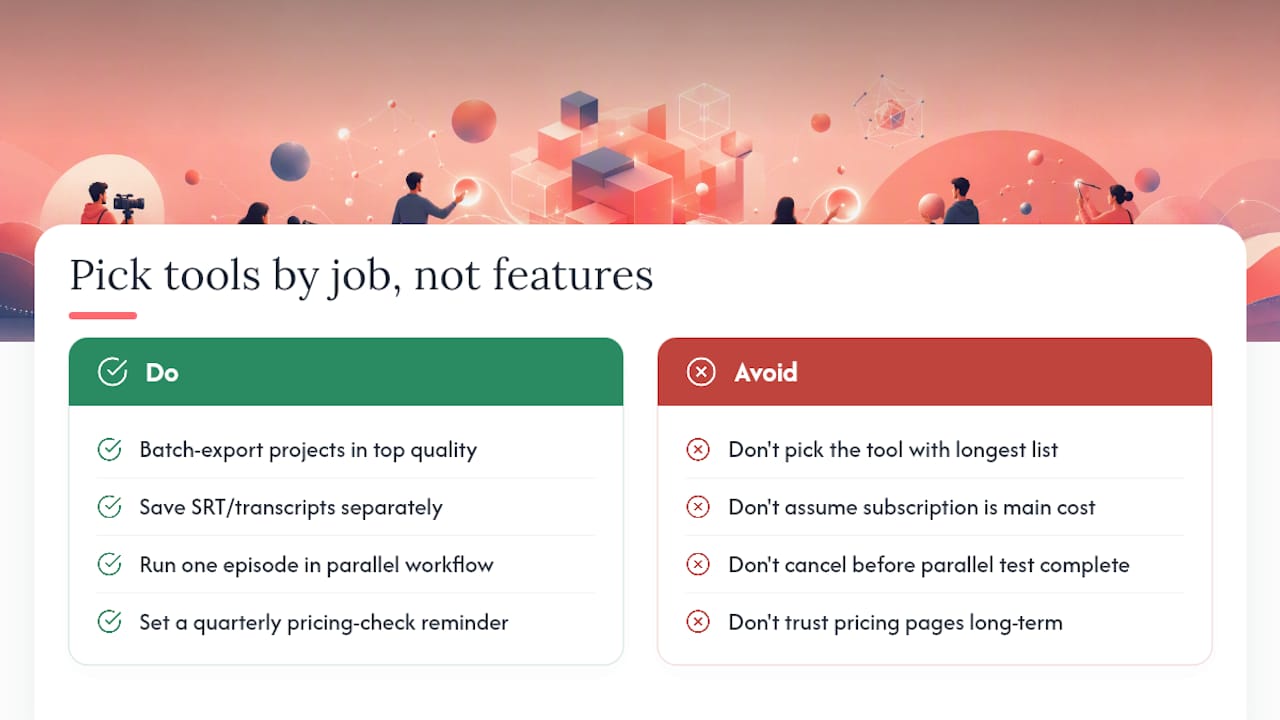
There is a pattern worth naming directly: creators spend weeks evaluating Descript alternatives by comparing feature lists, then pick the tool with the longest list and discover six months later that they only use two of those features regularly.
The more useful question is not “which tool does the most?” but “which tool does my specific job with the least friction?” A podcaster who records remotely and edits by transcript does not need a professional NLE. A YouTube creator who needs subtitles in three languages does not need an overdub engine. A training team that starts from a slide deck does not need a multitrack recorder.
The tools that tend to disappoint are the ones that promise to replace everything. All-in-one platforms make sense when your workflow genuinely spans recording, editing, and publishing in one session. But most creators have a workflow that is heavier in one area, and a specialized tool almost always outperforms a generalist one on that specific job.
The migration cost people underestimate is not the subscription price. It is the time spent re-learning a UI, re-exporting legacy projects, and rebuilding templates. Before you switch, batch-export everything from your current tool in the highest-quality format available, preserve your SRT files separately, and run a parallel workflow on one episode before you cancel anything.
One more thing: pricing pages for AI tools change faster than almost any other software category. A plan that looks affordable today may restructure its credit model in three months. Build a 15-minute calendar reminder to re-check your vendor’s pricing page every quarter.
Youtubetotranscript gets you from YouTube video to usable text in seconds
If your primary job is pulling text out of YouTube content, whether for subtitles, show notes, research, or multilingual publishing, Youtubetotranscript does that job faster than any all-in-one editor. You paste a YouTube URL, click once, and get a transcript. No recording session to set up, no timeline to learn, no credit system to decode mid-project.

The tool handles videos that have no existing subtitles, exports in TXT, SRT, and VTT formats, translates into 89+ languages, and stores your transcripts in the cloud for easy access later. Batch processing means you can run an entire YouTube playlist through in one session rather than one video at a time. AI-generated summaries give you a head start on show notes or video descriptions without reading the full transcript.
It is not a video editor, and it is not trying to be. Use it alongside DaVinci Resolve, Premiere Pro, or any timeline editor when you need visual editing. Use it on its own when the job is text extraction, subtitle creation, or translation. For creators who publish to YouTube and need subtitles in multiple languages, it removes a step that used to take hours. Start with the free tier to test it on your own content, then check the Pro plan options at Youtubetotranscript when you are ready to scale.
Sources
AI tool pricing and feature sets change often. Before migrating a team or committing to an annual plan, check each vendor’s official pricing page directly. The sources below were used in preparing this guide and are worth bookmarking for ongoing reference.
- Best Descript Alternatives (20) | Subrupt
- Ngram
- 8 Best Descript Alternatives for Audio & Video in 2026
- Best alternatives to Descript | Clevera (blog)
Pricing for AI tools changes frequently. Re-check vendor pricing pages and trial terms before migrating a team or signing an annual contract.
FAQ
What is better than Descript for podcast editing?
For remote multitrack recording with transcript-based editing, Riverside.fm is a strong alternative. For podcasters who primarily publish to YouTube and need subtitles or show notes, Youtubetotranscript handles transcription and SRT export faster than a full editor.
Is CapCut better than Descript for short-form social content?
CapCut is better for generating short-form social clips at volume, with a more accessible free tier and faster auto-caption tools. Descript has stronger text-based editing and overdub features for long-form spoken-word content.
What is the best free video editor available right now?
DaVinci Resolve’s free version is the most capable free video editor available, with professional-grade color, audio, and timeline tools and no watermark on exports. For caption-focused social video, VEED.io’s free tier is a practical browser-based option.
Which Descript alternative is best for transcription accuracy?
Dedicated transcription-first services, including Reduct.video, offer higher accuracy and stronger speaker separation than all-in-one editors, particularly for noisy audio or multi-speaker recordings. For YouTube-specific transcription, Youtubetotranscript provides AI-powered transcripts with timestamp controls and multi-format export.
How do I avoid hidden costs when switching from Descript?
Check whether the tool bills by media minutes, AI actions, or a flat monthly rate before uploading. Ask the vendor what happens when you exceed your plan limit mid-month, and verify the data retention policy before canceling your current subscription.
Leave a Reply
You must be logged in to post a comment.