
The quickest way to download YouTube subtitles is to paste the video URL into a free online extractor and download an SRT, VTT, or TXT file in under a minute. No account required. If you do this regularly, installing the Youtubetotranscript Chrome extension saves even more time and adds auto-transcription for videos that have no captions at all.
Before you pick a method, here’s what to expect:
- File formats available: SRT (timed subtitles), VTT (web-friendly), TXT (plain text)
- No signup needed for YouTube’s built-in transcript, most online extractors, and the Youtubetotranscript free tier
- Privacy quick check: use HTTPS-only tools, never enter your YouTube password into a third-party site
Pro Tip: If the video has no captions at all, skip the built-in transcript and go straight to an AI-powered extractor like Youtubetotranscript, which generates a transcript from the audio automatically.
Key Takeaways
Downloading YouTube subtitles is free and takes under a minute using YouTube’s built-in transcript, a paste-URL extractor, or the Youtubetotranscript extension — with SRT as the most universally compatible export format.
| Point | Details |
|---|---|
| Fastest no-install method | Use YouTube’s built-in transcript panel on desktop; copy text or reformat to SRT manually. |
| Best one-off download | Paste the video URL into an HTTPS, no-signup extractor to get SRT, VTT, or TXT in seconds. |
| Best for frequent use | Install Youtubetotranscript for one-click exports, AI auto-transcription, and multi-language support. |
| Power-user batch option | Use yt-dlp with --write-subs --convert-subs srt to download subtitles for entire playlists via CLI. |
| Youtubetotranscript advantage | Generates transcripts from audio even when no captions exist, with TXT/SRT/VTT export and 89+ language translation. |
Table of Contents
- What are the fastest ways to download YouTube captions?
- How to download YouTube subtitles using the built-in transcript
- How to use a free online extractor to download YouTube subtitles
- How to install and use the Youtubetotranscript extension
- How to download subtitles via the command line with yt-dlp
- What to do when subtitles won’t download or the timing is wrong
- SRT vs VTT vs TXT: which format should you download?
- Legal and safety notes for U.S. users
- The practical workflow most readers should use
- Youtubetotranscript gives you transcripts even when captions don’t exist
- Sources
- FAQ
What are the fastest ways to download YouTube captions?
Three routes cover nearly every situation. Pick the one that fits your setup right now.
Option A: YouTube’s built-in Transcript (desktop)
Open the video, click the three-dot menu below the player, select “Show transcript,” then copy the text or save it manually. Works instantly when captions exist. No install needed.
Pro: Zero tools required. Con: No direct SRT/VTT download; copy-paste only, and it’s not available on all mobile layouts.
Option B: Free online subtitle extractor
Paste the video URL into a paste-link extractor, choose your language and format, and click download. Done in under a minute with no account.
Pro: Fastest one-off method, no install. Con: Relies on the video having captions; some tools show captchas or rate-limit heavy use.

Option C: Youtubetotranscript browser extension
Install once from the Chrome Web Store, then export any video’s transcript in TXT, SRT, or VTT with a single click. Includes AI auto-transcription for caption-free videos, multi-language translation, and cloud storage.
Pro: Works even without existing captions; best for frequent users. Con: Requires a one-time install and a free account for cloud features.
How to download YouTube subtitles using the built-in transcript
When a video already has captions, YouTube’s own transcript panel is the fastest no-tool route.
Desktop steps
- Open the YouTube video in your browser.
- Click the three-dot menu (⋮) directly below the video player, to the right of the title.
- Select “Show transcript” from the dropdown.
- A panel opens on the right. To remove timestamps, click the three-dot icon inside the transcript panel and toggle off “Toggle timestamps.”
- Select all the text (Ctrl+A on Windows, Cmd+A on Mac), copy it, and paste it into a text editor.
- Save the file as
.txt.
Mobile steps
The transcript panel is not available in the standard YouTube mobile app as of now. Your two best options on mobile are:
- Open the video in a mobile browser (Chrome or Safari), request the desktop site, and follow the desktop steps above.
- Use a mobile transcription app from the App Store or Google Play as a workaround, keeping in mind that feature sets differ from browser extensions.
Converting a copied transcript into SRT format
If you need timed subtitles rather than plain text, you can reconstruct a basic SRT block from the timestamps YouTube shows in the transcript panel. Each SRT entry follows this structure:
1
00:00:05,000 --> 00:00:08,000
Subtitle text here.
Copy the timestamp and text pairs from the transcript panel, then reformat them to match that pattern. For longer videos, a text editor with find-and-replace (VS Code, Notepad++) speeds this up considerably.
Pro Tip: To force auto-generated captions when a manual track isn’t present, click the CC button on the player. If it appears, auto-captions are available and will show in the transcript panel too.
How to use a free online extractor to download YouTube subtitles
This is the most common method on the SERP and works well for one-off downloads.
- Copy the full YouTube video URL from your browser’s address bar (e.g.,
https://www.youtube.com/watch?v=XXXXXXXXXXX). - Open a free transcript extractor in a new tab.
- Paste the URL into the input field and click Generate or Extract.
- If the video has subtitles in multiple languages, a language selector will appear. Choose the one you need.
- Select your output format: SRT, VTT, or TXT.
- Click Download and save the file to your device.
The whole process takes under a minute for most videos.
Pros and cons of online extractors
- No install required — works in any browser on any device
- Supports multiple formats — SRT, VTT, and TXT in one step
- Free with no signup on most reputable tools
- Rate limits or captchas may appear with heavy use
- Requires the video to have existing captions (auto-generated or manual)
- Some tools may log URLs — choose HTTPS-only, no-signup services
Security guidance
Stick to tools that use HTTPS, do not ask for your YouTube login, and do not require you to upload the video file. A URL-paste workflow is the safest pattern: the tool fetches publicly available caption data, nothing more. If a site asks for your Google credentials, close it immediately.
Handling multiple languages
When a video has captions in more than one language, the extractor’s language selector lists all available tracks. Download each language as a separate file and label them clearly (e.g., subtitles_en.srt, subtitles_es.srt). For side-by-side bilingual study, open both files in a text editor and align the timestamp blocks manually, or use a subtitle editor like Aegisub.
Productivity note: Extracting a transcript before watching a video lets you scan for the key points in seconds rather than scrubbing through the timeline. Tools built around this idea, like Baitless, show how fast transcript access changes the way people consume long-form content.
How to install and use the Youtubetotranscript extension
For anyone who downloads captions more than occasionally, a browser extension removes the repetitive steps and adds features that no paste-URL tool offers.
Installation
- Open the Youtubetotranscript Chrome Web Store listing in Chrome.
- Click “Add to Chrome” and confirm the permissions prompt. The extension requests only the minimal permissions needed to read the current YouTube page.
- Pin the extension to your toolbar by clicking the puzzle-piece icon and selecting the pin next to Youtubetotranscript.
Exporting a transcript
- Open any YouTube video.
- Click the Youtubetotranscript icon in your toolbar.
- Choose your output format: TXT, SRT, or VTT.
- Click Export to save the file locally, or send it to cloud storage if you’re on a Pro plan.
What the extension does that paste-URL tools can’t
- AI auto-transcription for videos with no captions at all — the extension generates a transcript from the audio
- Translation into 89+ languages — export a translated transcript in one step
- Cloud storage — access saved transcripts from any device
- Batch processing — export transcripts for multiple videos without repeating the workflow
- Timestamp controls — include or strip timestamps from the export
- AI-generated summaries — get a condensed version of the video content alongside the full transcript
Pro Tip: Use the batch processing feature when you’re working through a playlist or a course. Export all transcripts at once, then search across the text files to find the exact segment you need.
The Chrome Web Store listing is the safest install source. Browser-store listings are the standard trust signal for extensions; the store vets permissions and flags malicious behavior, so always install from there rather than from a third-party download link.
How to download subtitles via the command line with yt-dlp
Power users who need batch downloads, scripted pipelines, or exact SRT timing should use yt-dlp, the actively maintained fork of youtube-dl.
Setup
- Install yt-dlp:
pip install yt-dlp(Python required) or download the binary from the yt-dlp GitHub releases page. - Confirm the install:
yt-dlp --version - Keep it updated regularly:
pip install -U yt-dlp
Download subtitles for a single video
yt-dlp --write-subs --sub-lang en --skip-download "https://www.youtube.com/watch?v=VIDEO_ID"
To download auto-generated captions when no manual track exists:
yt-dlp --write-auto-sub --sub-lang en --convert-subs srt --skip-download "https://www.youtube.com/watch?v=VIDEO_ID"
Key flags explained
--write-subs— download available subtitle tracks--write-auto-sub— download auto-generated captions as a fallback--sub-lang en— specify language (useen,esfor multiple)--convert-subs srt— convert VTT output to SRT automatically--skip-download— fetch subtitles only, skip the video file--output "%(title)s.%(ext)s"— set a clean filename template
Batch downloads
To export subtitles for every video in a playlist, replace the single video URL with the playlist URL:
yt-dlp --write-subs --sub-lang en --convert-subs srt --skip-download "https://www.youtube.com/playlist?list=PLAYLIST_ID"
Accuracy note: Auto-generated captions vary in quality depending on the audio clarity and the speech-to-text model YouTube uses. For high-stakes transcription work, benchmarking transcription models against your specific audio type helps you choose the right tool for the job.
yt-dlp is a legitimate open-source tool, but downloading subtitles from copyrighted content for redistribution may violate YouTube’s Terms of Service and U.S. copyright law. Use it for personal study, accessibility, or content you own.
What to do when subtitles won’t download or the timing is wrong
Most failures fall into a small set of categories, each with a direct fix.
Quick diagnosis
- Check whether captions exist — click the CC button on the player. If it’s grayed out, no captions are available and you’ll need an AI transcription tool.
- Check the language — the transcript panel may default to a language you don’t expect. Open it and switch tracks manually.
- Try a different method — if the online extractor fails, try the built-in transcript or the Youtubetotranscript extension.
- Check encoding — open the downloaded file in a text editor. Garbled characters usually mean the file was saved in a non-UTF-8 encoding. Re-save as UTF-8.
- Fix timing mismatches — if subtitles appear early or late, open the SRT file and adjust the first timestamp block, then use a subtitle editor to shift all timestamps by the same offset.
Common issues and fixes
- No transcript available: The video has no captions. Use an AI auto-transcription tool (Youtubetotranscript handles this) or yt-dlp with
--write-auto-sub. - Auto-captions only, poor quality: Auto-generated captions are accurate enough for most content but struggle with heavy accents or technical jargon. Run the file through a cleanup pass or use a higher-accuracy transcription model.
- Garbled or missing characters: Re-save the file as UTF-8 in your text editor (File → Save As → Encoding: UTF-8).
- Subtitle timing is off: Open the SRT in Aegisub or a plain text editor and shift all timestamps by a fixed offset. The
--convert-subsflag in yt-dlp can also fix VTT-to-SRT conversion artifacts. - HTML tags in the text: Some extractors leave
<i>,<b>, or<font>tags in the output. A simple find-and-replace in any text editor removes them, or use a regex:<[^>]+>→ (empty string). - Rate limit or captcha on extractor: Switch to the Youtubetotranscript extension or yt-dlp, which bypass web-based rate limits entirely.
SRT vs VTT vs TXT: which format should you download?
The right format depends entirely on what you’re doing with the file afterward.
SRT (SubRip Text) is the most widely supported subtitle format. It includes numbered entries, timestamp ranges, and plain text. Video editors like DaVinci Resolve, Premiere Pro, and Final Cut Pro all import SRT natively. If you’re adding subtitles to a video or sharing a caption file with a client, SRT is the safe default.
VTT (WebVTT) is the web standard. HTML5 video players use it directly via the <track> element, and it supports basic styling like bold, italic, and positioning. If you’re embedding a video on a website or working with a web-based media player, VTT is the right choice. The format is nearly identical to SRT but uses a slightly different header and timestamp syntax.
TXT (plain text) strips all timing data and gives you the raw spoken words. It’s ideal for study notes, translation work, feeding text into an AI tool, or quickly searching for a quote. No subtitle player can use a TXT file directly, but it’s the easiest format to read and edit.
| Format | Timestamps | Styling support | Best use case |
|---|---|---|---|
| SRT | Yes | None | Video editors, caption imports |
| VTT | Yes | Basic (bold, italic, position) | Web video players, HTML5 |
| TXT | No | None | Study notes, translation, AI input |
Converting between formats is straightforward. To go from VTT to SRT, use yt-dlp’s --convert-subs srt flag or paste the file into a free online converter. To strip timestamps from SRT to get plain text, delete the numbered lines and timestamp rows in any text editor, or use a regex: ^d+$ and ^d{2}:d{2}.*-->.*$.
Legal and safety notes for U.S. users
Downloading subtitles for personal study, accessibility, or fair-use transformation is common practice, but copyrighted content carries real limits on what you can do with the files afterward.
- Personal use is generally low-risk. Saving a transcript to study a lecture, review a tutorial, or make content accessible for yourself falls within typical fair-use reasoning under U.S. copyright law.
- Redistribution is a different matter. Reposting or publishing subtitle files from copyrighted videos without the rights holder’s permission may infringe copyright. Check the video’s license in the description before sharing anything.
- Check the video license first. Videos marked with a Creative Commons license (visible in the description under “License”) allow broader reuse. Standard YouTube license videos do not.
- Protect your account credentials. Never enter your Google or YouTube password into a third-party subtitle tool. A URL-paste workflow requires no login at all.
- Prefer HTTPS tools and reputable Chrome Web Store extensions. The store vets extensions for malicious behavior; a direct download from an unknown site does not carry that protection.
- For commercial reuse, consult a qualified intellectual property attorney before publishing or monetizing subtitle content from third-party videos.
The practical workflow most readers should use
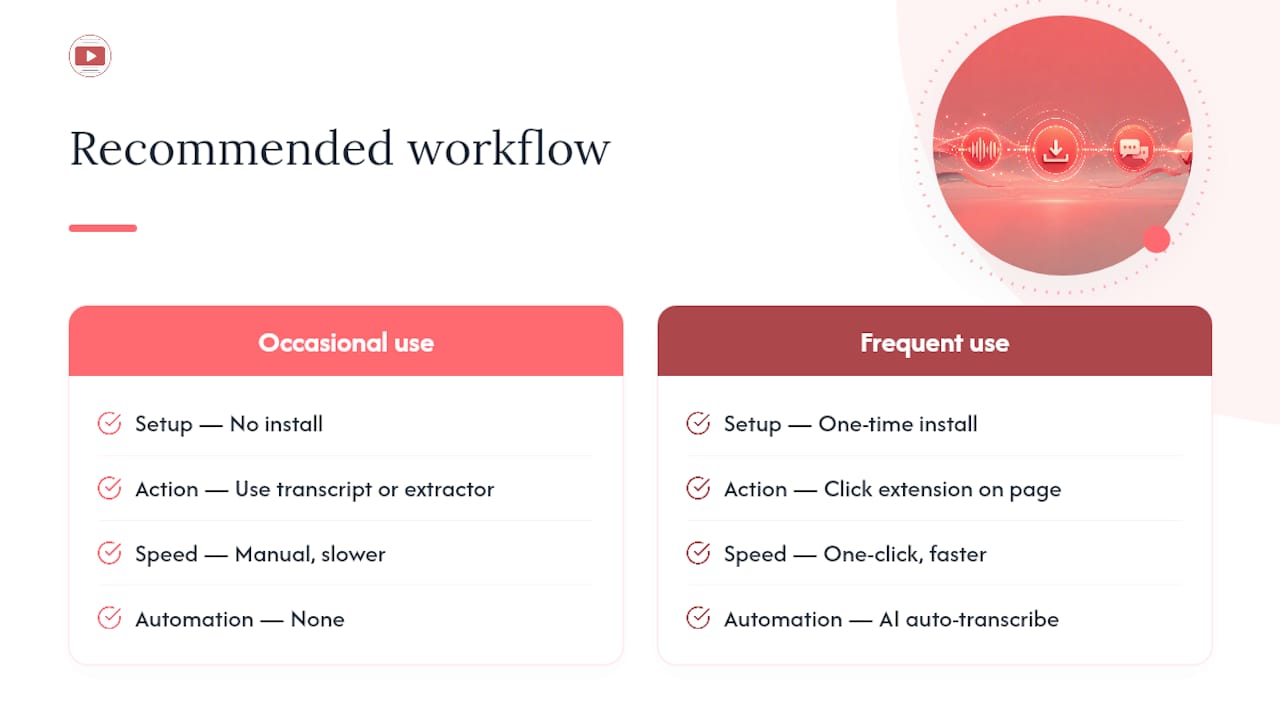
For occasional use, YouTube’s built-in transcript is the fastest path when captions already exist. Paste the URL into a free online extractor when you need an actual SRT or VTT file and don’t want to install anything.
For frequent use, the Youtubetotranscript extension is the better choice. The speed difference compounds quickly: instead of opening a separate tool, pasting a URL, selecting a format, and downloading, you click once from the video page. The AI auto-transcription feature also means caption-free videos are no longer a dead end. Tools like Baitless illustrate the broader productivity case: getting the text of a video before you watch it changes how efficiently you consume and repurpose content.
The tradeoff is straightforward. The built-in transcript and online extractors require no commitment but offer no automation. The extension requires a one-time install and, for cloud features, a free account, but it handles every format, every language, and every video type in a single workflow.
Youtube to transcript gives you transcripts even when captions don’t exist
Most free tools stop working the moment a video has no captions. Youtubetotranscript doesn’t. Its AI engine generates a transcript directly from the audio, exports it as TXT, SRT, or VTT, and can translate the result into 89+ languages — all from the same extension you install once in Chrome.
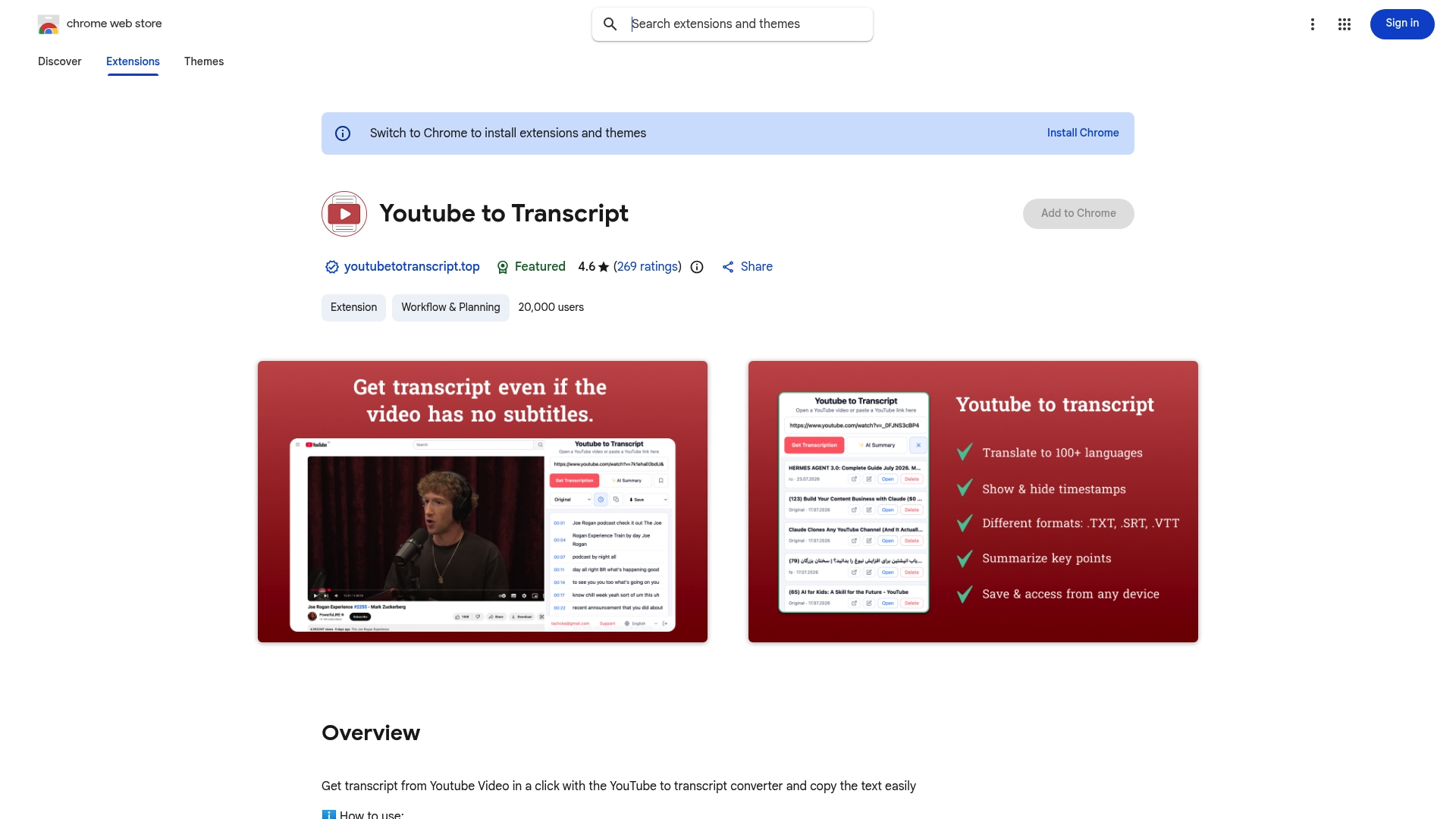
The free tier covers basic exports with no signup wall. Pro plans add cloud storage, batch processing across playlists, timestamp controls, and AI-generated summaries — the features that matter when you’re working through a course, building content, or translating at scale. The extension is listed on the Chrome Web Store with minimal permissions and no access to your Google account.
Visit Youtubetotranscript to try it free or compare plan options.
Sources
- Free YouTube Transcript Text Extractor
- YouTube to Transcript 6 Chrome Web Store
- Compare & Benchmark Transcription Models – OpenTranscription
FAQ
Can you download YouTube subtitles for free without an account?
Yes. YouTube’s built-in transcript panel and most online paste-URL extractors require no login. The Youtubetotranscript free tier also works without a paid account for basic exports.
What is the best format to download YouTube captions in?
SRT is the best default: it’s supported by nearly every video editor and caption tool. Use VTT for web video players and TXT when you only need the plain spoken text for study or translation.
How do you download subtitles from a YouTube video that has no captions?
Use an AI auto-transcription tool. Youtubetotranscript generates a transcript from the video’s audio even when no caption track exists, then exports it as TXT, SRT, or VTT.
How do you export a YouTube transcript in multiple languages?
If the video has multiple caption tracks, select your target language in the transcript panel or extractor’s language dropdown before downloading. Youtubetotranscript can also translate any transcript into 89+ languages and export the translated version directly.
Is it legal to download YouTube subtitles in the United States?
Downloading subtitles for personal study or accessibility is generally considered low-risk fair use, but redistributing or publishing subtitle files from copyrighted videos without permission may infringe copyright. Consult an intellectual property attorney for any commercial reuse.
Leave a Reply
You must be logged in to post a comment.