

For a single video or meeting, open the transcript panel and hit Ctrl+F (Cmd+F on Mac) to find exact terms in seconds. If you manage a growing library of YouTube videos, a browser extension that indexes captions saves you from repeating that search every week. For research across dozens of transcripts, AI keyword extraction and word-search APIs are the only methods that scale, and a tool like Youtubetotranscript can handle the extraction and export step either way, while advanced solutions like the AI Search Prompt Tracker help build scalable analysis and tracking workflows.
TL;DR:
- Manual search with Ctrl+F works only for quick, single-file lookups and becomes inefficient with larger libraries or recurring tasks.
- Browser extensions can index transcripts across multiple videos, support timestamp navigation, and export data, but require caution regarding private content.
- AI-powered extraction methods, such as embedding-based or prompt-based approaches, extract meaningful key phrases and themes more accurately than simple word counts.
- Programmatic search tools provide detailed match data, including occurrence counts and timestamps, enabling scale analysis without manual effort.
- For long transcripts, exporting the text and using AI tools like KeyBERT offers faster identification of overarching themes compared to keyword searches.
Table of Contents
- How Do You Find Keywords in a Transcript Manually?
- Which Browser Extensions Help You Search YouTube Transcripts?
- What’s the Difference Between AI Key-Phrases and Simple Word Counts?
- How Do You Search Transcripts Programmatically at Scale?
- What Search Operators Give You More Precise Keyword Hits?
- Why Do Transcript Searches Sometimes Fail?
- Manual Search or Automation: How Do You Decide?
- Speed Up Keyword Discovery With Youtubetotranscript
- Sources
- FAQ
How Do You Find Keywords in a Transcript Manually?
Manual search is the fastest option when you’re working with one video or one meeting recording and you already know the term you’re looking for. Both YouTube and most meeting platforms (Zoom, Google Meet, Microsoft Teams) generate a transcript panel you can scroll and search directly in the browser.
Here’s the quickest path:
- Open the video or meeting recording and click the “Show Transcript” option, usually found below the video or in the meeting’s recording details.
- Press Ctrl+F (or Cmd+F on a Mac) to open your browser’s find bar, then type the exact word or phrase you’re hunting for.
- Use the arrow keys or “next” button in the find bar to jump between matches and read the surrounding sentences for context.
- If you need to search offline or share the text, copy the transcript or export it as a TXT, SRT, or VTT file so you can search it later without reopening the platform.
This works well for spot-checking a single interview or reviewing one client call. It breaks down fast once you’re checking the same keyword across ten videos or a month of recurring meetings.
Which Browser Extensions Help You Search YouTube Transcripts?
Extensions and dedicated web tools solve the repetition problem. Instead of opening each video and running Ctrl+F one at a time, these tools fetch the caption data (or run speech-to-text when captions don’t exist) and let you search across an entire channel or saved library at once.
Look for these features before picking one:
- Library indexing that lets you search keywords across every video you’ve saved, not just one at a time
- Timestamp jump links that take you straight to the moment a word appears in the video
- Search coverage across multiple channels if you’re tracking a topic across creators
- Export options so results and transcripts leave the tool in a usable format
Tools like YouTLDR fetch full timestamped transcripts and support both keyword and semantic search, which means you can find a phrase even when it’s worded slightly differently across videos. That said, third-party indexing tools pull and store video data on their own servers, so avoid feeding them anything private, like unlisted client calls or internal meeting recordings not meant for outside storage.
Pro Tip: Bookmark the transcript export step, not just the search step. A tool that finds your keyword but locks the transcript behind its own interface just shifts the bottleneck somewhere else.
What’s the Difference Between AI Key-Phrases and Simple Word Counts?
Basic keyword search tells you a word appears five times. It doesn’t tell you which five words actually matter to the conversation. That gap is where AI-based extraction earns its place, and it comes in two flavors worth understanding before you pick one.
Embedding-based extraction, the approach behind KeyBERT, uses BERT embeddings and cosine similarity to pull out multi-word keyphrases that actually represent what the document is about, rather than just what’s repeated most often. It supports n-gram ranges, so you can extract single words or full phrases, and Maximal Margin Relevance (MMR) settings help de-duplicate near-identical results so your output isn’t ten variations of the same idea.
LLM prompt-based extraction works differently: you feed a transcript to a model and ask it directly for themes, keywords, or named entities, which tends to catch paraphrased mentions that exact-match search misses entirely.
Purpose-built APIs bridge both worlds. AssemblyAI’s Key Phrases model returns a ranked list of important phrases complete with occurrence counts, a relevancy rank, and timestamps, all packaged in a separate auto_highlights_result object your code can read directly.
What you get back typically includes:
- A ranked list of phrases (not just single words) sorted by relevance
- Occurrence counts and timestamps for each phrase
- Structured output in JSON or CSV you can pipe into a spreadsheet or dashboard
- Annotated transcripts with highlights already applied
One meaningful pattern from document analysis: embedding-based methods surface phrases that better summarize a document than a raw frequency count ever could, because frequency alone can’t tell “the guest mentioned Tuesday three times” apart from “the guest kept circling back to supply chain delays.”
How Do You Search Transcripts Programmatically at Scale?
Once you’re processing more transcripts than you can read in a sitting, manual review stops being realistic and you need an API or a pipeline. AssemblyAI’s word-search endpoint is a clean example of what a developer-facing tool returns: a total_count field plus a matches array, where each match carries the matched text, its count, timestamps, and word indexes. Those indexes map straight into the transcript’s word array, which is what lets you reconstruct the exact sentence around a hit or build a clickable timestamp link in a custom interface.
For batch jobs, key-phrase extraction often includes an extraction_depth setting, letting you choose between a quick pass or a more exhaustive scan depending on how much compute time you can spend. CLI tools like genai-yt combine transcript extraction (falling back to Whisper or yt-dlp when captions aren’t available) with promptable AI analysis, so a single command can pull the transcript and hand back keywords, summaries, and timestamps together.
| Output field | What it tells you |
|---|---|
| matches / text | The exact word or phrase found |
| count | How many times it appears |
| timestamps | Where in the audio each hit occurs |
| indexes | Position in the transcript’s word array, useful for context reconstruction |
What Search Operators Give You More Precise Keyword Hits?
Precision matters more than most people expect. Searching for “return” across a 90-minute earnings call will bury you in noise unless you know how to narrow it.
- Wrap a phrase in quotation marks for an exact match (“return on investment”) instead of matching three separate loose words.
- Add a minus sign before a term (-returns) to exclude a word that keeps triggering false positives.
- Use OR between synonyms (refund OR reimbursement) to catch every way a speaker might phrase the same idea, and group related terms in parentheses when a tool supports it.
- Try proximity search when the platform allows it, which finds two words appearing within a set number of words of each other, useful for catching “budget” and “cut” even when they’re not adjacent.
- Combine any of these with a speaker filter or timestamp range if your platform tracks who said what and when.
Everlaw’s transcript research documentation makes a useful distinction here: exact keyword search is best for locating specific identifiers, like a case number or a person’s name, while natural-language Q&A search performs better when the relevant content could be phrased many different ways across speakers. Running both in sequence, rather than picking one, is what separates a thorough keyword search from a lucky one.
Why Do Transcript Searches Sometimes Fail?
Most search failures trace back to one of three causes, and each has a quick fix.
- No transcript exists. The video owner disabled captions, or the video is private/unlisted and captions never generated. Your fallback here is a speech-to-text tool that transcribes directly from the audio track instead of relying on captions.
- The transcript is inaccurate. Auto-captions mangle names, technical terms, and accents regularly. Clean up obvious errors before you search, since a misspelled keyword won’t match.
- Permissions block visibility. Meeting platforms often restrict transcript access to the host or specific roles, so double-check sharing settings before assuming the transcript doesn’t exist.
Manual Search or Automation: How Do You Decide?
Manual Ctrl+F search wins for a single file you’re checking once. The moment you’re repeating the same search weekly, across a channel, or against a research library, automation pays for itself. A rough rule: three or more transcripts per task means it’s time to stop scrolling and start indexing.
— Vitaly Prius
Speed Up Keyword Discovery With Youtubetotranscript
Once you’ve outgrown Ctrl+F, the fastest upgrade isn’t a full API integration. It’s a tool that extracts a clean transcript in one click and lets you export it into a format your search or analysis workflow already understands.
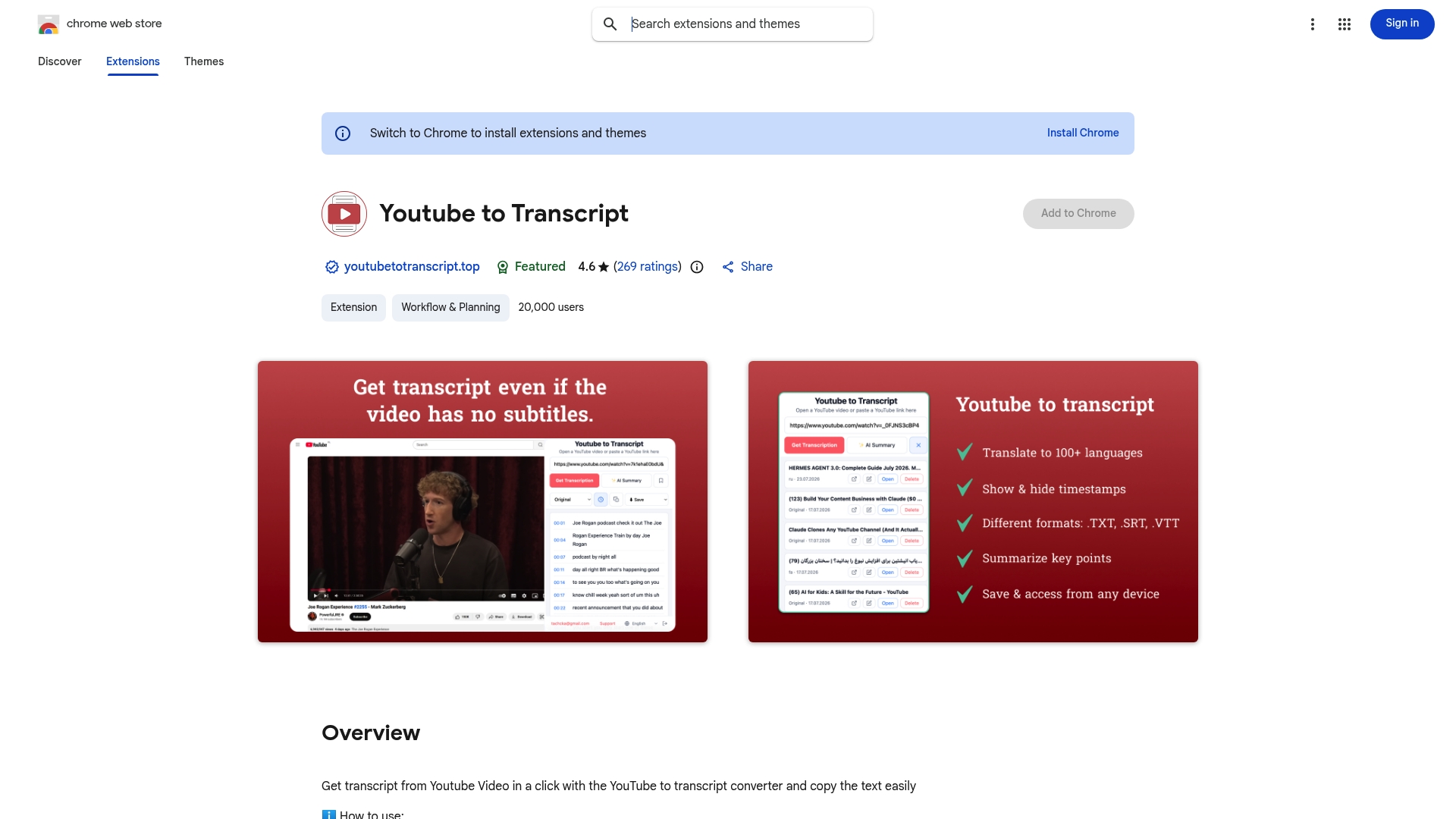
Youtubetotranscript pulls accurate transcripts from YouTube videos, including ones without existing captions, and exports them as TXT, SRT, or VTT so you can drop the text into whatever search method fits your task, whether that’s a quick Ctrl+F pass or a batch upload into an AI extraction pipeline. Timestamp controls keep every keyword hit tied to the exact moment it was said, and batch processing means you’re not repeating the extraction step for every video in a series. If you’re translating content across a global audience, built-in translation into 89+ languages means your keyword search doesn’t stop at English transcripts. Start with the YouTube to Transcript tool to pull your first transcript and see the export options for yourself.
Sources
- AssemblyAI — Key Phrases (Speech Understanding)
- MaartenGr / KeyBERT — GitHub
- Everlaw — Transcript Search Q&A and Keyword
FAQ
How do I search for keywords in a YouTube transcript?
Open the video’s transcript panel below the description, then use Ctrl+F (Cmd+F on Mac) to search for a specific word or phrase and jump between matches.
How do I look up a transcript if captions aren’t showing?
Check whether the video owner disabled captions or made the video private; if no transcript exists, a speech-to-text tool like Youtubetotranscript can generate one directly from the audio.
Why is YouTube transcript search not working?
Transcript search usually fails because the video has no captions, the transcript panel is hidden behind a permissions setting, or auto-generated captions are too inaccurate for your search term to match.
Can I search for keywords in YouTube comments too?
Standard transcript search tools only cover the spoken content, not the comment section. Comments require a separate search since they’re stored and indexed differently from caption or transcript data.
What’s the fastest way to extract keywords from a long transcript?
For a single long transcript, exporting the text and running exact-phrase search catches specific terms quickly, while an embedding-based tool like KeyBERT is faster for surfacing the transcript’s main themes without reading the whole thing.