
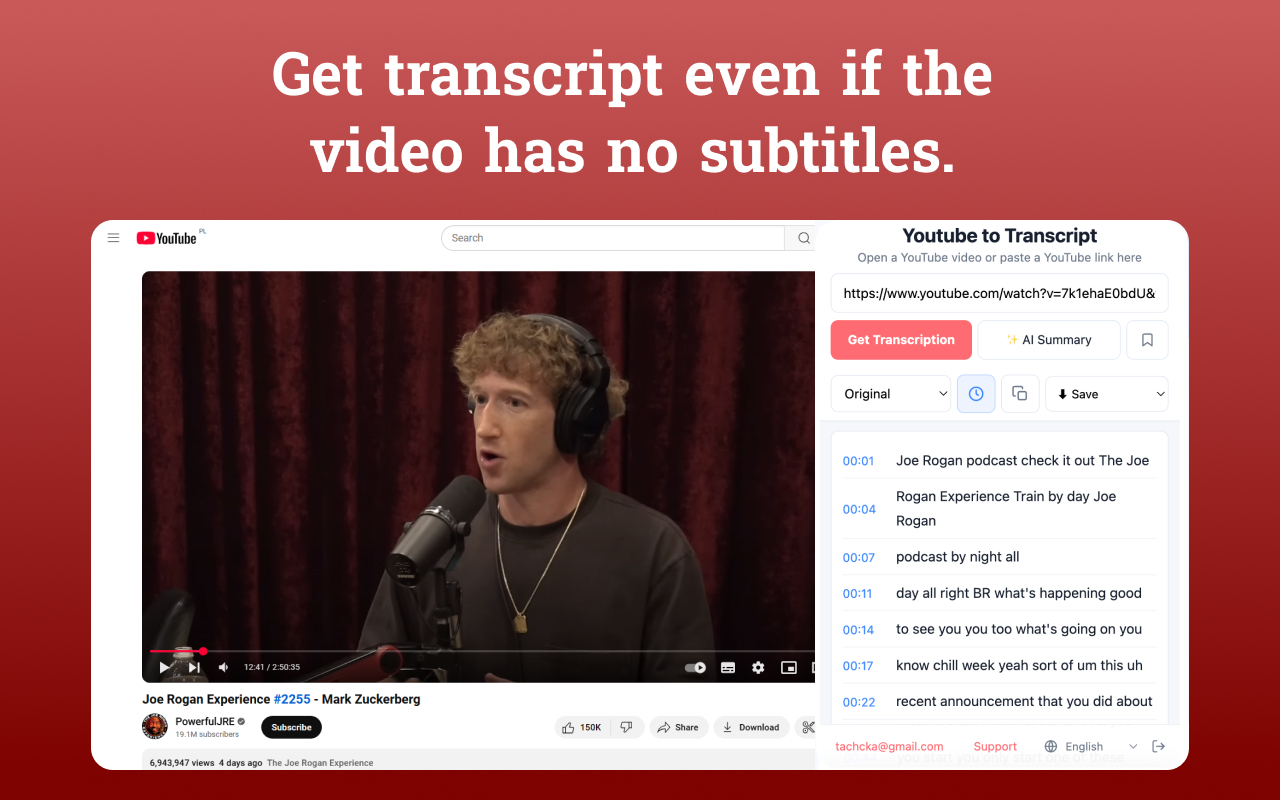
A YouTube transcript is the text version of what is spoken in a YouTube video, usually built from captions or subtitles. The fastest way to get a YouTube transcript is to use a transcript tool or browser extension that extracts the captions, keeps the timestamps, and lets you copy or export the result without manually opening YouTube’s transcript panel.
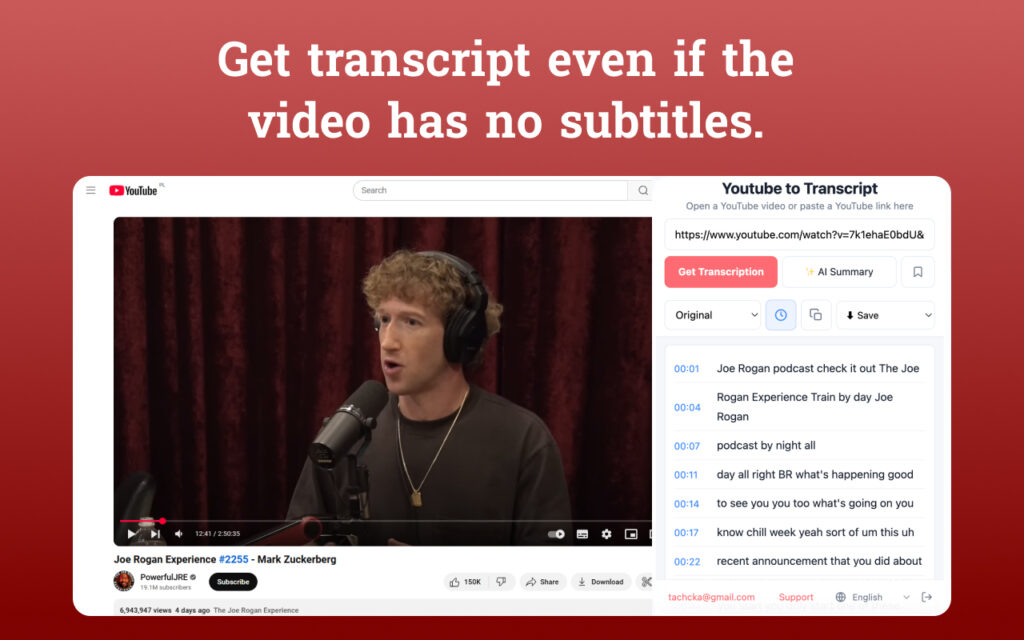
Youtube to Transcript is built for that exact workflow: open a YouTube video, get the transcript, then copy, summarize, translate, save, or export it. You can install Youtube to Transcript from the CSW store
Quick answer
You can get a YouTube transcript by opening the video, using YouTube’s built-in transcript panel if it is available, or using a browser extension that extracts YouTube subtitles directly from the video page. Youtube to Transcript first tries to get captions from the active YouTube tab, then falls back to a server request if needed, and offers AI transcription when the video has no subtitles.
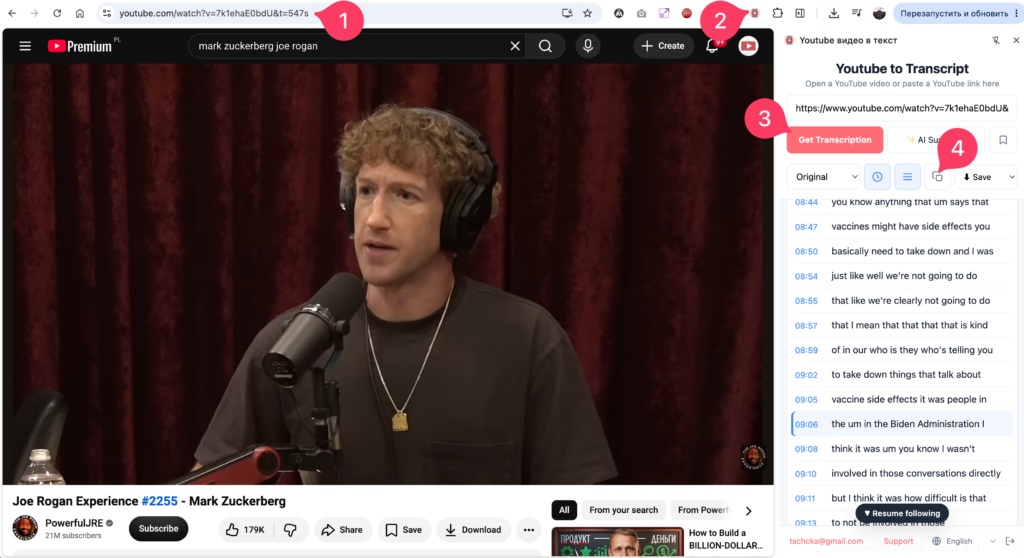
The basic workflow is simple:
- Open the YouTube video.
- Open Youtube to Transcript.
- Click to get the transcript.
- Copy the text or export it with timestamps.
- Use AI transcription if the video has no captions.
What is a YouTube transcript?
A YouTube transcript is a readable text version of a video’s spoken content. A YouTube transcript can come from creator-uploaded subtitles, YouTube auto-generated captions, or an AI transcription process that converts the audio into text. A good transcript usually includes timestamps so you can jump back to the exact moment in the video.
YouTube transcripts are useful when you need to:
- scan a long video before watching it;
- copy quotes from interviews or lectures;
- take study notes;
- repurpose video content into articles or social posts;
- make content easier to search;
- export subtitles as SRT or VTT files;
- summarize or translate the video.
The transcript is not just a convenience feature. For students, researchers, creators, and marketers, a YouTube transcript turns a video into something you can search, quote, save, and reuse.
How do you get a transcript from a YouTube video?
You can get a transcript from a YouTube video by extracting the video’s captions or subtitles. If captions are available, a transcript tool can read the subtitle track and display it as text with timestamps. If captions are missing, the video needs AI transcription because there is no subtitle track to extract.
There are three common ways to get a YouTube transcript:
| Method | Best for | Limitation |
|---|---|---|
| YouTube built-in transcript | Quick manual checks | Not always convenient to copy or export |
| Browser extension | Fast copying, timestamps, export, summaries | Requires installing the extension |
| AI transcription | Videos with no captions | Takes longer because audio must be processed |
Youtube to Transcript uses a practical fallback flow. It first tries to extract subtitles in the browser from the active YouTube tab. If that does not work, the request goes through a gateway. If the video has no subtitles at all, the extension can offer AI transcription instead of returning an empty result.
Can you copy a YouTube transcript as plain text?
Yes, a YouTube transcript can be copied as plain text with timestamps or without it:
1 – turn on/off the timestamps
2 – copy text in a click.
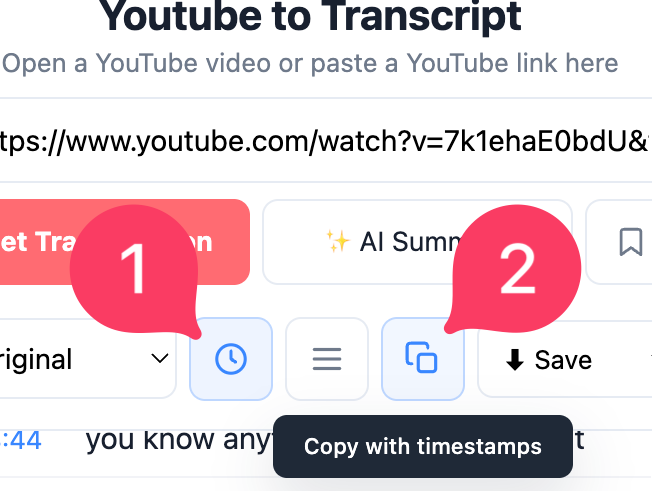
Youtube to Transcript includes a copy action so users can copy the full transcript from the extension panel without manually selecting lines from YouTube’s interface. This is useful for notes, research, documents, and content workflows.
Plain text is usually the best format when you want to:
- paste the transcript into Google Docs or Notion;
- search inside the transcript;
- feed the transcript into an AI tool;
- quote part of a video;
- save notes without subtitle formatting.
If you only need the spoken words, copy the clean text. If you need timing, keep timestamps visible or export a subtitle format.
Can you get timestamps with a YouTube transcript?
Yes, a YouTube transcript can include timestamps when the subtitle data contains timing information. Timestamps make the transcript more useful because each line can point back to the exact second in the video. Youtube to Transcript shows transcript lines with timing and also supports timestamp-based actions like jumping back to the video moment.
Timestamps are useful for different jobs:
| Use case | Why timestamps help |
|---|---|
| Research | Cite or revisit exact video moments |
| Study notes | Jump back to a lecture section |
| Editing | Find the part of the video you need |
| Subtitles | Export SRT or VTT with timing |
| Summaries | Check whether an AI summary missed context |
If you are working with long videos, timestamps are often the difference between “I have the text” and “I can actually use the text.”
What if YouTube does not show captions?
If YouTube does not show captions, there may be no subtitle track available for that video. In that case, a normal caption extractor has nothing to pull from. Youtube to Transcript handles this by offering AI transcription, which processes the audio and creates a transcript even when the video has no creator-uploaded or auto-generated subtitles.
This matters because many useful videos still have no accessible captions:
- older videos;
- small channel videos;
- private or unlisted training videos;
- interviews with weak auto-caption support;
- videos in languages where captions are inconsistent;
- videos where captions are disabled or unavailable.
AI transcription is slower than extracting existing captions because the audio has to be processed. But it solves the main problem: you can still get text from a video that has no transcript.
Is a browser extension faster than manual copying?
A browser extension is usually faster than manual copying because it removes the repetitive steps: opening the transcript panel, selecting text, cleaning timestamps, copying line by line, and fixing formatting. Youtube to Transcript is designed to get the transcript inside the side panel, then let the user copy, export, summarize, translate, or save it from one place.
Manual copying can work for a short video. It becomes annoying when:
- the video is long;
- you need timestamps;
- you need multiple transcripts;
- you need SRT or VTT export;
- you want to summarize the video;
- you want to translate the transcript;
- you want to save transcripts for later.
For one quick quote, YouTube’s own interface may be enough. For repeated transcript work, a dedicated extension saves time.
How Youtube to Transcript gets the transcript
Youtube to Transcript uses a fallback system instead of depending on only one extraction method. The extension first tries to extract subtitles directly in the browser from the active YouTube tab. If the browser-side method fails, the extension sends a request to the gateway. If the video has no subtitles, the extension can offer AI transcription.
The flow looks like this:
| Step | What happens | Why it matters |
|---|---|---|
| Browser extraction | The extension reads captions from the active YouTube tab | Fast and free when available |
| Gateway fallback | The server tries to fetch subtitle data | Helps when browser extraction fails |
| AI transcription | Audio is transcribed when subtitles are missing | Works for videos without captions |
| Copy/export | The transcript is copied or downloaded | Makes the result usable outside YouTube |
This is better than a single-path tool because YouTube transcript availability is inconsistent. Some videos have clean captions. Some have auto-captions. Some have nothing.
Can you export a YouTube transcript?
Yes, a YouTube transcript can be exported if the tool supports download formats. Youtube to Transcript can export transcripts as TXT, SRT, or VTT. TXT is best for reading and notes, while SRT and VTT are subtitle formats that preserve timing for video editing, captions, or republishing workflows.
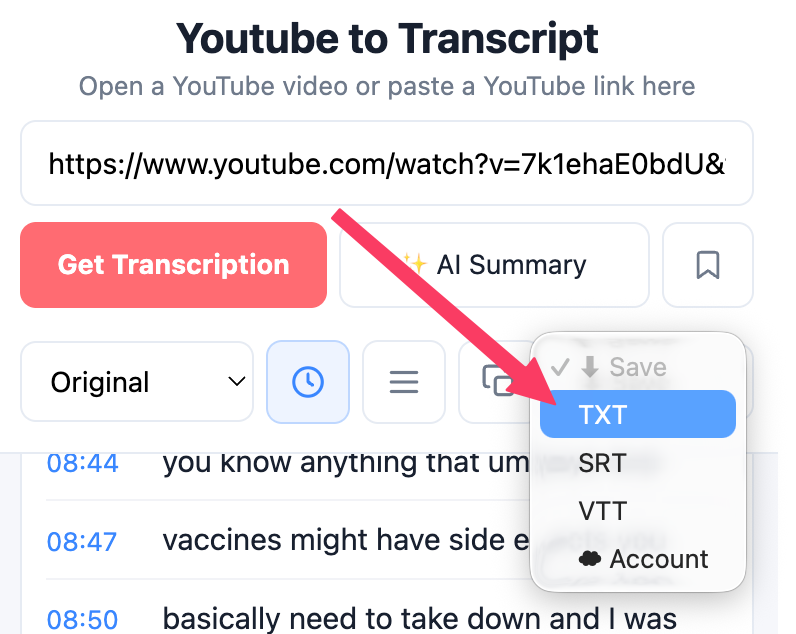
Use this simple rule:
| Format | Use when you need |
|---|---|
| TXT | Plain text notes, research, AI prompts, article drafts |
| SRT | Subtitle blocks with timing and numbering |
| VTT | Web video captions and timestamped text |
The extension also lets you control whether timestamps appear in the plain TXT view. That makes TXT useful both for clean reading and for timestamped research notes.
What can you do after getting the transcript?
After getting a YouTube transcript, you can copy it, export it, summarize it, translate it, save it, or use it to jump back to important video moments. A transcript is most valuable when it becomes part of a workflow, not when it just sits as raw text in a panel.
Here are practical next steps:
- Copy the transcript into notes.
- Export TXT for research or writing.
- Export SRT or VTT for subtitles.
- Generate an AI summary.
- Translate the transcript into another language.
- Save the transcript for later.
- Click a timestamp to return to the video moment.
If you work with educational videos, interviews, webinars, or tutorials, these actions are often more useful than watching the video again from the beginning.
Checklist: choose the right transcript method
Use this checklist before spending time copying captions manually:
| Question | Best action |
|---|---|
| Does the video already have captions? | Extract the YouTube subtitles |
| Do you need clean text only? | Copy or export TXT |
| Do you need timing? | Keep timestamps or export SRT/VTT |
| Does the video have no captions? | Use AI transcription |
| Is the video very long? | Get transcript first, then summarize |
| Is the video in another language? | Translate the transcript |
| Do you need to return later? | Save the transcript |
The fastest workflow is usually: get the transcript first, then decide whether you need summary, translation, or export.
FAQ
Can I get a transcript from any YouTube video?
You can get a transcript from many YouTube videos if captions or subtitles are available. If a video has no captions, you need AI transcription to create text from the audio. Some videos may still be difficult because of audio quality, language, privacy, or access limitations.
Does a YouTube transcript include timestamps?
A YouTube transcript can include timestamps when the subtitle track has timing data. Youtube to Transcript keeps timestamps available so users can jump back to video moments or export subtitle formats like SRT and VTT.
Can I copy the full YouTube transcript?
Yes, Youtube to Transcript lets users copy the full transcript from the extension panel. This is faster than manually selecting transcript text from YouTube, especially for long videos.
What should I do if the video has no subtitles?
If a YouTube video has no subtitles, use AI transcription. AI transcription processes the audio and creates a transcript when there is no existing caption track to extract.
Is AI transcription instant?
AI transcription is not always instant because the audio needs to be processed. Existing subtitles can be extracted quickly, but AI transcription for long videos can take minutes.
Can I export the transcript as subtitles?
Yes, Youtube to Transcript can export the transcript as SRT or VTT, which are common subtitle formats with timing. You can also export TXT for plain text notes.
Can I summarize the transcript after extracting it?
Yes, Youtube to Transcript includes an AI summary workflow. Once the transcript is available, the extension can generate a short summary so you can understand the main points without reading the full transcript.
Can I translate a YouTube transcript?
Yes, Youtube to Transcript can translate transcripts. The product uses a fallback approach: native YouTube tracks when available, YouTube’s translation parameter when possible, and Gemini when a stronger fallback is needed.
Final recommendation
If you only need one quick quote, YouTube’s own transcript panel may be enough. If you need to copy, export, summarize, translate, save, or work with videos that have no captions, use a dedicated extension instead.
Install Youtube to Transcript, get the transcript from the current YouTube video, and choose the next action: copy, export, summarize, translate, or save.
Leave a Reply
You must be logged in to post a comment.