
Fix SRT timing one of two ways: shift the whole file by a fixed number of seconds if every line is early or late by the same amount, or apply a linear rescale using two anchor points if the gap grows or shrinks as the video plays. There’s no third option worth your time.
- Constant offset (subtitles are always 2 seconds ahead or behind): use a browser-based resync tool for a one-click shift.
- Progressive drift (sync starts fine, then slides further off): use a two-anchor calibration tool or a desktop editor like Subtitle Edit.
Most sync problems fall cleanly into one of these two buckets, and picking the wrong fix wastes more time than the original problem did.
Key Takeaways
Fixing SRT timing comes down to one diagnostic decision: apply a fixed shift for constant offset, or a two-anchor linear rescale for progressive drift.
| Point | Details |
|---|---|
| Diagnose before fixing | Check timestamps at the start, middle, and end to tell constant offset from drift. |
| Shift for constant offset | Measure the gap once, apply it as a single positive or negative value across the file. |
| Rescale for drift | Use two anchor points far apart in the runtime for accurate proportional correction. |
| Always keep a backup | Work from a copy since some tools clamp negative timestamps or renumber entries. |
| Regenerate when text is bad | Youtubetotranscript exports fresh SRT/VTT files when the transcript, not just the timing, needs fixing. |
Table of Contents
- Constant Offset vs. Progressive Drift: How to Tell Which One You Have
- How to Measure and Apply a Fixed Time Shift to an SRT
- How to Fix Progressive Drift With the Two-Anchor Method
- Which Tool Should You Use to Retime Subtitles?
- How to Verify Your SRT Is Actually Fixed
- When It’s Faster to Regenerate the SRT Instead of Fixing It
- Sources
- FAQ
Constant Offset vs. Progressive Drift: How to Tell Which One You Have
Guessing wrong here means you’ll shift a drifting file and still end up out of sync by the credits. Here’s a fast way to tell them apart:
- Check three points: play a line near the start, one around the midpoint, and one near the end. Note how far off each one is, in seconds and milliseconds.
- Compare the gaps. If the offset is roughly identical at all three points (say, 1.5 seconds late every time), you have a constant offset.
- Look for growth. If the gap is small at the start and noticeably larger by the end, that’s drift, usually caused by a framerate mismatch or a re-encoded video running at a slightly different speed.
Constant offset usually comes from mismatched video cuts. Someone trimmed the intro, or you downloaded a different release than the one the subtitles were made for. Drift is more of a technical issue: 23.976fps subtitles applied to a 25fps encode, for instance, will slowly creep out of alignment over a two-hour runtime. SubAlign’s sync guide frames this as the core diagnostic split worth making before you touch a single timestamp.
How to Measure and Apply a Fixed Time Shift to an SRT
Once you’ve confirmed a constant offset, the fix is arithmetic, not guesswork.
- Measure the gap. Pause your video on a clear spoken line and note the player’s timestamp. Open the SRT file and find that same line’s timestamp. Subtract one from the other.
- Determine the sign. If subtitles appear too early, you need to delay them (add a positive shift). If they appear too late, advance them (apply a negative shift).
- Apply the shift. Enter the value, in seconds or milliseconds, into a shift tool or text editor. Precision matters here: a shift off by even 300 milliseconds is noticeable on dialogue-heavy scenes.
- Save, then test at multiple points, not just the beginning. A shift that looks right at minute 2 should still look right at minute 45 if the file genuinely has a constant offset and not hidden drift.
Keep the original file untouched during this process. Most SRT time-shift tools will clamp any timestamp that would go negative to 00:00:00,000 rather than allow an invalid time, which can quietly mangle your first few lines if your shift is too aggressive. Always work from a copy, and check line numbering after any bulk edit, since some tools renumber entries and some don’t.
Pro Tip: Before applying a shift to the entire file, test it on just the first 10 lines. If those look right, you’ve confirmed both the direction and magnitude before committing to the whole track.
How to Fix Progressive Drift With the Two-Anchor Method
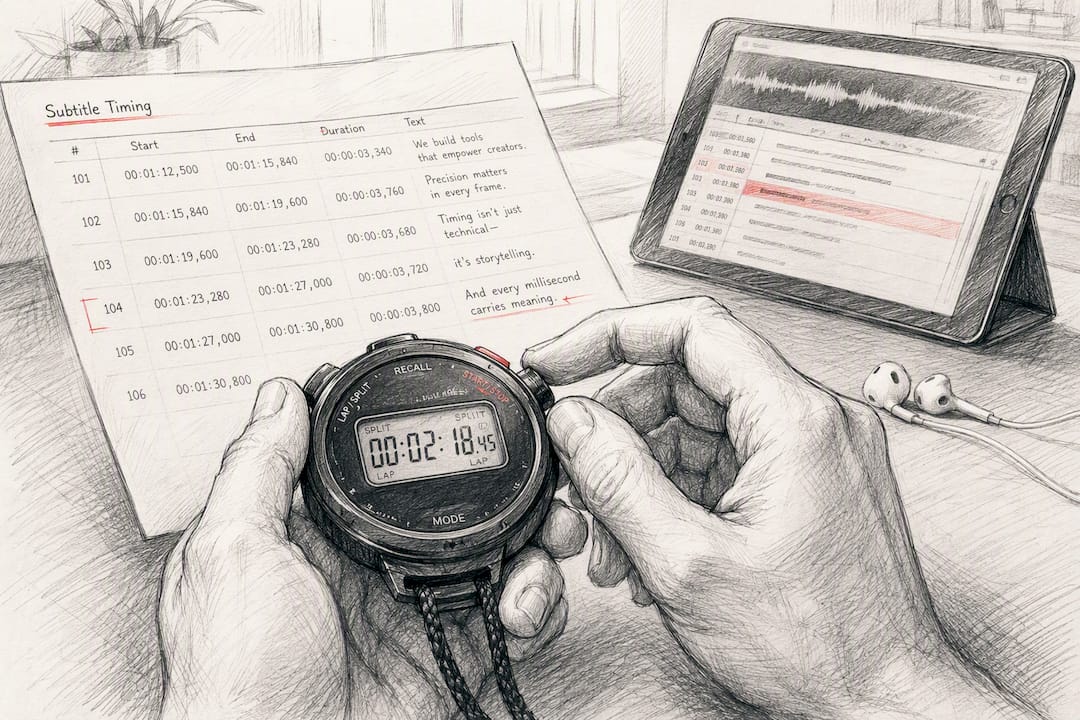
Drift can’t be fixed with a single shift value because the error itself is a moving target. What works instead is linear rescaling: telling the tool two points where subtitles should land, then letting it stretch or compress everything in between proportionally.
- Confirm you need rescale, not shift. Symptoms include subtitles lining up fine at minute 1 but running 4 to 5 seconds behind by minute 90, growing steadily rather than staying constant.
- Pick Anchor A, a clear, distinct spoken line early in the video. Note both its current subtitle timestamp and the actual time it’s spoken in the video.
- Pick Anchor B, another clear line as late in the runtime as possible. The farther apart your two anchors are, the more accurate the rescale. Note its subtitle timestamp and real playback time too.
- Let the tool calculate the correction. Rather than adding a flat number, linear calibration stretches the timeline proportionally between your two points, which is what SyncSubtitle’s two-anchor workflow is built around.
- Recheck intermediate points. Play a line roughly halfway between your anchors. If it’s still off, your anchor points weren’t accurate, or the drift isn’t perfectly linear (rare, but it happens with variable frame rate footage).
Pro Tip: Choose anchors on lines with sharp consonants or clear onsets, like a hard “T” or “K” sound. Vowel-heavy words make it harder to pin down the exact millisecond someone starts speaking.
Which Tool Should You Use to Retime Subtitles?
The right tool depends on how much precision you need and whether the fix is temporary or permanent.
- Browser-based resync tools handle whole-file shifts and basic two-anchor rescales without installing anything, which makes them the fastest option for a one-off fix on a single file.
- VLC media player is best for checking sync on the fly. It won’t produce a corrected SRT file by itself, but it will show you the exact delay value to plug into a shift tool afterward, per VLC’s own documentation.
- Aegisub gives you per-line control with a waveform and spectrogram view, so you can see exactly where dialogue starts and snap a subtitle to it. The Aegisub timing documentation walks through keyboard-driven workflows that speed this up considerably once you learn the shortcuts.
- Subtitle Edit offers similar per-line precision with a friendlier interface for people who don’t need Aegisub’s full editing depth.
- Auto-sync services like SubSync analyze the actual audio track and align subtitles to detected speech, which helps when a file has cuts, ad breaks, or drift that isn’t purely linear.
Use browser tools for speed, VLC to diagnose, and Aegisub or Subtitle Edit when you’re fixing dozens of individual lines that are each slightly off in different ways.
Nudging Subtitles in VLC and Capturing the Delay
VLC won’t permanently fix your SRT, but it’s the fastest way to find the exact number you need.
- Press G to delay subtitles (push them later) or H to advance them (bring them earlier), typically in 50 millisecond increments per press.
- VLC displays the current delay value on screen each time you adjust it. Keep pressing until dialogue and text line up, then note that number.
- Plug that exact delay into a shift tool to apply it permanently to the SRT file. VLC’s adjustment resets when you close the video, so it’s a measurement tool, not a fix.
How to Verify Your SRT Is Actually Fixed
Don’t trust a fix until you’ve tested it properly.
- Play through lines near the start, middle, and end of the file, not just the first minute.
- Open the SRT in a text editor and scan for negative or malformed timestamps, especially after a large shift.
- If only one scene is off while the rest of the file is fine, that’s usually a mid-file cut, not global drift. Fix that section with a partial shift or manual per-line edits instead of reshifting the whole track.
When It’s Faster to Regenerate the SRT Instead of Fixing It
Sometimes the timing isn’t the only problem. If the transcript text itself is riddled with errors, or the SRT file is missing entirely, patching timestamps on bad text is wasted effort.
- Regenerate when: the SRT has heavy transcription errors, was auto-generated poorly, or doesn’t exist at all for the video you’re working with.
- Workflow: pull a fresh transcript, export it as SRT or VTT, then apply a fixed shift or two-anchor rescale to the clean file using the methods above.
- What to look for in a transcript tool: export formats that include both SRT and VTT (formats differ slightly, since WebVTT follows W3C’s spec while SRT uses its own comma-separated format), adjustable timestamp controls, cloud storage so you’re not starting over on a new device, and batch processing if you’re retiming several episodes at once.
Youtubetotranscript covers each of those points, which makes it a practical starting point when the underlying transcript, not just the timing, is the real problem.
Repair or Regenerate: A Quick Rule of Thumb
If the text is accurate and only the timing is wrong, repair it. A shift or rescale takes minutes. If dozens of lines are wrong, missing, or garbled, regenerating a clean transcript and exporting fresh SRT timestamps is often faster than editing your way through a broken file line by line.
— Vitaly Prius
Skip the Manual Rebuild With a Clean SRT Export
If you’re stuck retiming a subtitle file that was never accurate to begin with, the faster path is starting over with a clean transcript rather than patching bad text one line at a time.
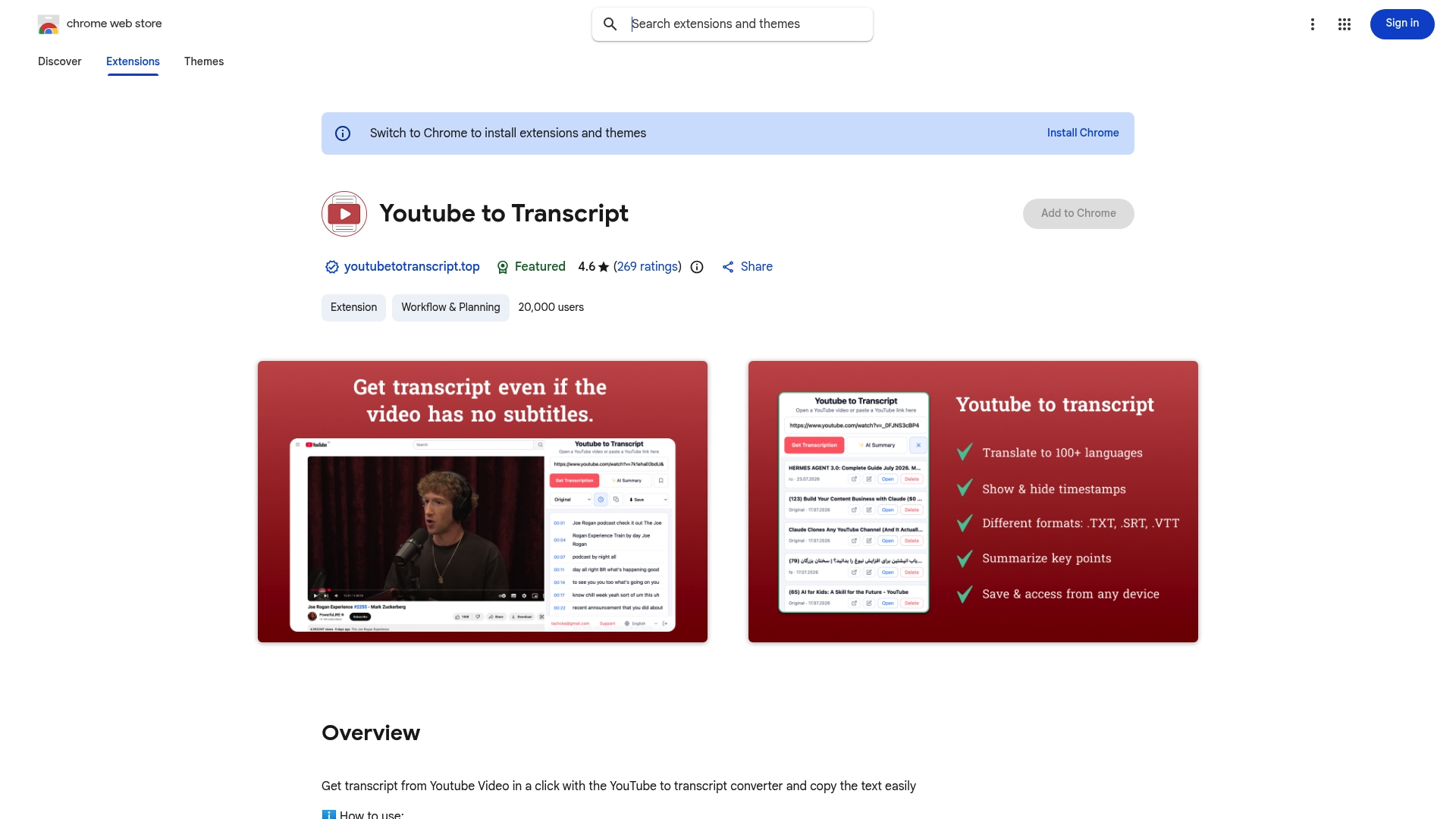
Youtubetotranscript pulls a full transcript directly from a YouTube video, even when the video has no captions at all, and exports it as SRT or VTT with adjustable timestamps built in. That means you get a usable subtitle file to apply a shift or rescale to, instead of fighting a corrupted or missing one. Cloud storage keeps your exports available across devices, and batch processing handles multiple videos at once if you’re retiming an entire series rather than a single file. When the SRT itself is the problem, not just its timing, generate a fresh transcript export and run it through the shift or rescale method above.
Sources
- Aegisub timing documentation
- SubAlign sync-subtitles guide
- SyncFlow / SyncSubtitle tool description
- SubSync – online subtitle sync tool
FAQ
How Do I Fix an SRT File’s Timing?
Diagnose whether the file has a constant offset or progressive drift, then apply either a fixed shift or a two-anchor linear rescale using a browser tool, Aegisub, or Subtitle Edit.
How Do I Correct Subtitle Timing That Drifts Over Time?
Pick two clear anchor points, one early and one late in the video, note their actual timestamps versus the subtitle timestamps, and let a linear calibration tool rescale everything proportionally in between.
How Can I Fix Delayed Subtitles Quickly?
Measure the exact delay in seconds or milliseconds by comparing a spoken line to its subtitle timestamp, then apply that value as a shift using a browser-based resync tool or a text editor.
How Do I Fix Subtitle Timing in VLC?
Press G to delay subtitles or H to advance them during playback until they match, note the delay value VLC displays, and apply that same number to a permanent SRT shift since VLC’s adjustment doesn’t save to the file.
What If My SRT File Has Too Many Errors to Fix Manually?
If the text itself is inaccurate or missing along with the timing, regenerating a clean transcript and exporting fresh SRT timestamps with a tool like Youtubetotranscript is usually faster than editing each line by hand.