

Yes, you can get English subtitles or a full transcript in minutes: turn on YouTube’s auto-translate to watch a video immediately, or paste the link into an AI transcription tool like YouTube to Transcript to get downloadable English text, SRT/VTT subtitle files, or dubbed audio. Which method you pick depends on whether you just need to understand the video or need to keep, edit, and reuse the words.
TL;DR:
- YouTube’s auto-translate feature provides quick, in-player translations but lacks export options and depends on existing captions’ quality.
- AI-based tools can generate downloadable transcripts and subtitle files within minutes, even for videos without captions, and support multiple languages.
- Manual translation offers the highest accuracy and control but requires significantly more time and effort, ideal for official or detailed work.
- Always review machine-generated transcripts for common errors in proper nouns, technical terms, and timing before publishing or citing.
- Using specialized tools like YouTube to Transcript balances speed and control, making it suitable for most needs beyond immediate viewing.
Table of Contents
- Quick Overview: The 3 Methods and Which to Pick
- Method A: Use YouTube’s Built-In Auto-Translate for Instant Viewing
- Method B: Paste a Link or Upload to an AI Translator for Downloadable Output
- Method C: Manual Transcript-to-Translation for Maximum Accuracy
- Proofread, Edit, and Export Checklist
- What Actually Matters When You Translate a YouTube Video
- Get Downloadable English Transcripts Without the Manual Work
- Sources
- FAQ
Quick Overview: The 3 Methods and Which to Pick
Before you commit to a workflow, it helps to know what each method actually gives you. YouTube’s built-in translator is the fastest way to watch a video in English, but it locks the text inside the player. AI-based tools that accept a pasted link or uploaded file go further, generating transcripts, subtitle files, and even dubbed audio you can download and edit. Manual extraction and translation takes the most effort but gives you the tightest control over wording.
- YouTube built-in auto-translate: Instant, free, viewable only inside the player, no export option.
- AI link/upload tools (like YouTube to Transcript): Fast (usually under a few minutes), produces downloadable transcripts and subtitle files, works even without existing captions.
- Manual transcript then translate: Slowest, but gives you the most control over phrasing, terminology, and accuracy.
If you just want to follow along while watching, use YouTube’s translator. If you need a file to edit, quote, or repost, go with an AI tool. If precision matters more than speed, do it by hand.
Method A: Use YouTube’s Built-In Auto-Translate for Instant Viewing
YouTube’s player has a native Auto-translate feature, but it only works when the video already has captions, whether auto-generated or uploaded by the creator. If there are no captions at all, this option won’t appear.
- Open the video and click the CC (captions) icon in the player controls.
- Click the gear-shaped Settings icon, then select Subtitles/CC.
- Choose Auto-translate from the menu.
- Scroll to English and select it.
- On mobile, tap the three-dot menu, choose Captions, then follow the same Auto-translate path.
The translated text appears as an on-screen overlay. It’s not downloadable, and you can’t copy it or edit the wording.
Accuracy depends heavily on the source captions. YouTube’s auto-generated captions work best with clear audio and major languages, and quality drops noticeably with background noise, overlapping speakers, or heavy accents. Timing can also drift, especially in fast-paced dialogue.
Use this method when you just need to follow along in real time. It’s the wrong tool if you plan to quote the video, cite it in writing, or need a file you can share.
Pro Tip: If Auto-translate isn’t showing up in the menu, the video likely has no captions at all. Try Method B instead, since AI tools can generate a transcript even when YouTube has nothing to translate.
Method B: Paste a Link or Upload to an AI Translator for Downloadable Output
This is the method to reach for when you need something more permanent than on-screen text. Instead of relying on existing captions, AI translation tools transcribe the audio directly, which means they work even on videos with no captions at all. The general workflow looks like this:
- Paste the YouTube URL (or upload a video/audio file) into the tool.
- Let it auto-transcribe the spoken audio.
- Select English as your output language.
- Review the draft output and make corrections where needed.
- Export as SRT, VTT, or TXT, or generate a dubbed MP4 if the tool supports it.
AI video translators typically accept a YouTube link and return subtitles, transcripts, and optional dubbed exports within minutes, which is a meaningful jump in usefulness over watching translated captions once and losing them.
Youtubetotranscript’s Chrome extension and web tool fit this exact job. Paste a YouTube URL and it transcribes the audio with AI, even when the original video carries no captions, then translates that transcript into any of 89-plus languages. From there you can export to TXT, SRT, or VTT, store the results in the cloud for later reference, and batch-process multiple videos instead of handling them one at a time. For a student translating a lecture or a creator repurposing a video into an English blog post, that combination saves real time over stitching together separate tools.

Processing speed for most AI tools ranges from under a minute for short clips to a few minutes for longer videos. Free tiers usually cap you at a limited number of minutes or a handful of uses per month, with paid plans priced either per minute of audio or as a flat monthly or annual subscription. Some services, including dubbing tools that offer American or British voice options, let you choose an accent for the dubbed audio track, which matters if you’re producing content for a specific English-speaking audience.
Machine translation still makes mistakes, especially with names, brand terms, and technical vocabulary. A focused proofread pass on proper nouns and timecodes catches most of the errors that actually affect meaning.
Pro Tip: Always do a quick listen-through against the exported transcript before you publish or submit it. Machine transcription can mishear similar-sounding words, and a two-minute check saves you from an embarrassing error in a final document.
Method C: Manual Transcript-to-Translation for Maximum Accuracy
When exact phrasing matters, such as for legal filings, academic citations, or professional publishing, a manual approach beats automated translation on precision, even though it costs you more time.
- Extract the original-language transcript using YouTube’s built-in transcript panel (below the video description), the YouTube to Transcript extension, or a standalone audio transcriber.
- Copy that transcript into a document.
- Translate it using a higher-quality tool like DeepL or a carefully written prompt to an LLM, rather than relying on quick auto-translate.
- If you need subtitles rather than plain text, re-sync your translated lines to the original timecodes.
- Read the final version against the video once more to catch anything that lost nuance in translation.
This route takes noticeably longer than pasting a link into an AI tool. Expect to spend real time on a 10-minute video, versus the few minutes an automated tool needs. The tradeoff is worth it specifically when a court, journal, publisher, or client needs exact wording, not just a reasonable approximation.
Proofread, Edit, and Export Checklist
Whichever method you used, a short review pass turns a rough machine translation into something you can actually publish or submit.
- Scan for misheard proper nouns, brand names, and technical terms, since these are where machine translation fails most often.
- Check timing on subtitle files: lines that run too long or overlap with the next line are a common export flaw.
- Keep subtitle lines short enough to read comfortably, generally under two lines and 40 or so characters per line.
- Standardize terminology throughout, especially in longer transcripts where a term might get translated two different ways.
For exports, match the format to your use case: SRT and VTT for subtitle files you’ll upload or embed, TXT for a plain transcript you’ll quote or edit, and a burned-in or dubbed MP4 when you want the translation baked directly into the video.
To add subtitles back onto YouTube, go to YouTube Studio, select the video, open Subtitles, and upload your finished SRT or VTT file.
One guardrail worth keeping in mind: translating and republishing someone else’s video without permission can raise copyright issues, so treat this workflow as a comprehension and personal-use tool unless you have rights to redistribute the content. This is general guidance, not legal advice.
Pro Tip: Keep a copy of both the original-language transcript and your English translation. If you ever need to double-check a translation choice or re-export in a different format, you won’t have to start from scratch.
What Actually Matters When You Translate a YouTube Video
Most guides treat this as a single-step problem: turn on captions, done. That undersells what people actually need. If you’re a student trying to reference a lecture later, a content creator repurposing a video into a blog post, or someone citing a source in a report, on-screen translated captions that vanish the moment you close the tab aren’t a solution. They’re a stopgap.
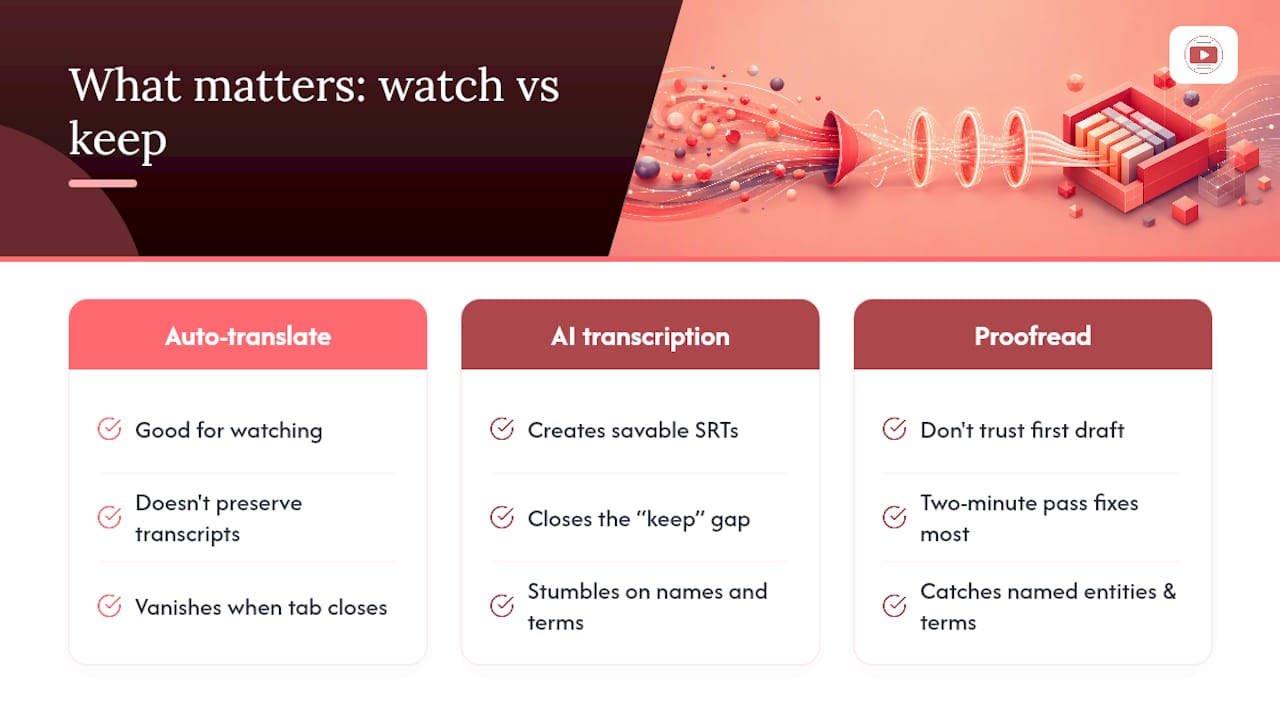
The real decision point isn’t “how do I translate this video,” it’s “do I need to watch it, or do I need to keep it.” YouTube’s auto-translate answers the first question well and the second one not at all. That’s the gap AI transcription tools exist to close, and it’s why I’d push most readers past the built-in translator faster than typical advice does.
Where I’d add a caution: don’t trust the first draft of any machine translation, automated or manual. Named entities and technical terms are where these tools stumble, and a two-minute proofread pass fixes the overwhelming majority of it. Speed matters, but speed without a review step just moves the error further downstream.
— Vitaly Prius
Get Downloadable English Transcripts Without the Manual Work
If you’ve made it this far, you already know the tradeoff: YouTube’s auto-translate is fast but disposable, and manual transcription is accurate but slow. Youtubetotranscript sits in the middle where most people actually need to be, turning a YouTube link into a downloadable English transcript or subtitle file in minutes, without you touching a stopwatch or a translation dictionary.
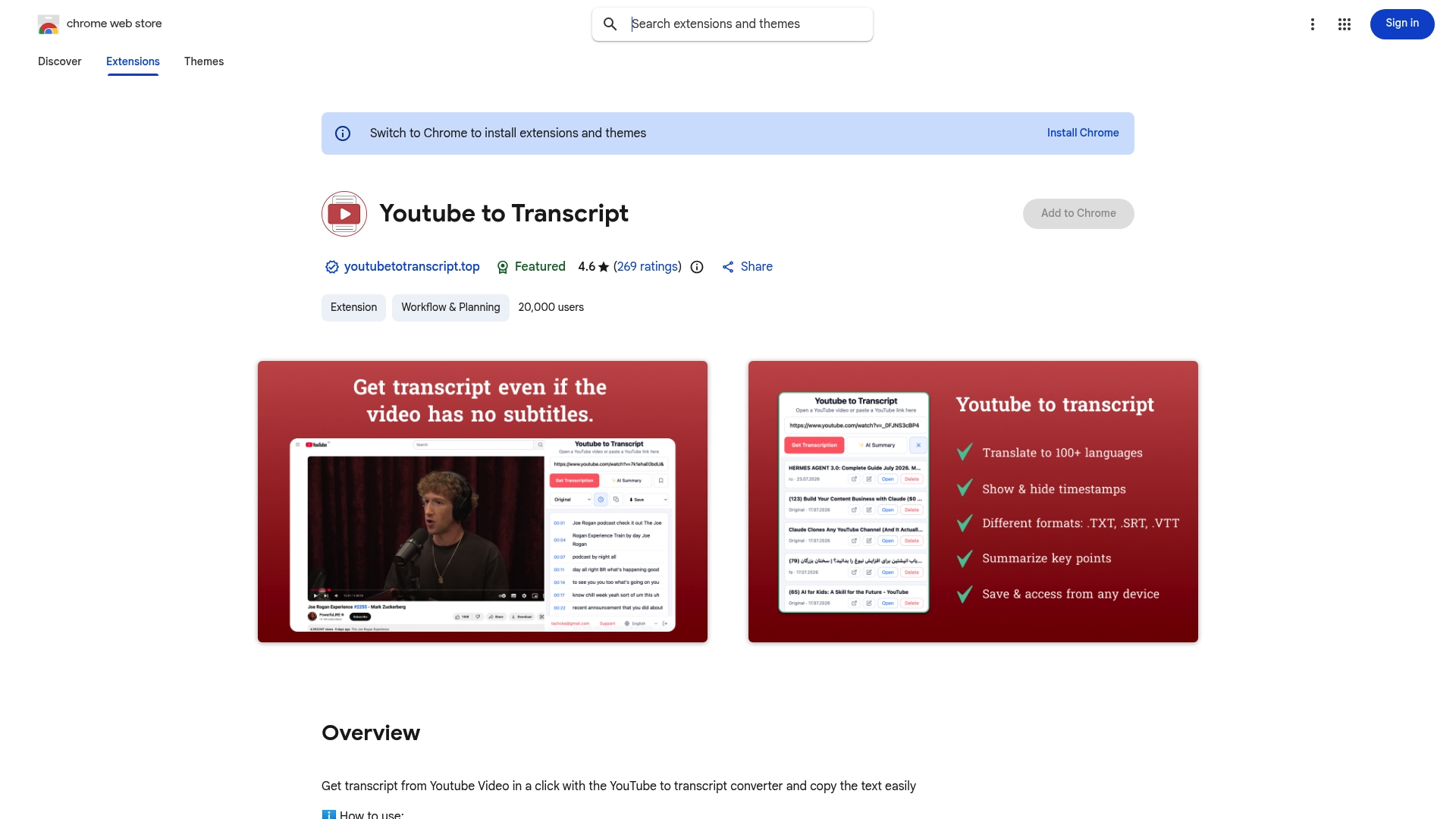
The tool transcribes video audio with AI, even when a video has no captions at all, then translates that transcript into many languages. You can export the result as TXT, SRT, or VTT, store transcripts in the cloud so you’re not hunting through downloads folders, and batch-process a whole playlist instead of one video at a time. For readers repurposing lecture content, that pairs well with a lecture notes summarizer if you want a condensed version alongside the full transcript.
Install the YouTube to Transcript Chrome extension and paste in a video link to see your first English transcript generated in real time.
Sources
FAQ
Is There a Way to Translate a YouTube Video Into English?
Yes. Use YouTube’s built-in Auto-translate for quick viewing, or paste the link into an AI tool like Youtubetotranscript to get a downloadable English transcript, subtitle file, or dubbed audio.
How Do I Translate YouTube Videos to Any Language?
Most AI transcription and translation tools, including Youtubetotranscript, support translation into dozens of languages beyond English, typically 89 or more, from a single transcribed source.
How Do I Get YouTube to Automatically Translate?
Click the CC icon in the player, open Settings, select Subtitles/CC, choose Auto-translate, then pick your target language. This only works if the video already has captions, auto-generated or uploaded.
How Can I Translate YouTube Videos for Free?
YouTube’s Auto-translate feature is free but limited to on-screen viewing with no export option. Most AI translation tools also offer a free tier covering a limited number of minutes before requiring a paid plan.