
There are three reliable ways to turn a YouTube video into usable text: extract the built-in captions, run independent AI speech-to-text on the video URL, or download the audio and upload it when the video is locked. If you need a quick reference fast, grab the captions. If you’re publishing a video to blog post conversion or a translated export, run it through an AI transcription tool built for cleanup and formatting. If the video is private, age-restricted, or region-locked, download the audio first and upload it separately.
For accurate, exportable, publication-ready transcripts, Youtubetotranscript is built for the second case: pasting a URL and getting a clean, formatted result you can actually use.
- Extract captions — fastest, good for quick reference
- AI speech-to-text from URL — best for accuracy, exports, and translation
- Download audio, then upload — the fallback for restricted videos
Key Takeaways
Choosing the right transcription method by your actual bottleneck, speed, accuracy, or access, determines whether the output is usable or just raw text.
| Point | Details |
|---|---|
| Match method to need | Use captions for speed, AI speech-to-text for accuracy, download-and-upload for restricted access. |
| Cleanup is not optional | Punctuation, name normalization, and speaker labeling turn raw text into publishable content. |
| Export format depends on use | Choose TXT for quoting, SRT or VTT for subtitle workflows. |
| Summarize before deep reading | Generate a timestamped summary first to triage long videos efficiently. |
| Youtubetotranscript handles the export case | Offers URL-based transcription, 89+ language translation, batch processing, and TXT/SRT/VTT exports. |
Table of Contents
- What to Check Before You Convert a Video to a Blog Post
- Method A: Extract Youtube’s Built-In Captions
- Method B: Run AI Speech-to-Text From the Video URL
- Method C: Download Audio First, Then Upload
- How Do You Clean Up a Transcript for Publishing?
- How Do You Scale Transcripts Across a Whole Playlist?
- How Youtubetotranscript Fits the Professional Workflow
- A Practical Note on Choosing the Right Method
- Sources
- FAQ
What to Check Before You Convert a Video to a Blog Post
- Decide what you actually need: a rough note, a publishable article, or subtitle files.
- Check whether the video has captions at all, and whether you have permission to access it (private, unlisted, or members-only content needs extra steps).
- Confirm you have the tools ready: a browser, a transcription extension, or the ability to download audio.
- Weigh time against cost. Captions take seconds but need cleanup. AI transcription takes longer but needs less editing afterward.
Method A: Extract Youtube’s Built-In Captions
Open any YouTube video, click the three-dot menu below the player, and select “Show transcript.” YouTube displays a scrollable panel with timestamps and text, and a language dropdown if multiple caption tracks exist. This works whether the creator uploaded captions manually or YouTube generated them automatically, and it’s the quickest way to get something on the page in front of you.
- Click the three-dot menu under the video, then “Show transcript”
- Check the language dropdown for translated or manually uploaded tracks
- Copy the text directly from the panel, or use a caption-extraction tool to grab it formatted
- Paste into a document and start cleaning up line breaks
This method is fast because you’re not waiting on any processing. It’s sufficient for quotes, quick summaries, or content you’re skimming rather than publishing. The catch is quality. Auto-generated captions often misspell technical terms, guess at homophones, and never label who’s speaking, which becomes obvious the moment you try to adapt a multi-guest interview into readable prose.
Pro Tip: If a video has no visible transcript option, it usually means captions were disabled by the uploader, not that none exist. Check for a closed-caption icon in the player before assuming you need a different method.

Method B: Run AI Speech-to-Text From the Video URL
Extracting captions gets you speed. Running independent AI speech-to-text gets you accuracy, and for anyone actually converting a video to blog post format for publication, that trade-off usually favors accuracy. YouTube’s caption retrieval is the fastest route when captions already exist, but independent automatic speech recognition (ASR) paired with a cleanup pass produces transcripts that read like writing, not like a stenographer’s raw feed.
The pipeline looks like this: the tool pulls the audio from the URL, runs it through an ASR model, then passes the output through a cleanup layer that restores punctuation, fixes capitalization, and handles technical vocabulary the way a human editor would. That’s a meaningfully different process than scraping YouTube’s existing caption track, and it’s why results differ so much between tools that only fetch captions and tools that transcribe independently.
- Paste the video URL into the transcription tool
- Select the source language (and a target language if you need translation)
- Review the draft output for names, jargon, or numbers the model may have flattened
- Export in your preferred format once you’re satisfied
Extensions that return results in seconds for a 40-minute video are almost always retrieving auto-captions rather than running true ASR. If speed feels suspiciously instant, that’s your signal to check whether you’re getting scraped captions or an actual transcription. Genuine ASR processing takes longer, roughly proportional to video length, but it handles accents, crosstalk, and specialized terminology far better. Skip this method only when you need something in the next ten seconds and don’t care about polish.
Method C: Download Audio First, Then Upload
Private, age-restricted, and members-only videos block URL-based tools because those tools have no way to authenticate as you. The video exists behind a login wall that a transcription service can’t reach without your session, which is why the download-then-upload path is the reliable workaround, not a workaround of last resort.
- Confirm you have legitimate access and permission to transcribe the content. Downloading someone else’s private video without consent raises real rights issues.
- Extract the audio track using a browser tool or downloader while signed in to the account that has access.
- Upload the audio file directly to a transcription service rather than pasting the URL.
- Check that timestamps and file metadata carry over, so your export still lines up with the original video’s pacing.
This route takes a few extra minutes, but it’s often the only one that works at all for gated content, and it’s worth the detour rather than giving up on the transcript entirely.
How Do You Clean Up a Transcript for Publishing?
A raw transcript, whether from captions or ASR, is not a blog post. The gap between the two is a cleanup pass, and skipping it is the most common reason a video to blog post project reads clumsily. Punctuation needs restoring, sentence boundaries need fixing, and names get normalized so “Sarah” doesn’t become “Sara” three paragraphs later.
For interviews or panel discussions, speaker diarization separates who said what. Run it as its own stage, then merge it carefully with the transcript’s timestamps. Label speakers consistently (“Host:”, “Guest:”, or actual names) rather than switching conventions mid-document, which confuses readers fast.
- Run a punctuation and capitalization pass before anything else
- Normalize proper nouns, brand names, and technical terms against a known list
- Choose TXT for quoting and note-taking, SRT or VTT when you’re building subtitle files
- For long videos, generate a summary with timestamps first, then dig into specific sections instead of reading start to finish
Captions and full transcripts also do double duty for accessibility. About 1 in 8 people aged 12 and older in the U.S. live with some form of hearing loss, and publishers who include transcripts and captions see organic video traffic increase by up to 30 percent, according to the same data. Cleanup work isn’t just cosmetic. It’s what makes the content usable for the reader who needs it.
Pro Tip: Keep a running list of names, products, and jargon specific to your niche. Paste it into your cleanup workflow so the model has something to check against instead of guessing every time.
How Do You Scale Transcripts Across a Whole Playlist?
Converting one video is manageable by hand. Converting a full playlist or channel archive is not, which is where AI summaries, translation, and batch processing earn their place in the workflow. Generate a structured summary with timestamps before reading a long transcript in full. It lets you triage which sections deserve a deep read and which you can skip entirely.
Translation should run automatically for a first pass, with human review reserved for anything going to print or a paying client, since even strong translation models miss idiom and tone occasionally. Batch processing and cloud storage matter most once you’re past a handful of videos. Trying to manage 30 separate transcript files on a laptop desktop gets unmanageable fast, while a batch export with consistent naming keeps everything searchable.
| Export Format | Best Use Case |
|---|---|
| TXT | Quoting, note-taking, quick blog drafts |
| SRT | Subtitle files for video platforms |
| VTT | Web-based subtitle and caption tracks |
| Merged transcript | Long-form articles pulled from multi-part series |
- Generate a one-paragraph summary before committing to a full read
- Export one file per video for archives, or merge them for a single long-form piece
- Store translated versions alongside originals so you’re not re-running the same video twice
How Youtubetotranscript Fits the Professional Workflow
Everything above points to the same conclusion: the fastest method isn’t always the right one, and the right one depends on what you’re building. Youtubetotranscript is built around the URL-based AI transcription path, which is the method that matters most once you’re publishing rather than skimming.
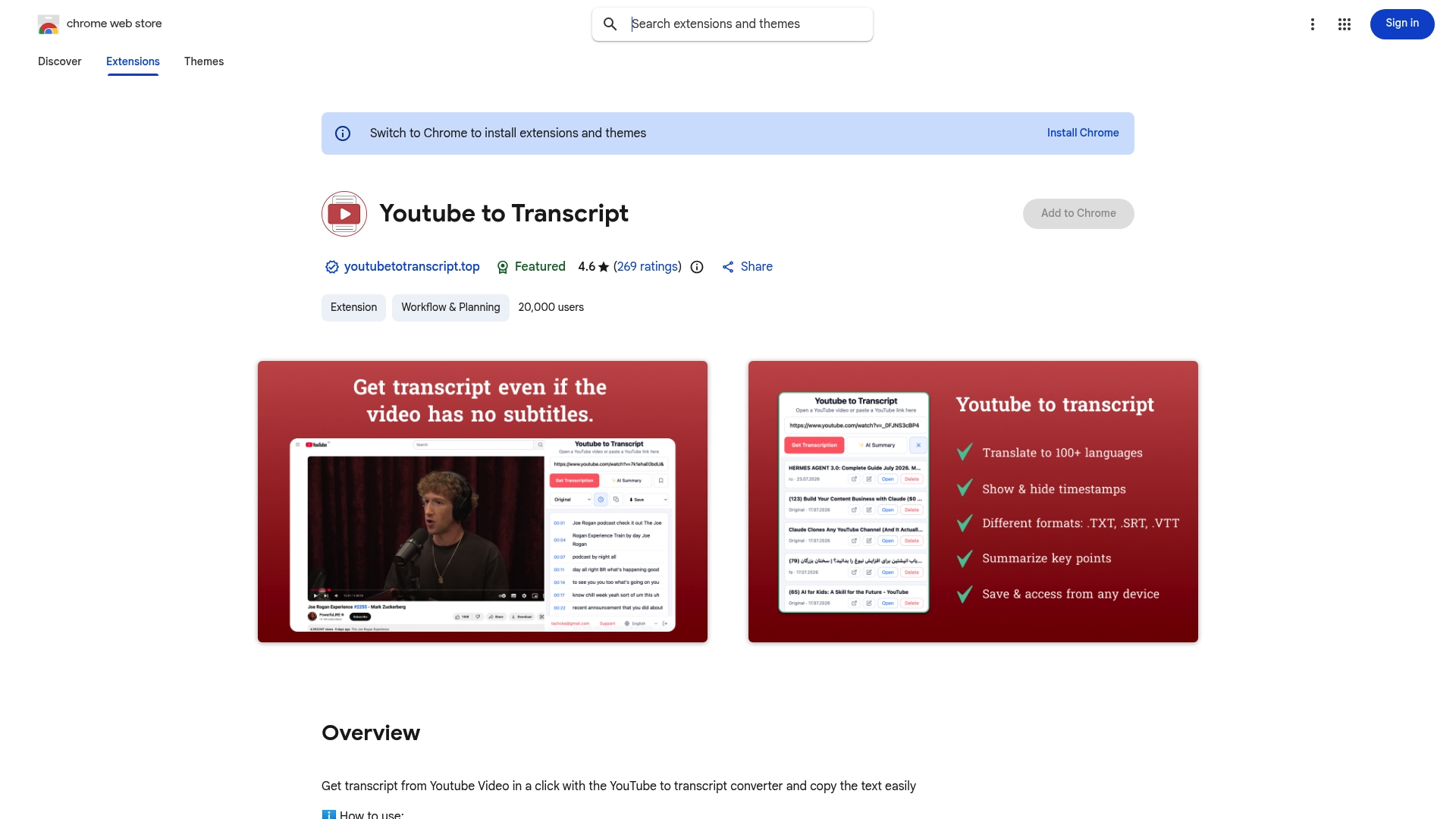
Paste a link and the extension handles audio extraction, transcription, and cleanup in one pass, then lets you export as TXT, SRT, or VTT depending on whether you’re writing an article or building subtitles. Translation covers more than 89 languages, which matters if your audience reads in more than one. Cloud storage keeps every transcript organized instead of scattered across downloads folders, and batch processing handles a full playlist without you babysitting each video individually. Timestamps and speaker labels carry through the export, so interviews and panel discussions stay readable.
The free tier covers occasional use. Paid plans unlock the batch and storage features once you’re processing more than a video or two a week. Install the Chrome extension and run your next video through it before you copy a single caption by hand.

A Practical Note on Choosing the Right Method
Most guides treat transcription as one process with one right answer. It isn’t. The method that serves a student pulling a quick quote is the wrong method for a marketer building a translated blog series, and pretending otherwise is where most workflow advice falls apart.
The overlooked mistake I see repeatedly: people assume a fast result means an accurate one. A transcript that returns in three seconds for an hour-long lecture almost certainly skipped the cleanup and diarization work that makes text genuinely readable. Speed and accuracy trade against each other, and knowing which one your project actually needs, before you pick a tool, saves more time than any feature comparison.
FAQ
What’s the fastest way to convert a video to a blog post?
Extracting YouTube’s built-in captions is fastest, but AI speech-to-text from the URL produces cleaner, more publishable text with less editing afterward.
Can I get a transcript from a private or age-restricted video?
Yes, but URL-based tools can’t authenticate into private content. Download the audio while signed in, then upload it directly to a transcription service.
Which export format should I use for a blog post?
TXT works best for quoting and drafting articles, while SRT and VTT are built for subtitle and captioning workflows.
Do transcripts actually improve a video’s reach?
Including transcripts and captions is linked to increasing organic video traffic by up to 30 percent, largely because they make content accessible to more viewers and searchable by more queries.
How do I handle multi-speaker interviews in a transcript?
Run speaker diarization as a separate step, then merge it with the transcript’s timestamps and label each speaker consistently throughout the document.