
The fastest way to get a YouTube transcript to PDF is to paste the video URL into a transcript-to-PDF web tool or run a one-click Chrome extension. Both methods produce a formatted, downloadable PDF in under a minute, no manual copy-paste required.
Most tools built for this job export in more than one format, so you’re not locked into a single file type.
- PDF for reading, printing, or citing
- TXT for dropping into a text editor or AI summarizer
- DOCX for further editing in Word
- SRT if you need timed captions instead of prose
Pro Tip: Look for a tool that lets you toggle timestamps on or off before export. Timestamped transcripts work better for citations and video reference; clean prose works better for study notes or article drafts.
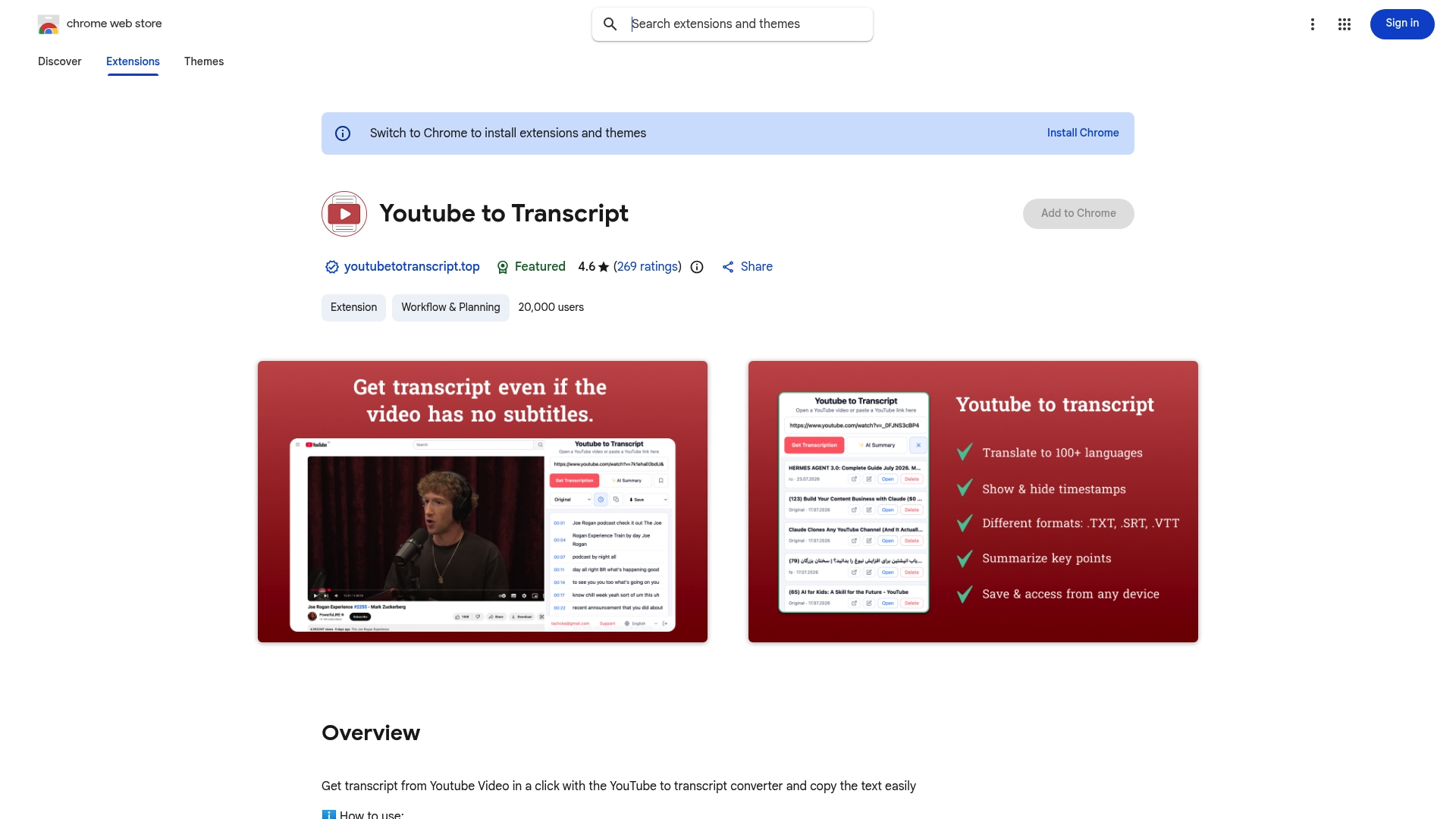
Some web-based generators can produce a formatted PDF with a cover page, metadata, and cleaned transcript from a YouTube URL in seconds, which is the benchmark worth expecting from any tool you try. Youtubetotranscript’s Chrome extension follows the same one-click pattern, adding cloud storage so you can revisit past exports without redoing the work.
Key Takeaways
The fastest, most reliable way to get a YouTube transcript to PDF is a one-click web tool or browser extension, not manual copy-paste into a document editor.
| Point | Details |
|---|---|
| Fastest method wins | A paste-URL web tool or Chrome extension produces a formatted PDF in under a minute. |
| Match format to purpose | Use timestamps for citations and video reference, clean prose for study notes and drafts. |
| Clean before you export | Strip noise tokens like [Music], add a cover page with title, channel, and URL. |
| Know the failure points | Disabled captions, low accuracy, and private videos each need a different workaround. |
| Youtubetotranscript covers the full workflow | Its Chrome extension offers one-click extraction, AI transcription for videos without subtitles, cloud storage, and PDF/TXT/SRT/VTT export. |
Useful sources
- YouTube to Transcript — Chrome Web Store for the publisher’s extension.
- YouTube Transcript to PDF Generator — Apify documents automated PDF output features.
Table of Contents
- How Do You Extract a YouTube Transcript and Export It to PDF?
- Web Tool, Extension, YouTube’s Own Transcript, or Manual Copy: Which Fits You?
- How Do You Format a Clean, Professional Transcript PDF?
- What Do You Do When the Transcript Extraction Fails?
- Why Youtubetotranscript Handles This Well
- Editorial Perspective: What Actually Matters in This Workflow
- Get One-Click PDF Exports With Youtubetotranscript
- FAQ
How Do You Extract a YouTube Transcript and Export It to PDF?
You have three realistic paths: a web tool, a browser extension, or a manual copy-and-paste into a document editor. Here’s how each one actually works, start to finish.
Using a transcript-to-PDF web tool:
- Open the YouTube video and copy its URL, or open it directly in a new tab. Confirm the video is public and has either manual or auto-generated captions.
- Paste the URL into the transcript tool’s input field and let it pull the captions.
- Choose your export format. If PDF is offered, select it directly; if not, export as TXT first and convert afterward.
- Decide whether to include timestamps, then download the file.
Many short guides describe this exact free workflow: paste the link, extract, export. No account required in most cases.
Using a browser extension:
- Install the extension and pin it to your toolbar so it’s one click away.
- Open the YouTube video, click the extension icon, and let it extract the transcript.
- Pick your export settings (format, timestamps, language) inside the extension’s panel.
- Download the file or save it to the extension’s cloud storage if that feature is available.
Extensions that add a transcript button directly to YouTube’s interface cut out the step of visiting a separate website every time, which matters if you’re extracting transcripts several times a week.
Manual fallback (no tool at all):
- Open the video’s transcript panel directly on YouTube (click the three dots below the video, then “Show transcript”).
- Select all the text and copy it.
- Paste it into Google Docs or Microsoft Word.
- Go to File, then Download or Save As, and choose PDF.
This last method takes longer and leaves timestamp fragments and line breaks you’ll need to clean up, but it works when you can’t install anything or don’t want to touch a third-party tool.
Web Tool, Extension, YouTube’s Own Transcript, or Manual Copy: Which Fits You?
The right method depends on how often you do this and what device you’re on, not on which one is objectively “best.”
- Web tools work on any device, including phones and tablets, and most produce a direct PDF without extra software. The tradeoff: you’re sending a video URL to a third-party server, which is a non-issue for public videos but worth knowing.
- Extensions are faster for repeat use since the button lives right on the YouTube page, and many include cloud storage so past transcripts stay accessible. They’re desktop-only and require granting browser permissions.
- YouTube’s built-in transcript panel keeps everything in-house with no third party involved, but you’ll spend time manually stripping timestamps and line breaks afterward.
- Manual copy-to-document gives you full control over formatting, fonts, and citation metadata, which matters if you’re submitting a transcript as part of academic or professional documentation.
If you extract transcripts occasionally, a web tool is the path of least resistance. If you do it daily for research or content repurposing, an extension with cloud storage saves real time over a month.
How Do You Format a Clean, Professional Transcript PDF?
A raw transcript export is functional but rarely polished. A few small decisions make it usable for citation, study, or publishing.
First, decide your timestamp strategy. Practitioners generally prefer clean, timestamp-free prose for drafting articles and study notes, and timestamped transcripts for citation or video reference work. Pick one purpose per export rather than trying to serve both.
- Strip noise tokens like
[Music]and[Applause]using your tool’s filter option, or a quick find-and-replace pass in your document editor. - Add a short cover page with the video title, channel name, and original URL. For research use, include the publish date and page numbers so the file can be referenced properly in notes or citations.
- Choose embedded fonts and a readable font size (11 to 12 point works for most PDFs).
- Insert page breaks between sections or chapters if the video runs over 30 minutes.
Professional PDF export tools typically automate cover pages, metadata, and formatted paragraphs, which is exactly what separates a usable research document from a wall of raw text.
What Do You Do When the Transcript Extraction Fails?
Most failures fall into a handful of predictable categories, and each has a workaround.
- No transcript available: the video owner disabled captions. Request captions from the uploader directly, or upload the video’s audio to a separate transcription service if you have the file.
- Low accuracy: auto-captions often mangle names, jargon, and accents. Confirm you selected the correct spoken language, then run a punctuation cleanup pass or manually correct key lines.
- Private, region-blocked, or paid videos: transcript tools can’t reach content they don’t have access to. Ask the uploader for the transcript text directly, since no extraction tool works around access restrictions.
- Very long videos: a two-hour lecture makes for an unwieldy PDF. Export by chapter or timestamp segment so each file stays readable and searchable.
Why Youtubetotranscript Handles This Well
Youtubetotranscript’s Chrome extension is built around the exact workflow this guide walks through: one click to extract, then export straight to PDF, TXT, SRT, or VTT.
- One-click extraction with cloud storage, so past transcripts stay accessible without re-extracting them.
- Batch processing for anyone pulling transcripts from multiple videos at once, like a playlist for a course or a research project.
- AI transcription that works even when a video has no subtitles at all, plus translation support across 89-plus languages.
- Export options that map directly onto the formatting choices covered above: timestamp toggles, clean text output, and multiple file formats from a single extraction.
Extension listings across the market, including tools like NoteGPT, increasingly bundle summary generation alongside export, a sign that multi-format output has become the baseline readers expect rather than a premium extra.
The gap between a raw copy-pasted transcript and a properly exported one isn’t cosmetic. A cover page with the video title, channel, and source URL turns a wall of text into something you can actually cite months later.
Editorial Perspective: What Actually Matters in This Workflow
The conventional advice on this topic obsesses over “the best” transcript tool, as if one winner exists for every use case. It doesn’t. A student pulling one lecture transcript a semester has different needs than a content creator repurposing five videos a week into blog posts. The method matters less than matching it to how often you’ll actually do this.

Where most guides fall short is treating export as an afterthought. Extraction is the easy part now. Nearly every tool on the market can pull a transcript in seconds. What separates a usable document from a mess you’ll never open again is the five minutes spent deciding on timestamps, stripping [Music] tags, and adding a cover page. Skip that step and you’ve just moved your clutter from a video to a PDF.
If you take one thing from this guide, prioritize the cleanup pass over the extraction method. A slightly slower tool that gives you clean output beats an instant export you’ll have to fix by hand anyway.
— Vitaly Prius
Get One-Click PDF Exports With Youtubetotranscript
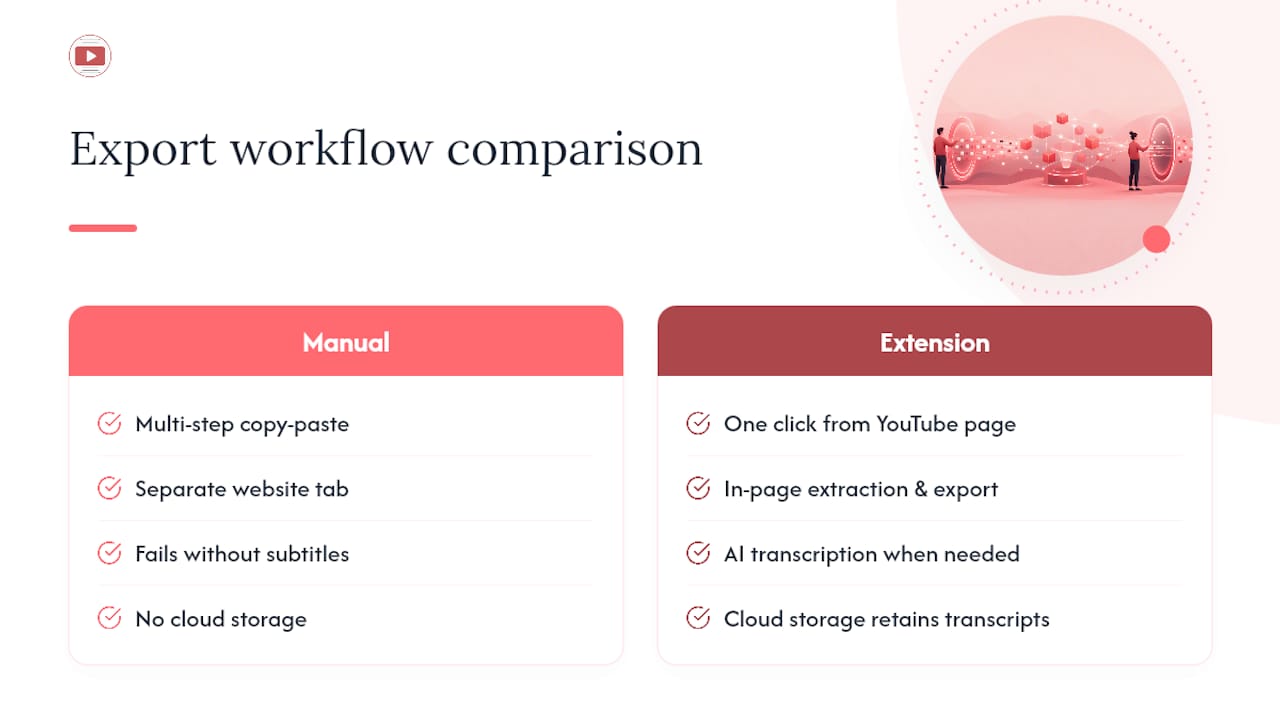
Youtubetotranscript replaces the multi-step copy-paste routine with a single click, right from the YouTube page you’re already watching. Instead of juggling a separate website tab, an extension does the extraction, formatting, and export in one motion, including cases where a video has no subtitles at all thanks to its AI transcription.
That matters most if you’re a student pulling lecture transcripts weekly or a creator repurposing videos into articles and show notes. The Chrome extension adds cloud storage, so a transcript you exported last month is still there when you need it again, and batch processing handles multiple videos without repeating the same steps each time. For readers who also want to compare transcription accuracy across different AI models, OpenTranscription offers a technical benchmarking resource worth a look.
If you’re ready to stop copy-pasting transcripts by hand, install the extension and run your next export in one click.
FAQ
How Can I Save a YouTube Transcript as a PDF?
Paste the video URL into a transcript-to-PDF web tool or use a Chrome extension like Youtubetotranscript, select PDF as your export format, and download. Both methods take under a minute for most videos.
Can I Download Transcripts From YouTube?
Yes. YouTube’s built-in transcript panel lets you copy the text manually, or you can use a web tool or extension to extract and export it directly as a file.
How Do I Get a Transcript of an Entire Long YouTube Video?
Extract the full transcript through a web tool or extension, then export it as one PDF or split it into chapter-based segments if the video runs over an hour for easier reading.
Can ChatGPT Transcribe a YouTube Video?
ChatGPT can’t directly access or transcribe a YouTube video’s audio on its own; you need to extract the transcript first with a tool or YouTube’s caption panel, then paste that text in for summarizing or editing.